
Confirmed by Taggalong on 2026-11-24 · your lab org
You'll write payment terms once, as a clause in Revenue Cloud's clause library, and generate a proposal from a quote that carries them. Then the customer says yes: you turn the quote into a contract that keeps the price you agreed, and follow what hangs on that contract: a quote priced from it, an order, the customer's asset and a renewal.
The lab has three parts. Steps 1 to 4 build a managed clause. Steps 5 to 8 put it into a proposal and change it once. Steps 9 to 16 make the contract and follow it.
What you'll make
- A clause category, TGFG-Terms
- A clause set, TGFG-Payment Terms, with the main clause TGFG-Net 30 and an alternate, TGFG-Net 60
- A document template, TGFG_Terms_Letter, from a Word file you download
- Two proposals on the quote TGFG-Contracts Lab Quote, TGFG_Terms_Letter_1 and TGFG_Terms_Letter_2, one before and one after a new clause version
- A contract made from that quote, with the quote's price kept as a contract price
- A quote priced from the contract, TGFG-Contract Price Check
- An order and an asset under the contract, and a renewal quote, Renewal Quote
What contracts are in Revenue Cloud
- Approved wording lives in a clause library. A clause set groups related clauses by their variations and versions. It has one main clause and can have alternates.
- A template can pull a clause in by its token. The token this lab uses gets the clause's latest active version when a document is generated, so the template picks up new wording without being changed. A version token pins one version instead.
- A contract holds what the customer agreed to. It groups the customer's assets, and its contract prices are the negotiated prices later quotes and orders honor.
- Contract prices can come from a quote. A contract made from a quote can keep the quote's net unit prices or discounts. One made from an order gets no contract prices, and only a draft order can get a contract.
- A quote started from an activated contract uses its prices, once the contract pricing decision table has been refreshed.
- Amendments and renewals started from a contract are tied to it, but the asset can decide their price. Their lines use the contract's prices unless the asset's own pricing source says otherwise.
Each line rests on Salesforce's documentation. The sources are on the guide page: Contracts.
Your lab org comes with a sample company, QuantumBit. Its products, price books and billing setup are there because the labs use them, so leave them as they are. Everything a lab names starts with TGFG-, so you can always tell your work from QuantumBit's.
Open your lab org
From Org Launcher
Click your lab org's name.
No Org Launcher yet? Track your orgs
From the command line
Put your lab's name where it is marked.
sf org open -o rlm-base__your lab name
If you kept the name the lab org page suggests, that is my-lab:
sf org open -o rlm-base__my-lab
Before you start
Set it up once before you start, with Claude: paste the prompt below into Claude Code.
You need a Revenue Cloud org built from Salesforce's launchpad, Revenue Cloud Foundations, with its QuantumBit sample catalog. Your user needs the CLM Admin User and Clause Designer User permission sets and Document Generation access. The admin user of an org built for these labs has them. If a tab or button below is missing, check that your user has the RLM_CLM permission set group (it holds CLM Admin User and Clause Designer User) and the RLM_DOC and RLM DocGen permission sets.
Your user also needs edit access to the Contract object's Shipping Address field. The launchpad's New Contract flow fills that address in, and no profile or admin permission set in a launchpad build gives that access yet, so the flow fails without it. The setup gives it with a permission set of its own. By hand, make a permission set that gives read and edit on Contract's Shipping Address, and assign it to yourself.
The setup makes these for you, owned by your user:
| It makes | Called | What it's for |
|---|---|---|
| An account in USD, with a contact and billing profile | TGFG-Contracts Lab | The customer |
| An opportunity on the Standard Price Book | TGFG-Contracts Lab Opportunity | Where the quote sits |
| A draft quote with one line: QB API Management Solution, Term Annual, USD 12,000 a year | TGFG-Contracts Lab Quote | The quote you discount, make proposals from and contract |
| A permission set, assigned to you | TGFG-Contracts Lab | Read and edit on the contract's Shipping Address. Without it, New Contract fails |
| A list view on Accounts, Quotes, Contracts, Orders, Assets, Document Clauses and Document Templates | TGFG lab records | The lab's records in one list on each tab |
The quote stays a draft, with no order: a contract can't be linked to an order that is already activated, and this lab orders under the contract in step 14.
Set up the Contracts lab from the Taggalong field guide in my Revenue Cloud practice org (the scratch org I built with Salesforce's launchpad; its sf CLI alias is the one I tell you, or ask me).

Rules:
- Only create records whose names start with TGFG-, plus the contact, billing profile, opportunity, quote and quote line that belong to them, the permission set in step 4 and the list views in step 6. Never change the QuantumBit sample records.
- Don't change anything pricing runs on: no product, price book, price book entry, pricing procedure, context definition, decision table, flow, setting or page layout.
- Don't create, edit, activate or deactivate any contract, order, clause category, clause set, clause or document template. Building those is mine to do in the lab.
- Don't change any profile, or any permission set or permission set group that's already in the org. Step 4 makes one new permission set, and that's the only access change.
- Everything you create is owned by the user the sf CLI is logged in to the org as (the username sf org list shows for my alias). Don't change any record's owner.
- Never print or show me an access token, and don't show the full output of sf org display.
- Tell me in one line what you're doing at each step, and show me any error before you try to fix it.

Steps:
1. Find the Account named TGFG-Contracts Lab, or create it with CurrencyIsoCode USD and the billing and shipping address 4300 Main Street, Philadelphia, PA 19127, US (BillingStreet, BillingCity, BillingState, BillingPostalCode, BillingCountry and the same five Shipping fields). If the account has no contact, create one on it: AccountId the account, FirstName TGFG, LastName Contracts Lab Contact, Email [email protected]. If it has no default billing profile (a BillingAccount with that AccountId and IsDefaultBillingProfile true; there is no BillingProfile object), create one named TGFG-Contracts Lab Billing, with BillToContactId set to that contact, IsDefaultBillingProfile true, and the same address in PrimaryBillAddrStreet, PrimaryBillAddrCity, PrimaryBillAddrState, PrimaryBillAddrPostalCode and PrimaryBillAddrCountry.
2. Look up these Ids by query (sf data query, or sf api request rest "/services/data/v68.0/query?q=<the SOQL, URL-encoded>" -o <alias>). If any is missing, stop and tell me.
    - The standard price book: SELECT Id FROM Pricebook2 WHERE IsStandard = true
    - The product: SELECT Id FROM Product2 WHERE StockKeepingUnit = 'QB-API-MGMT'
    - Its price book entry: SELECT Id, UnitPrice FROM PricebookEntry WHERE Product2.StockKeepingUnit = 'QB-API-MGMT' AND Pricebook2.IsStandard = true AND CurrencyIsoCode = 'USD' AND ProductSellingModel.Name = 'Term Annual' AND IsActive = true. The product has three USD entries, so keep the selling model filter. UnitPrice should be 12000; if it isn't, stop and tell me.
    - The billing treatment: SELECT Id FROM BillingTreatment WHERE Name = 'Billing Treatment - USA - Advance' AND Status = 'Active'
3. The quote. List the quotes on the account (QuoteAccountId) whose Name starts with TGFG-Contracts Lab Quote. For each, show its Name, QuoteNumber, Status and ContractId, how many QuoteLineItems it has and the product of each (Product2.Name), and whether any Order has its Id as QuoteId.
    - If one is Draft, has no contract and no order, and has exactly one line, for QB API Management Solution, use it. Don't change it. Tell me its name and number, and whether its line already has a discount (Discount on the QuoteLineItem).
    - Otherwise make a new one, even if an earlier quote of that name has no line (a failed Place Sales Transaction call leaves one). Leave every earlier quote as it is: never edit or delete one.
    - Making one: Name it TGFG-Contracts Lab Quote if no quote on the account has that name yet, else TGFG-Contracts Lab Quote 2, 3 and so on: the first name that is free. Then:
     a. Find the Opportunity named TGFG-Contracts Lab Opportunity on the account, or create it: sf data create record -s Opportunity -v "Name='TGFG-Contracts Lab Opportunity' AccountId=<account> StageName='Proposal/Quote' CloseDate=<a year after today> Pricebook2Id=<standard price book> CurrencyIsoCode=USD" -o <alias>
     b. Make the quote and its line with one Place Sales Transaction call. Save this body as place.json, with the Ids, the quote's name and the dates put in. Keep it in the folder you run the command from, or give its full path after the @. Dates are YYYY-MM-DD: StartDate today and EndDate one day short of a year later, for example 2026-11-24 and 2027-11-23.
        {"pricingPref": "System",
         "configurationPref": {"configurationMethod": "Skip"},
         "graph": {"graphId": "tgfgContractsLab", "records": [
          {"referenceId": "refQuote", "record": {"attributes": {"type": "Quote", "method": "POST"},
            "Name": "<the quote's name>", "OpportunityId": "<opportunity>", "QuoteAccountId": "<account>",
            "Pricebook2Id": "<standard price book>", "Status": "Draft"}},
          {"referenceId": "refLine", "record": {"attributes": {"type": "QuoteLineItem", "method": "POST"},
            "QuoteId": "@{refQuote.id}", "Product2Id": "<product>", "PricebookEntryId": "<price book entry>",
            "Quantity": 1, "StartDate": "<today>", "EndDate": "<one day short of a year later>",
            "PeriodBoundary": "Anniversary", "BillingFrequency": "Monthly", "BillingTreatmentId": "<billing treatment>"}}]}}
        Post it: sf api request rest "/services/data/v68.0/connect/rev/sales-transaction/actions/place" --method POST --body @place.json -o <alias>
     c. Read isSuccess and the error list in the answer, not only whether a quote Id came back. The quote's Id comes back as salesTransactionId. This call can make the quote without its line and still answer with an error. If isSuccess isn't true, show me the errors and the salesTransactionId if one came back, and stop. Don't send the call again: it would make a second quote.
4. Give my user edit access to the contract's shipping address. The launchpad's flow behind the quote's New Contract button fills that address in, and no profile or admin permission set in a freshly built org gives access to it, so New Contract fails with "An unhandled fault has occurred in this flow" and makes no contract. Find the PermissionSet whose Name is TGFG_Contracts_Lab, or create it with Name TGFG_Contracts_Lab and Label "TGFG-Contracts Lab". If it has no FieldPermissions row for the field Contract.ShippingAddress, create one: ParentId that permission set, SobjectType Contract, Field Contract.ShippingAddress, PermissionsRead true, PermissionsEdit true. For the user's Id, take the username that sf org list shows for my alias and query SELECT Id FROM User WHERE Username = '<that username>'. If the permission set isn't assigned to that user, create a PermissionSetAssignment with AssigneeId that user and PermissionSetId that permission set. sf data create record makes all three. Then check that sf sobject describe on Contract lists ShippingStreet as updateable. ShippingAddress itself always shows as not updateable, because it is a compound field; that is expected.
5. Check the quote by query. Pricing takes about 20 seconds, so query again until CalculationStatus is CompletedWithTax, for up to two minutes; if it isn't by then, tell me what it says. The quote: Name, QuoteNumber, Status Draft, QuoteAccountId the account, Pricebook2Id the standard price book, GrandTotal, ContractId empty. Its one line: QB API Management Solution, Quantity 1, ListPrice 12000, NetUnitPrice, StartDate, EndDate, BillingFrequency Monthly. If the line is missing, stop and tell me.
6. Make the list view "TGFG lab records" on Account, Quote, Contract, Order, Asset, DocumentClause and DocumentTemplate, so each tab can list the lab's records.
    - First find the views that already exist, all at once: SELECT SobjectType FROM ListView WHERE DeveloperName = 'TGFG_lab_records'. Skip every object in the answer.
    - For each other object, write its body to lv_<Object>.json (in the folder you run the command from, or anywhere and give its full path after the @) and post it: sf api request rest --method POST --body @lv_<Object>.json "/services/data/v68.0/ui-api/list-info/<Object>" -o <alias>
    - Every body has "listViewApiName":"TGFG_lab_records", "label":"TGFG lab records", "visibility":"Private" and "scope":{"apiName":"everything"}. The filters go in "filteredByInfo", a list, each filter being {"fieldApiName":"<field>","operandLabels":[<values>],"operator":"StartsWith"}. The columns go in "displayColumns", a list of field API names. "filterLogicString" is null unless given below. Leave out orderedByInfo: the API refuses it. The whole body for Account, which the other six follow:
     {"listViewApiName":"TGFG_lab_records","label":"TGFG lab records","visibility":"Private","filteredByInfo":[{"fieldApiName":"Name","operandLabels":["TGFG"],"operator":"StartsWith"}],"filterLogicString":null,"displayColumns":["Name","CreatedDate"],"scope":{"apiName":"everything"}}
    - Account: filter Name, values "TGFG". Columns ["Name","CreatedDate"].
    - Quote: filter Name, values "TGFG" and "Renewal Quote". Columns ["QuoteNumber","Name","QuoteAccount.Name","Status","Contract.ContractNumber","GrandTotal"]. (A Quote list view filtered on Account for Quote saves, but Lightning won't show it, so this one filters on the quote's name. "Renewal Quote" is there so the lab's renewal quote shows.)
    - Contract: filter Account.Name, values "TGFG". Columns ["ContractNumber","Account.Name","Status","StartDate","EndDate"].
    - Order: filters Name and Account.Name, values "TGFG" each, filterLogicString "1 OR 2". Columns ["OrderNumber","Name","Account.Name","Status","EffectiveDate","Contract.ContractNumber","TotalAmount"].
    - Asset: filters Name and Account.Name, values "TGFG" each, filterLogicString "1 OR 2". Columns ["Name","Account.Name","LifecycleStartDate","LifecycleEndDate","CurrentQuantity"].
    - DocumentClause: filter Name, values "TGFG". Columns ["Name","Status","Version","IsAlternateClause"].
    - DocumentTemplate: filter Name, values "TGFG". Columns ["Name","Status","UsageType","IsActive"].
    - A private view is seen by the user who made it, which is my user. A POST can make the view and still answer with an error, so after any error run the ListView query again and tell me what it shows. Don't delete anything without asking me.
7. Read-only checks: whether these already exist, with their Status (and Version for clauses): the clause category whose MasterLabel is TGFG-Terms (ClauseCatgConfiguration has no Name and no Status field, so report its DeveloperName and UsageType and no status), the clause set TGFG-Payment Terms (DocumentClauseSet), the clauses TGFG-Net 30 and TGFG-Net 60 (DocumentClause), the template TGFG_Terms_Letter (DocumentTemplate); and the Contract records on TGFG-Contracts Lab.
8. Report: the quote's name, Id, number, status and grand total, and whether you found it or made it; the Ids of the account, contact, billing profile and opportunity; whether step 4 found or made each of its three records; which list views you made or found; and the results of step 7. If step 7 finds the clause set or the template already there, tell me this is my second time through the lab, and that the note "Done this lab before?" on the lab page says which steps to skip.
Done this lab before? Keep what you made the first time and run the setup again. If your quote is no longer a draft with its one line and no contract or order, the setup makes a fresh draft quote and tells you its name: use that name wherever a step names TGFG-Contracts Lab Quote. Skip steps 1 to 4 and step 6: your clause category, clause set, clauses and template are still there. If the setup says your quote's line already has a discount, skip step 5 too. Step 7's proposal says whatever your latest active TGFG-Net 30 says. In step 8, the clause tree shows only the latest version of TGFG-Net 30, such as Version 2: click that link where the step names Version 1. In step 8, make the next version say another number, such as 30 again. In step 15, the list has a row for each contract you have made, all with Status Activated: pick yours by its number, the one in step 9's messages. Don't make new clauses with a 2 on the end of their names: the Word file names TGFG-Payment Terms and TGFG-Net 30 exactly, and any other name prints a blank line.
Every step of this lab has been clicked through on screen in a fresh lab org.
Steps
Make a clause category
SetupWhat this is. A clause category is what a clause set is filed under. The form for a clause set, in the next step, asks for one, and a new lab org has none.
- Click the gear at the top right.
- Click Setup. Setup opens in a new browser tab.
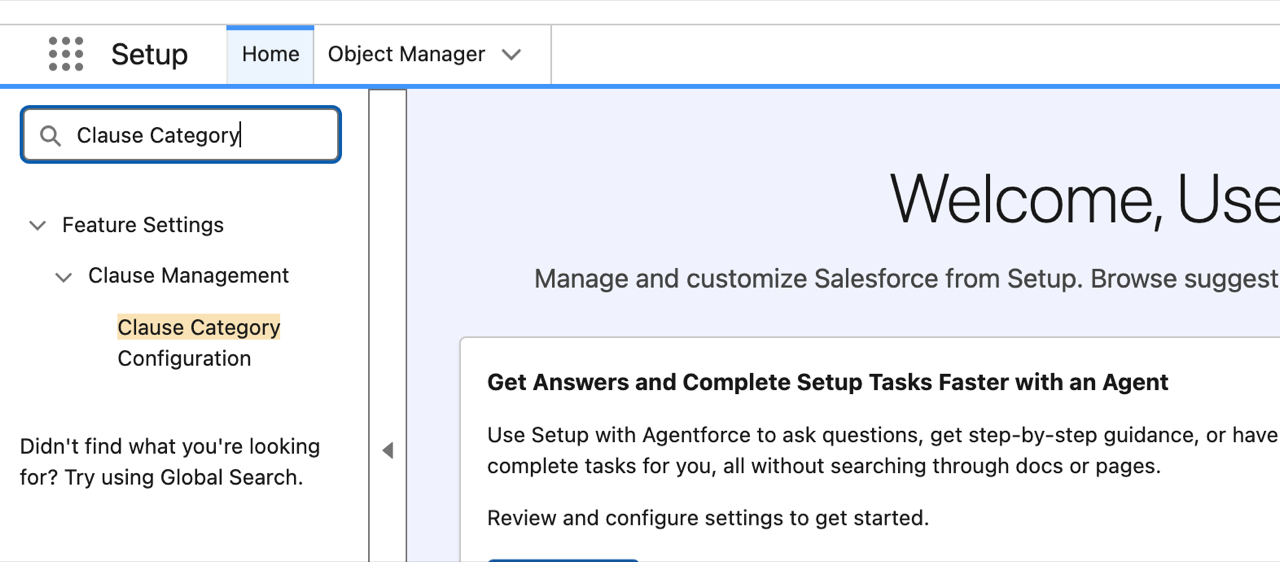 34
Setup's Quick Find, with Clause Category Configuration found under Clause Management. - In the Quick Find box 3, type
Clause Category. - Click Clause Category Configuration 4, under Feature Settings > Clause Management.
- Click New Clause Category Configuration.
- In Category Name, type
TGFG-Terms. - Click into the next field. Developer Name fills itself in with
TGFG_Terms. - In Usage Type, pick Contract Clause Category.
- Click Save.
You should see: the page Clause Category Configuration
TGFG_Terms, with Category Name TGFG-Terms, Developer NameTGFG_Termsand Usage Type Contract Clause Category, and the buttons Edit, Delete and Clone.Good to know: before you add one, the list says "No records to display." Developer Name is the API name; it fills itself in with an underscore where the name has a hyphen.
Create the clause set
 Document Clause Set
What this is. A clause set holds the approved wording for one term, such as payment terms: one main clause, and alternates beside it. Its name becomes part of the token a document uses in step 6.
- Open the App Launcher 1.
- Type
Revenue Cloud. - Click Revenue Cloud.
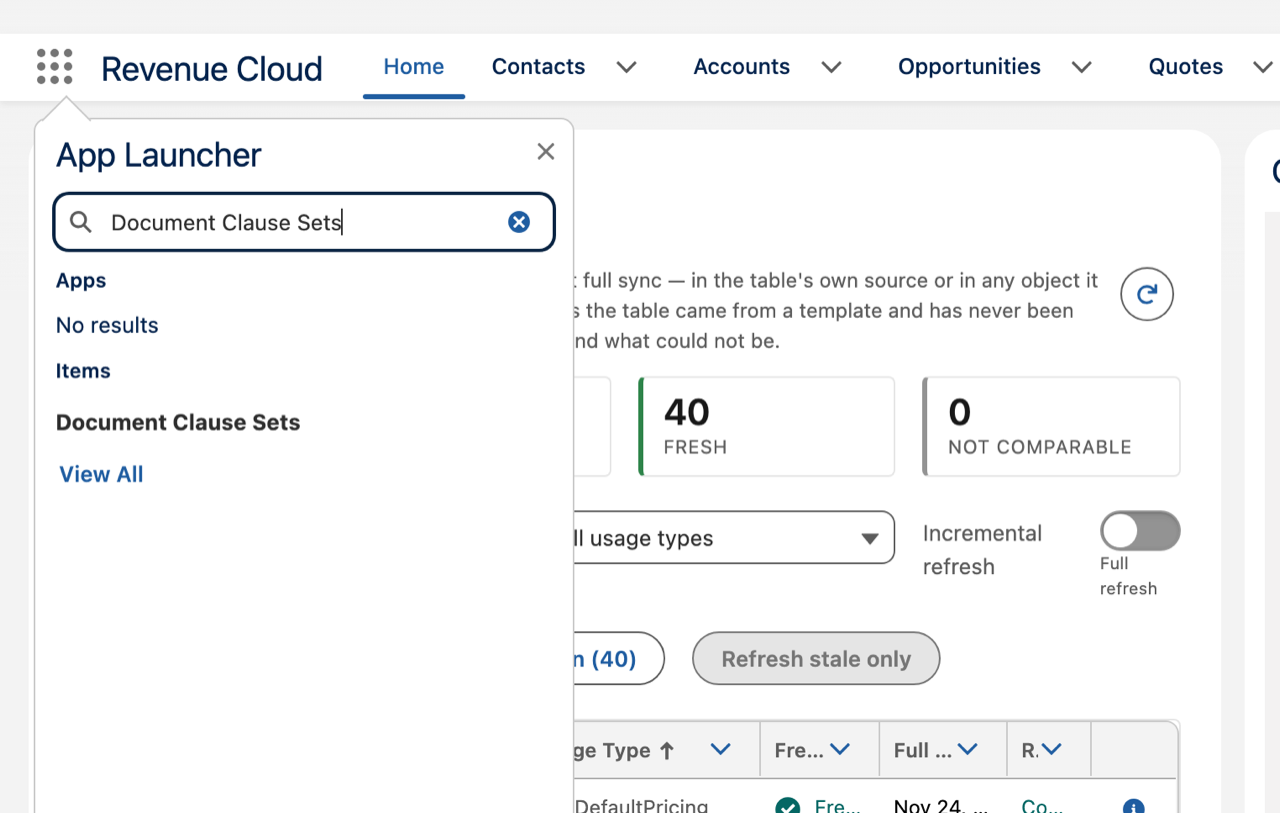 16
The App Launcher in the Revenue Cloud app, with Document Clause Sets found under Items. - Open the App Launcher again.
- Type
Document Clause Sets. - Click Document Clause Sets 6.
- Click Create Clause Set.
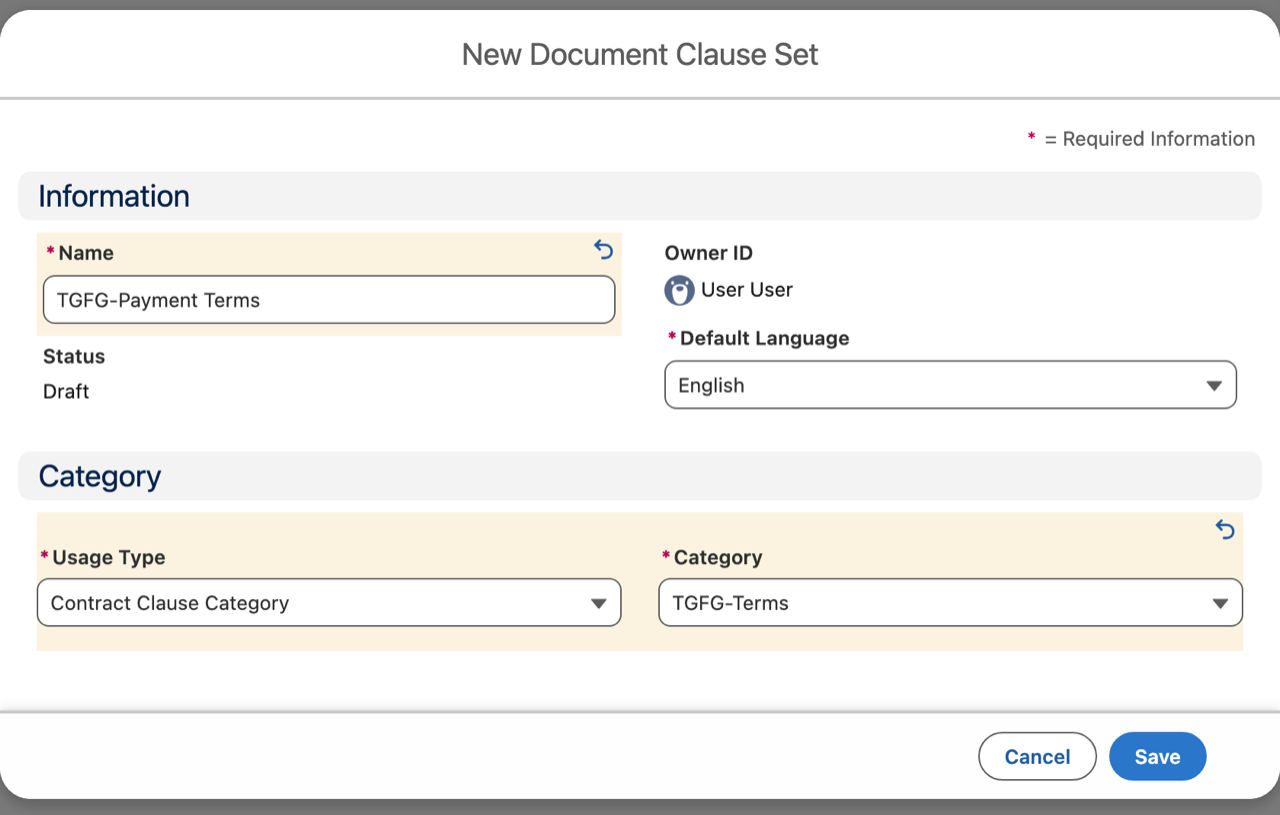 891011
The New Document Clause Set window, filled in. - In Name 8, type
TGFG-Payment Terms. Copy it from here: the Word file in step 6 uses this name exactly. - Leave Default Language as English. In Usage Type 9, pick Contract Clause Category, its only choice.
- In Category 10, pick TGFG-Terms.
- Click Save 11.
You should see: "Document Clause Set "TGFG-Payment Terms" was created." You stay on Document Clause Sets, where TGFG-Payment Terms is a row with a Draft badge, Category : TGFG-Terms, Language : English and an Add Clause button.
Good to know: Status shows Draft on the form and can't be changed there. The set turns Active by itself when you activate its first clause, in step 4.
Add the main clause and an alternate
 Document Clause
What this is. A clause is one piece of approved wording, with a version number and a status of its own. The main clause is the set's standard wording; an alternate is other wording for the same term.
- On the TGFG-Payment Terms row, click Add Clause.
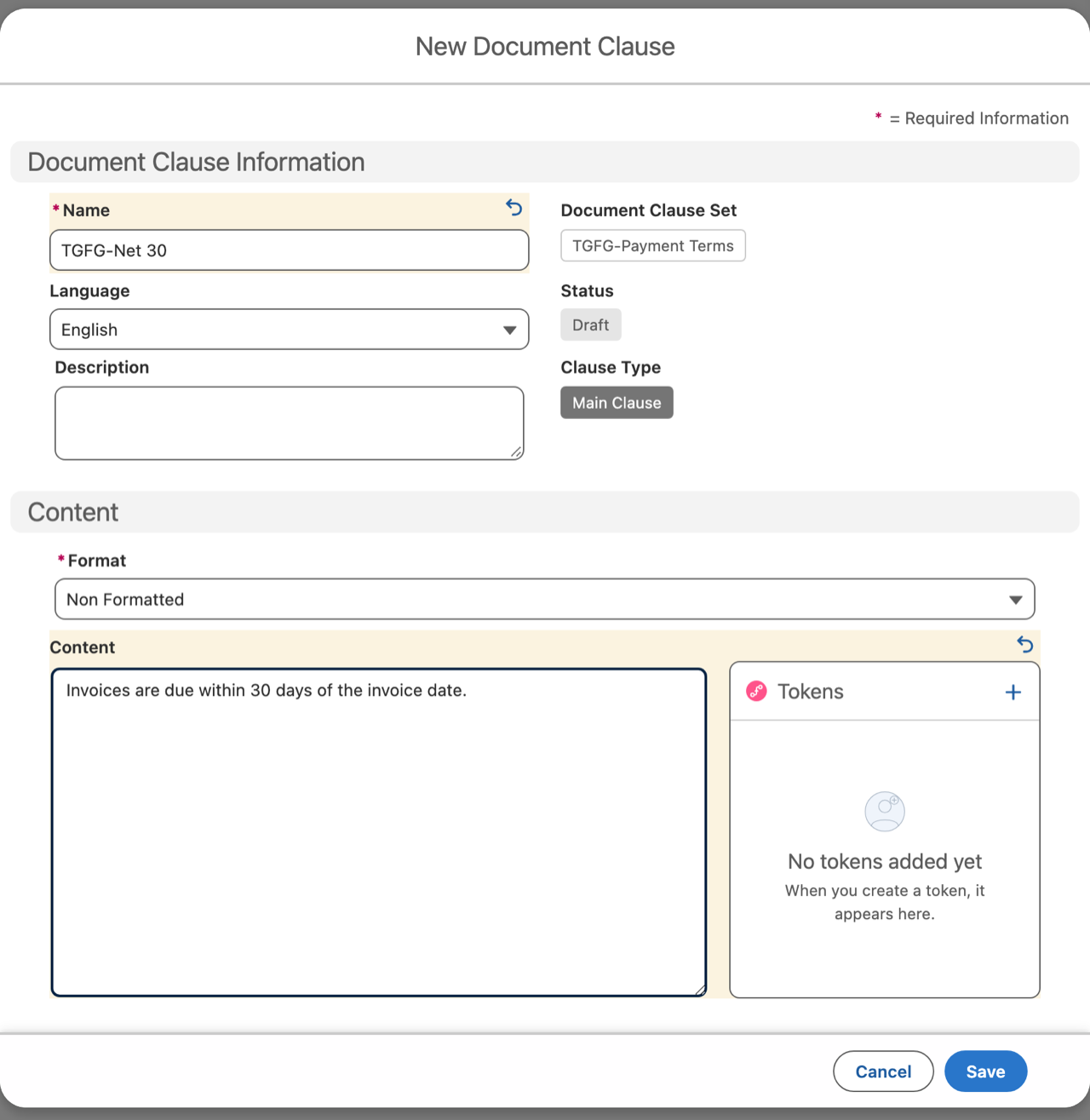 234
The New Document Clause window for the main clause, filled in. - In Name 2, type
TGFG-Net 30. Copy it from here, as with the set's name. - Leave Language as English and Format as Non Formatted, and leave the Tokens panel empty. In Content 3, type
Invoices are due within 30 days of the invoice date. - Click Save 4. The page of TGFG-Net 30 opens, showing Version 1, Status Draft and the buttons Edit, Delete and Activate.
- Open the App Launcher.
- Type
Document Clause Sets. - Click Document Clause Sets.
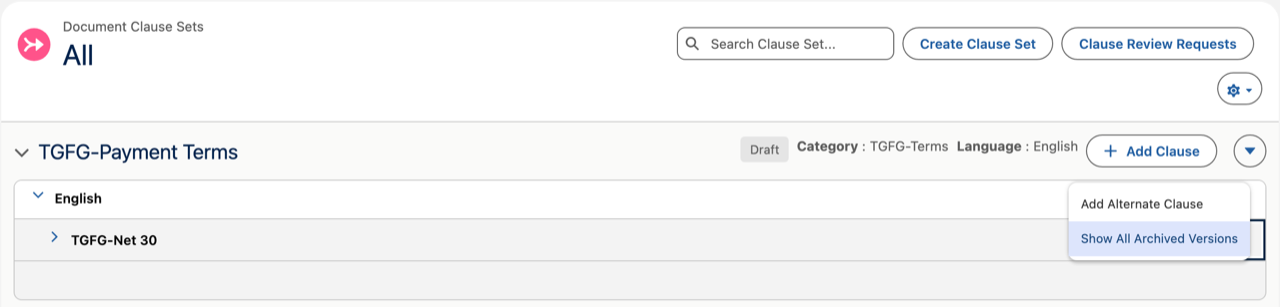 8911
The clause set open to English, with the menu of the TGFG-Net 30 row open. - Click the arrow at the left of TGFG-Payment Terms 8.
- Click the arrow at the left of English 9.
- On the TGFG-Net 30 row, click the menu arrow at the far right.
- Click Add Alternate Clause 11.
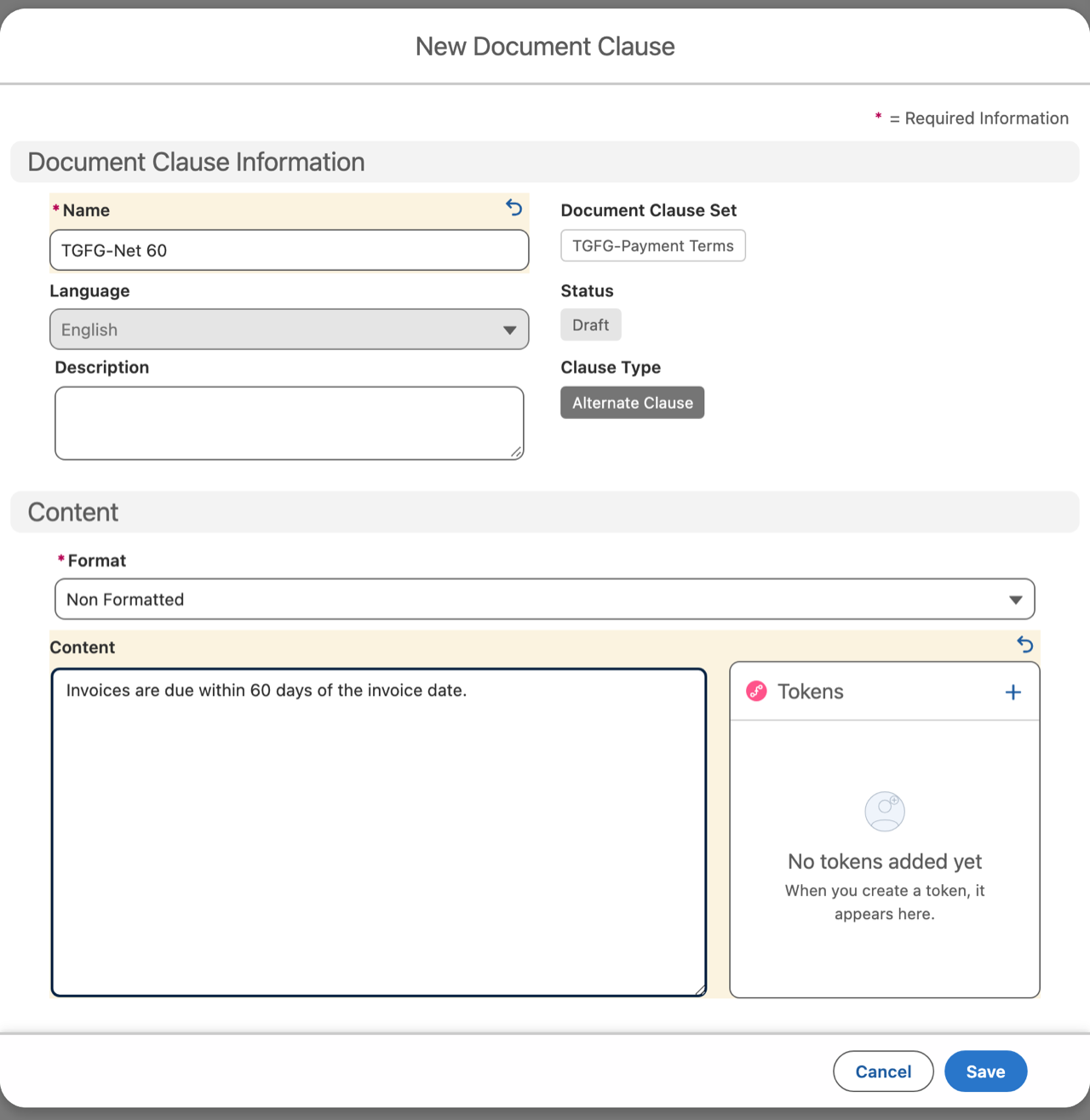 121314
The New Document Clause window for the alternate, filled in. - The window shows Clause Type Alternate Clause, with Language fixed to English. In Name 12, type
TGFG-Net 60. - In Content 13, type
Invoices are due within 60 days of the invoice date. - Click Save 14.
You should see: "Document Clause "TGFG-Net 60" was created." and the page of TGFG-Net 60, with Version 1, Status Draft and Is Alternate Clause ticked.
Good to know: the menu arrow on a clause set's row sits close to a pencil at the far right of the app's tab bar. The pencil opens Edit Revenue Cloud App Navigation Items; if you open it by mistake, close it with the X.
Activate the main clause
Document ClauseWhat this is. Activating a clause makes it the wording this lab's token gets. That token resolves to the clause's latest active version when a document is generated, so a clause left in Draft doesn't reach the document.
- You are on the page of TGFG-Net 60. Open the App Launcher.
- Type
Document Clause Sets. - Click Document Clause Sets. The set opens closed again.
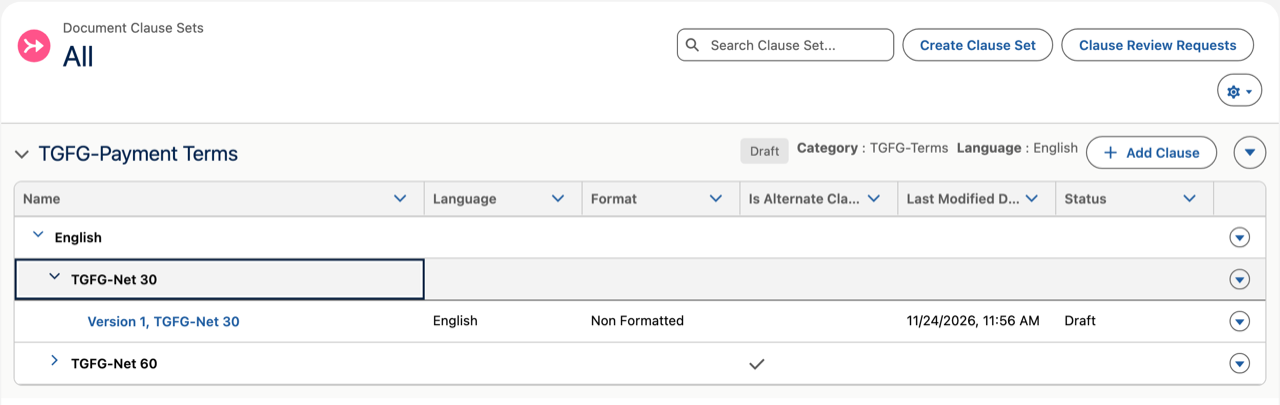 4567
The clause set open down to version 1 of TGFG-Net 30. - Click the arrow at the left of TGFG-Payment Terms 4.
- Click the arrow at the left of English 5.
- Click the arrow at the left of TGFG-Net 30 6.
- Click the link Version 1, TGFG-Net 30 7. The page of TGFG-Net 30 opens, as it did after step 3's first Save.
 89
The window that asks to make TGFG-Net 30 active, over its page. - Click Activate 8.
- In the window Update clause status?, click Update 9.
You should see: "Clause status was updated to active." TGFG-Net 30 shows Status Active, and its buttons are now Draft and Create New Version.
Good to know: TGFG-Net 60 stays Draft, and the set TGFG-Payment Terms is now Active. An active clause can't be edited: its buttons are Draft and Create New Version. This lab changes it with a new version, in step 8.
Discount the quote
 Quote Line Item
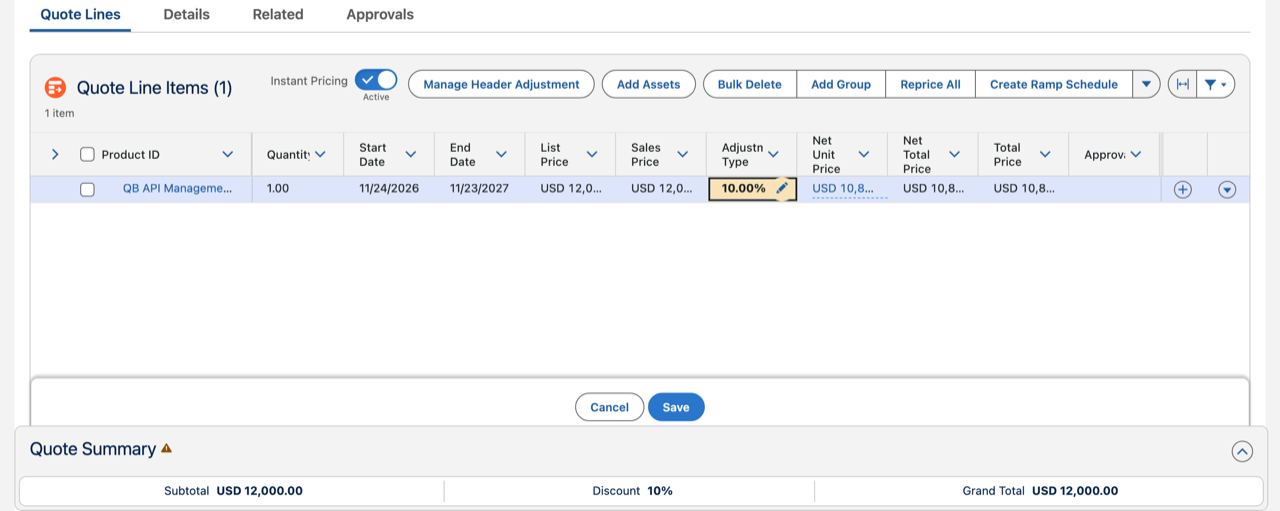
What this is. A discount on a quote line lowers its net unit price. You give the line 10% off so the contract in step 9 has a negotiated price to keep.
- In the Revenue Cloud app, click the Quotes tab.
- Switch the list to TGFG lab records.
- Open TGFG-Contracts Lab Quote. It opens on its Quote Lines tab.
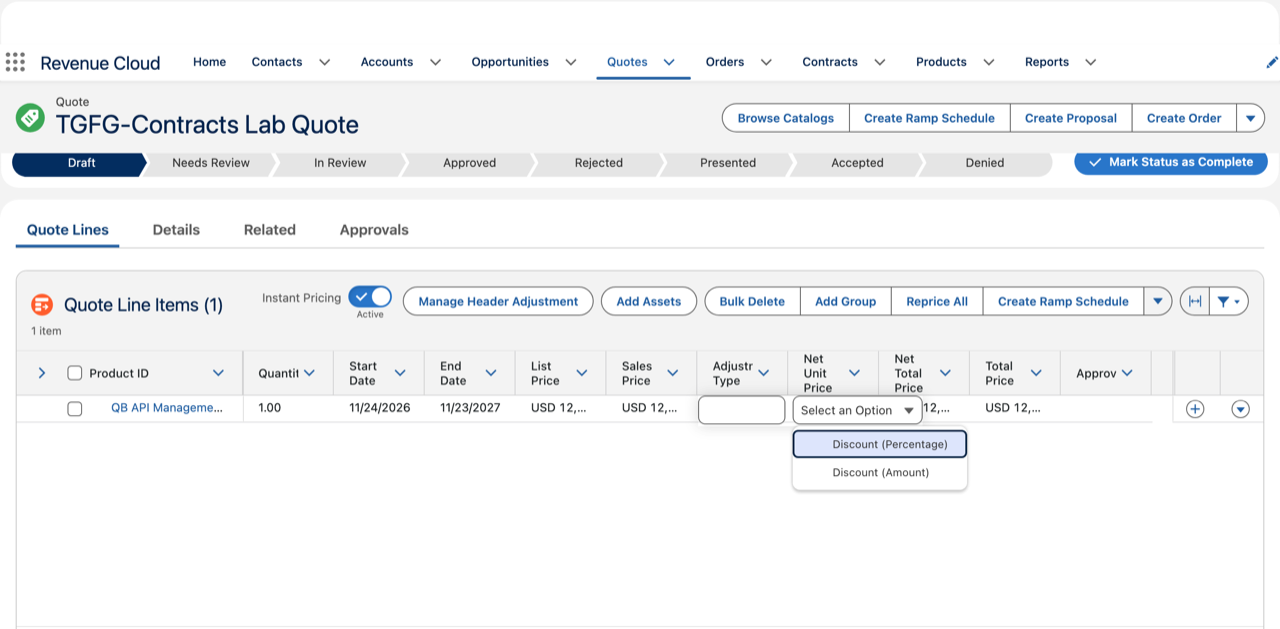 456
The Adjustment Type cell open, with the list Select an Option open beside its number box. - On the QB API Management Solution line, double-click the empty cell under Adjustment Type 4. A number box opens in the cell, with a list Select an Option beside it.
- In the list Select an Option, pick Discount (Percentage) 5.
- Click the number box 6, type
10, and press Enter.
 7
The line at 10.00%, with the Save bar under the grid and the Quote Summary below it. - Click Save 7 in the bar under the grid.
You should see: "Taxes were updated." and "Quote "TGFG-Contracts Lab Quote" was updated." The Quote Summary at the bottom of the page reads Subtotal USD 12,000.00, Discount 10%, Grand Total USD 10,800.00, and so does the Grand Total in the quote's header. The line shows Adjustment Type 10.00%.
Good to know: one click on the cell only selects it and shows a pencil; a double-click opens it. Until you click Save, the summary says Discount 10% but Grand Total still USD 12,000.00. The grid's columns are narrow: the heading reads Adjustr Type and money values are cut short, such as USD 10,8... The Quote Summary, and the line on the quote's Related tab, show them in full. The quote's page, with its Quote Lines tab, is the launchpad's own page, RLM Quote Record Page.
Make the template
AppWhat this is. In this lab, a document template is a Word file with tokens in it, which document generation replaces with Salesforce data. This file's clause token pulls in the clause's latest active wording each time a document is made.
- Download TGFG_Terms_Letter.docx. Upload it as it is; you don't need to open it.
The file holds five lines:
TGFG Payment Terms Letter
Quote {{QuoteNumber}} for {{AccountName}}
Quote total: {{GrandTotal}}
Payment terms
{{CL_TGFG-Payment Terms_TGFG-Net 30_en_US}}
The words in double braces are tokens.
QuoteNumber,AccountNameandGrandTotalcome from the quote. The last line is the clause token, built from the names you typed: CL, then the clause set's name, then the clause's name, thenen_USfor English, joined by underscores, with the spaces and hyphens kept. The clause's page doesn't show the token, so it is written out here. If a name you typed in step 2 or 3 differs by one character, the token matches nothing and the proposal in step 7 shows a blank line where the clause should be.- Open the App Launcher.
- Type
Design Document. - Click Design Document Template.
- Click Create Template.
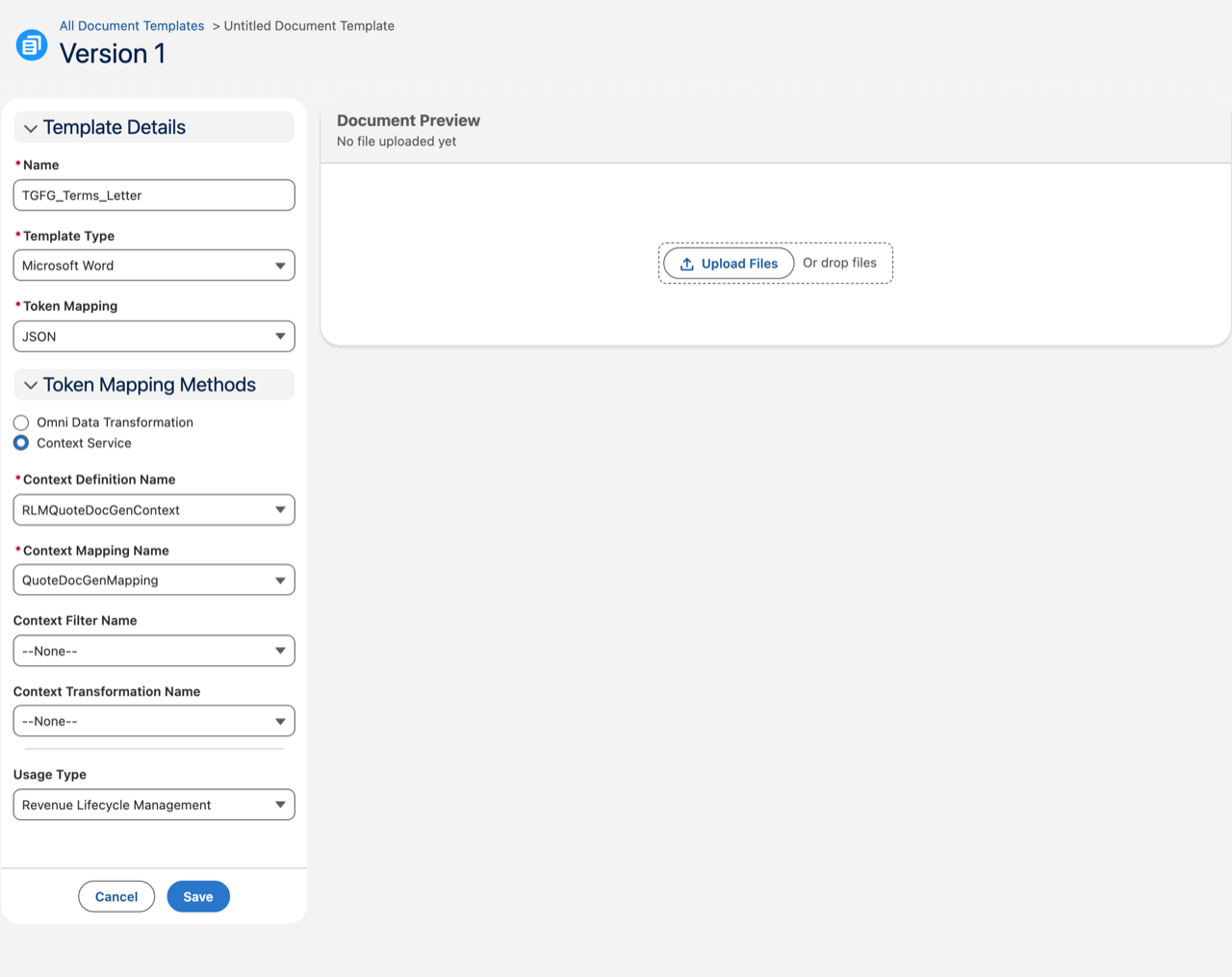 6791013
A new template's details filled in, before the Word file is uploaded. - In Name 6, type
TGFG_Terms_Letter. Leave Template Type as Microsoft Word, Token Mapping as JSON and Token Mapping Methods as Context Service. - In Context Definition Name 7, pick RLMQuoteDocGenContext, the last in its list.
- In Context Mapping Name just under it, pick
QuoteDocGenMapping, its only choice. - Leave Context Filter Name and Context Transformation Name as --None--. In Usage Type 9, pick Revenue Lifecycle Management.
- Under Document Preview, click Upload Files 10.
- Pick the
TGFG_Terms_Letter.docx you downloaded. - When the window says 1 of 1 file uploaded, click Done.
- Click Save 13 at the bottom of the left panel.
 15
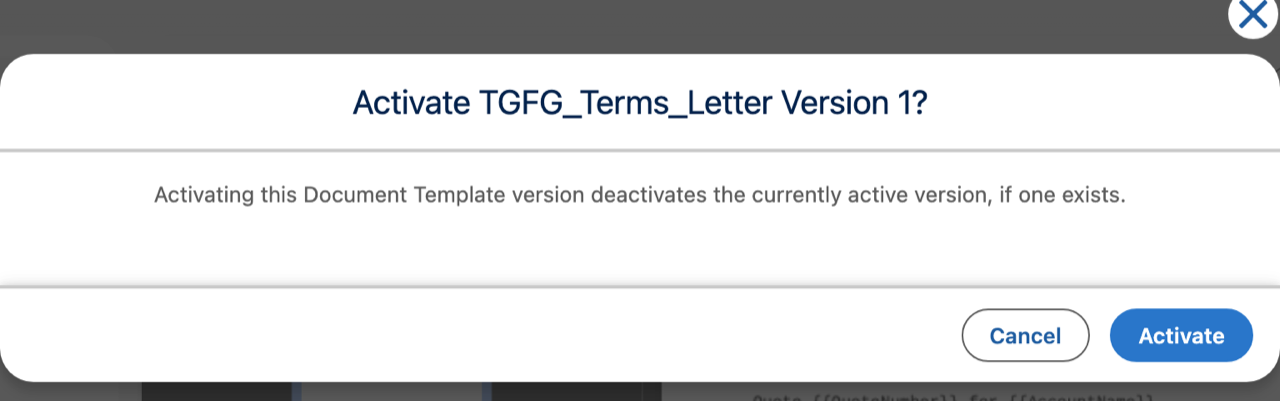
The window that asks to activate TGFG_Terms_LetterVersion 1.- Click Activate at the top right.
- Click Activate 15 in the window Activate
TGFG_Terms_LetterVersion 1?.
You should see: "Document Template
TGFG_Terms_LetterVersion 1 was activated." The template TGFG_Terms_Letter shows the heading Version 1 (Active) and a Deactivate button, and the preview shows the letter with its tokens still in braces.Good to know: after Save, a yellow banner says "Verify that the selected token mapping method supports the tokens in the uploaded file." It shows on every save and is not an error. Save also scrolls the page, so the first click on Activate may do nothing; click it again. Create Proposal lists only active templates with the usage type Revenue Lifecycle Management.
This context comes with the launchpad
The context definition RLMQuoteDocGenContext and its mapping
QuoteDocGenMappingare what fillQuoteNumber,AccountNameandGrandTotalfrom the quote. Salesforce's launchpad added them to your lab org. A plain Revenue Cloud org has neither: there, a quote template needs a context definition and mapping of your own, or the Omni Data Transformation method.Generate the proposal
QuoteWhat this is. Create Proposal makes a document from the quote with the template you pick, and saves it on the quote as a PDF and a Word file. Your clause's words go in at that moment.
- Open TGFG-Contracts Lab Quote (the Quotes tab, list TGFG lab records).
- Click Create Proposal.
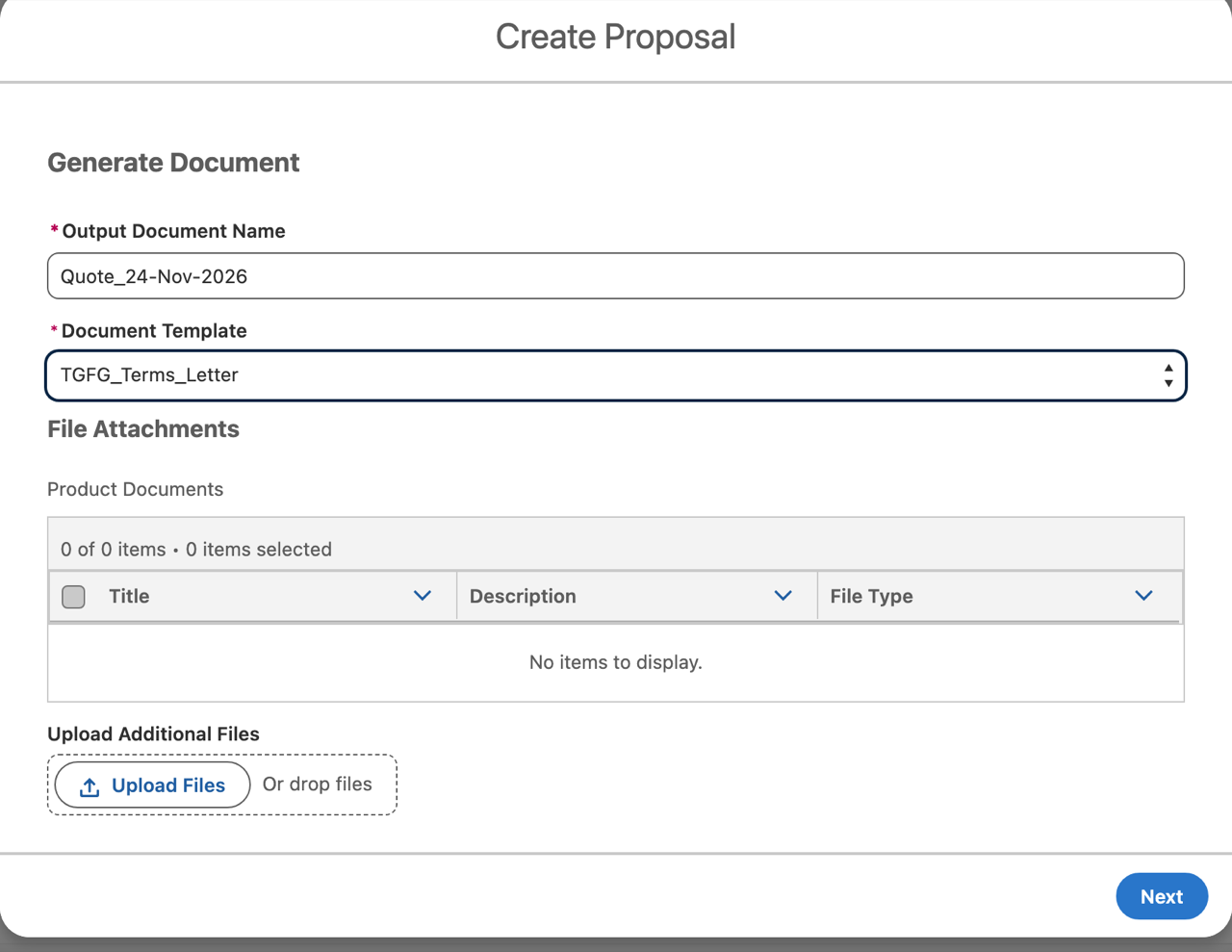 345
The Create Proposal window with the template picked, before the name is replaced. - In Output Document Name 3, replace the name with
TGFG_Terms_Letter_1. - In Document Template 4, pick TGFG_Terms_Letter.
- Click Next 5. "Generating your document, please wait..." shows for a while, then the PDF opens in a viewer inside the window.
- Read it, then click Finish.
 7
Notes & Attachments on the quote's Related tab, with the first proposal's two files. - Open the quote's Related tab and scroll down to Notes & Attachments 7.
 9
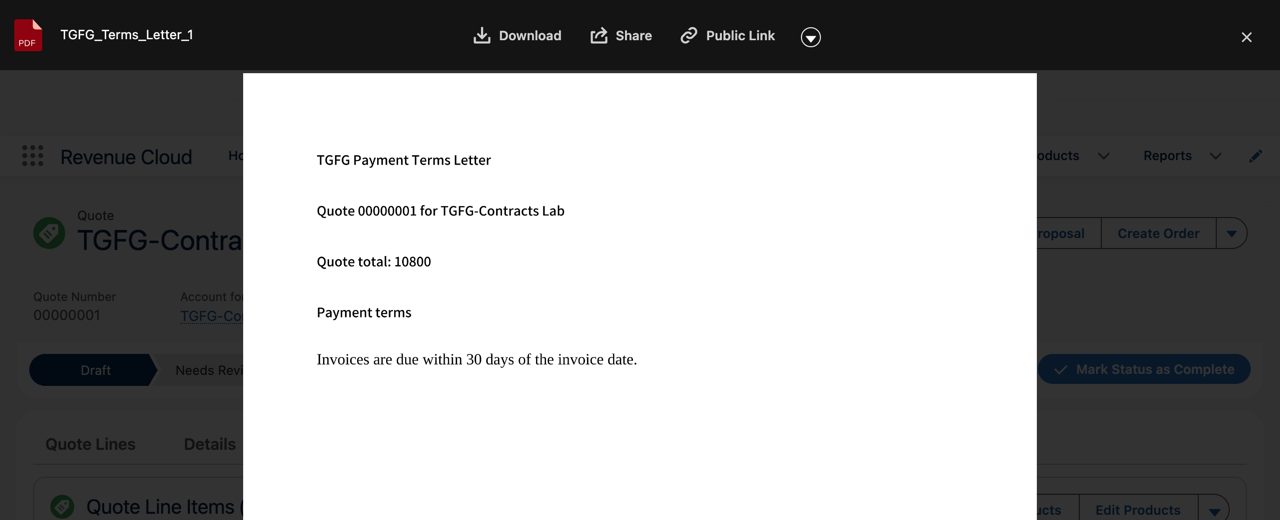
TGFG_Terms_Letter_1opened from Notes & Attachments: its last line is your clause.- Click the
TGFG_Terms_Letter_1marked pdf. The letter opens in a preview over the page. - Read it again, then close the preview with the X at the top right 9.
You should see: a one-page letter, in the viewer and again in the preview. Under TGFG Payment Terms Letter it says Quote, your quote's number, for TGFG-Contracts Lab, then Quote total: 10800, then, under Payment terms, "Invoices are due within 30 days of the invoice date." Notes & Attachments lists TGFG_Terms_Letter_1 twice: a pdf and a docx.
Good to know: the name you typed keeps this proposal apart from the one step 8 makes; the name filled in for you is the date, the same for both. The letter prints the total bare, 10800, with no currency or comma. Quote PDFs stays at 0: Create Proposal's files go to Notes & Attachments.
This button comes with the launchpad
Create Proposal is a quick action,
RLM_Create_Proposal, that runs a screen flow,RLM_Quote_Doc_Gen_wAttachments. Salesforce's launchpad added it to your lab org; a plain Revenue Cloud org has no Create Proposal. Its parts:- Template Selection is the window you filled in. It lists the active templates whose usage type is Revenue Lifecycle Management.
- Document Generation Processing is the wait while the Apex action
RLM_DocumentGenerationCreate("Create PDF File") makes the files. - View Output Document, with the Apex action
RLM_ReturnPDFDocument, is the viewer. - The flow also holds a subflow, Get Product Attachments, and a merge path, Document Merge Processing, View Multi Documents and the Apex action
RLM_DocumentGenerationMerge, for the window's product documents and added files. This lab adds none.
Change the clause once
Document ClauseWhat this is. A new version changes a clause's wording without touching any template. When you activate it, the old version is archived, and the next document gets the new words.
- Open the page of TGFG-Net 30 as in step 4: open Document Clause Sets from the App Launcher.
- Click the arrow at the left of TGFG-Payment Terms.
- Click the arrow at the left of English.
- Click the arrow at the left of TGFG-Net 30.
- Click Version 1, TGFG-Net 30.
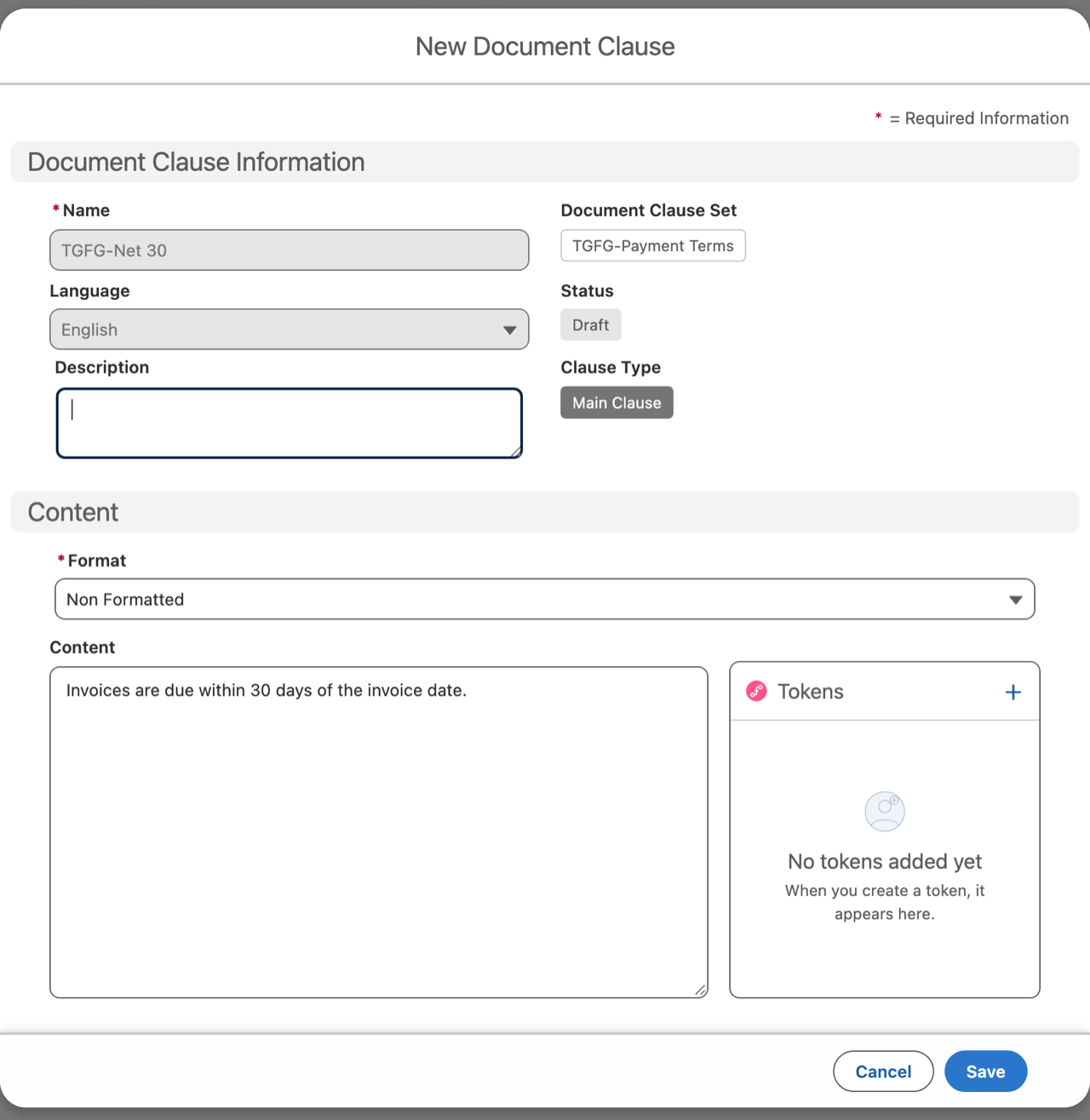
- Click Create New Version. The window New Document Clause opens filled in from version 1, with Name and Language greyed out.
 78
The New Document Clause window for version 2, as it opens, filled in from version 1. - In Content 7, change 30 to 45, so it reads
Invoices are due within 45 days of the invoice date. - Click Save 8. Version 2 of TGFG-Net 30 opens, with Status Draft.
- Click Activate.
- Click Update in the window Update clause status?.
- Open TGFG-Contracts Lab Quote.
- Click Create Proposal.
- In Output Document Name, replace the name with
TGFG_Terms_Letter_2. - In Document Template, pick TGFG_Terms_Letter.
- Click Next and wait for the viewer.
- Read the letter, and click Finish.
 17
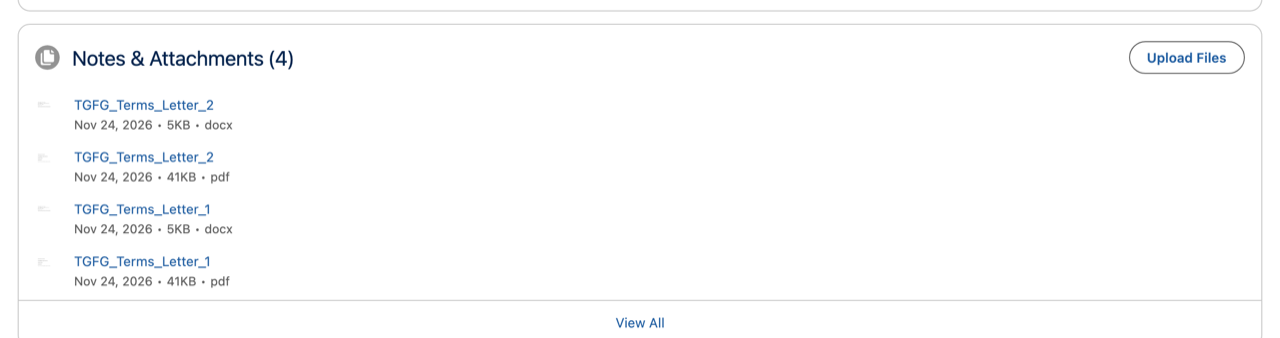
Notes & Attachments on the quote, with both proposals' files. - Open the quote's Related tab and scroll down to Notes & Attachments 17.
 19
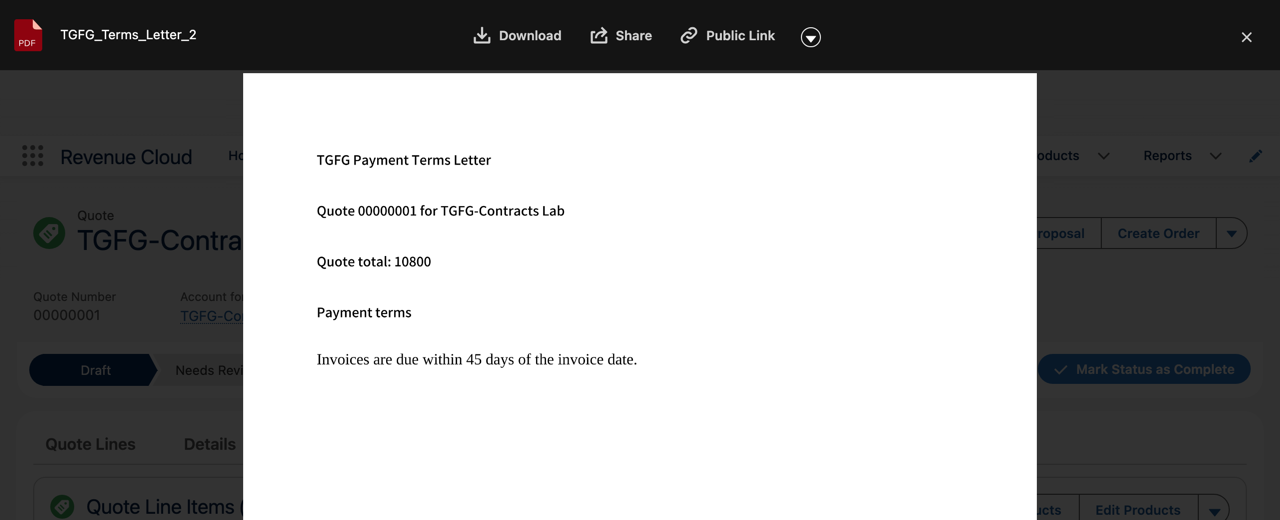
TGFG_Terms_Letter_2opened from Notes & Attachments: its last line is the new version of your clause.- Click the
TGFG_Terms_Letter_2marked pdf. - Read it in the preview, then close the preview with the X at the top right 19.
You should see: "Clause status was updated to active." on version 2, then a new letter that ends "Invoices are due within 45 days of the invoice date." Notes & Attachments (4) lists TGFG_Terms_Letter_2, a docx and a pdf, above TGFG_Terms_Letter_1.
Good to know: you never touched TGFG_Terms_Letter: the template still has its one version, Version 1. TGFG_Terms_Letter_1 still says 30 days. A generated file is a copy made at the time. Version 1 of TGFG-Net 30 is now Archived: on Document Clause Sets, the clause's row menu has Show All Archived Versions, which lists it.
Make the contract from the quote
QuoteWhat this is. New Contract makes a contract from the quote and copies its details, such as the account and start date. It asks first whether the quote's net unit prices or discounts should become contract prices for this customer.
- Open TGFG-Contracts Lab Quote.
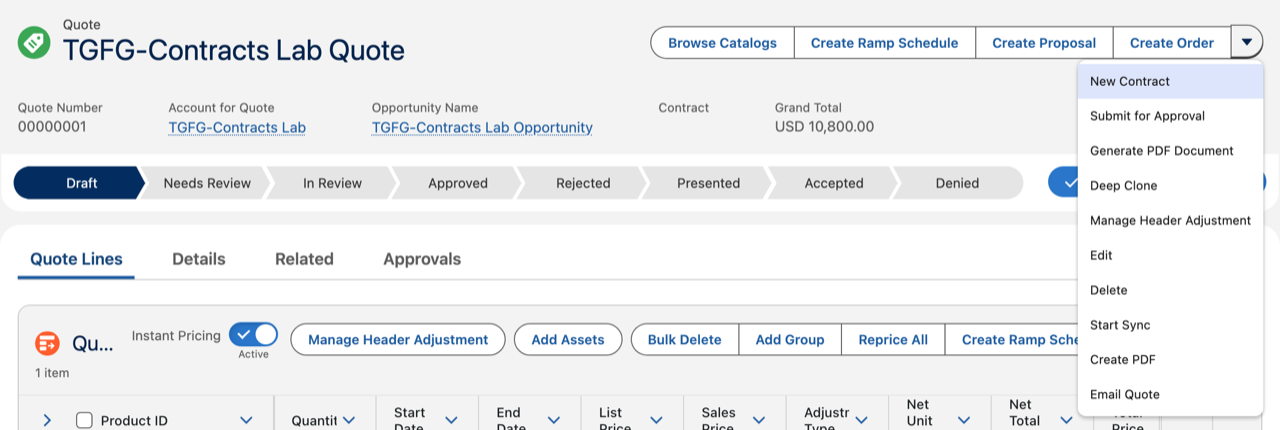 23
The quote's header with the Show more actions menu open, New Contract first. - Click Show more actions 2, the arrow at the end of the quote's header buttons.
- Click New Contract 3, the first item in its menu.
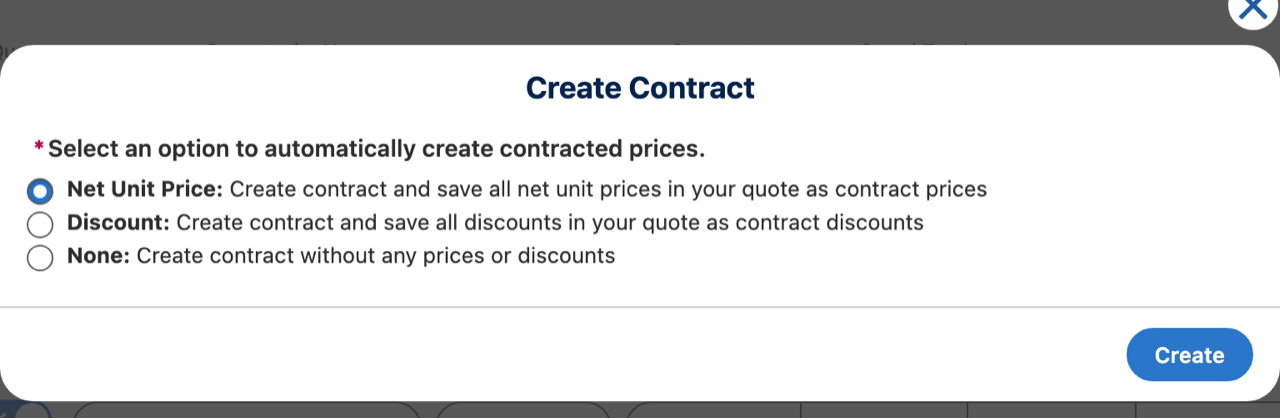 45
The Create Contract window with Net Unit Price picked. - In the window Create Contract, pick Net Unit Price 4. None is picked to start.
- Click Create 5.
- In the next window, Create contract prices?, which says "Product count: 1", click Create.
The three choices, as the window words them:
Choice What it does Net Unit Price Create contract and save all net unit prices in your quote as contract prices Discount Create contract and save all discounts in your quote as contract discounts None Create contract without any prices or discounts You should see: two messages: that a contract "was created from Quote TGFG-Contracts Lab Quote", and that "1 contract prices were created". Each carries the contract's number as a link. You stay on TGFG-Contracts Lab Quote.
Good to know: the quote's Contract field stays empty until you reload the browser page. If New Contract ends in "An unhandled fault has occurred in this flow", your user can't edit the contract's Shipping Address, which the launchpad's flow fills in; the setup gives that access, as Before you start says.
This button comes with the launchpad
New Contract runs a flow called
RLM_CreateContractFromQuote, named in Setup > Revenue Settings > Set Up Flow for Creating Contracts from Quotes. Salesforce's launchpad added it to your lab org. A plain Revenue Cloud org doesn't have it: Salesforce's pages have you add the New Contract button to the quote's page layout, and enter a flow in that same setting,rev_contracts__CreateCntrFromQuoteor one of your own. Its parts, as Flow Builder names them: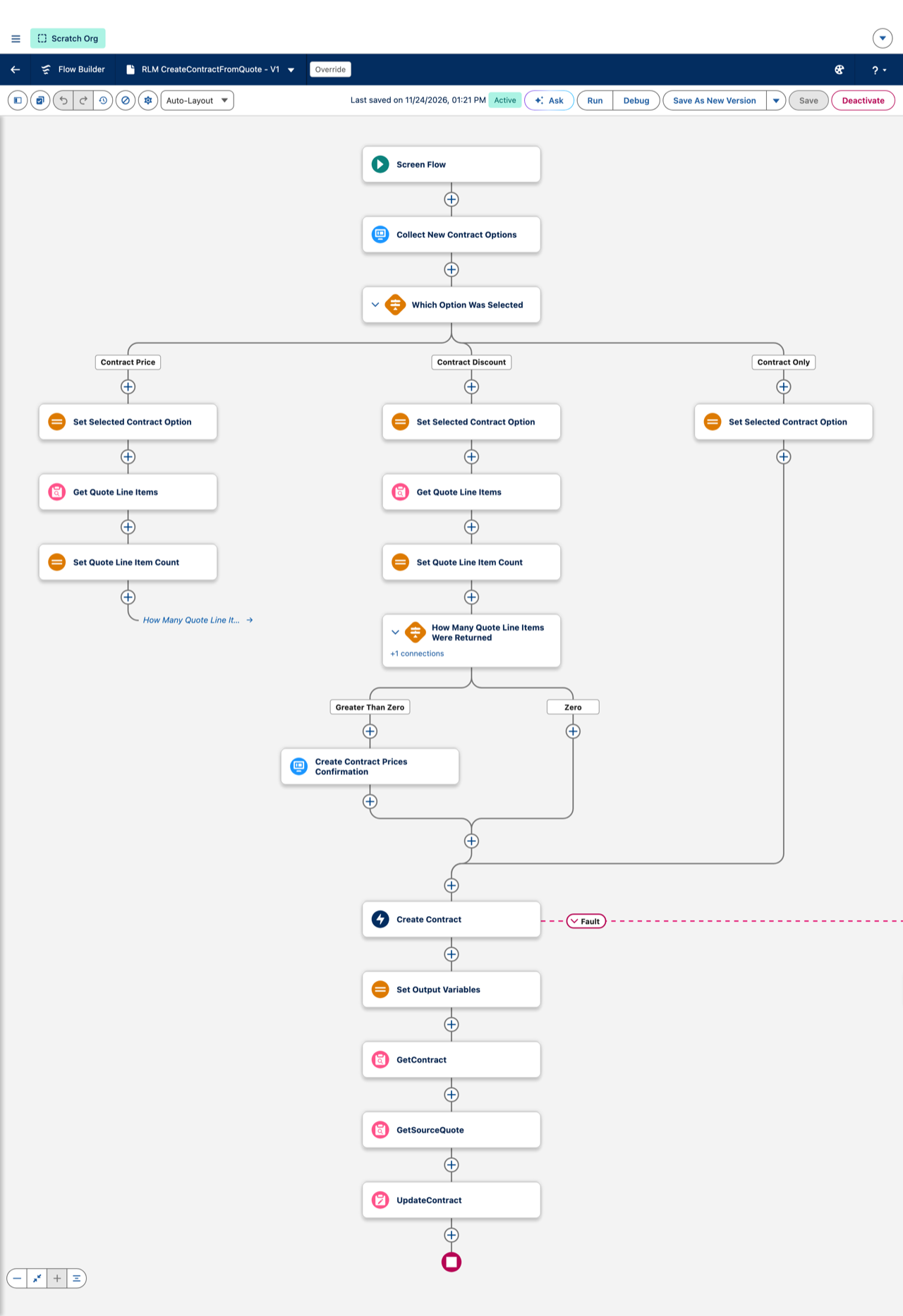
RLM_CreateContractFromQuoteopen in Flow Builder.- Collect New Contract Options is the Create Contract window, with None as its default. Which Option Was Selected sends each choice down its own path: Contract Price, Contract Discount or Contract Only.
- Create Contract Prices Confirmation is the window that counts the products.
- Create Contract is Revenue Cloud's standard Create Contract action, given the quote and your choice.
UpdateContractis the launchpad's own: it copies the account's billing and shipping address, sets Pricing Source to Last Transaction, sets the renewal term to 12 Months, and sets Source Quote.
Read what you made
 Contract
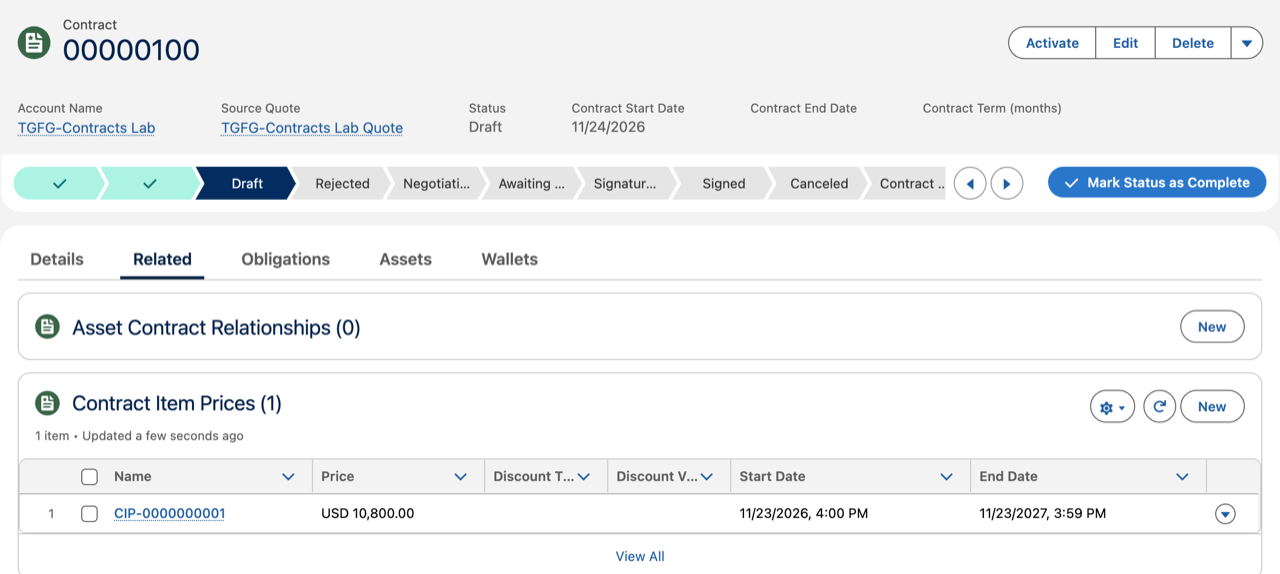
What this is. A contract made from a quote holds contract item prices, records starting CIP-, made from the quote's lines: here one. In your lab org it also names its source quote, which the launchpad's flow sets. A contract has no name you can see here: you know it by its number.
 2
The quote's header after a reload, with the contract's number under Contract. - Reload the browser page.
- Under Contract in the header of TGFG-Contracts Lab Quote, click the contract's number 2. The contract opens on its Details tab.
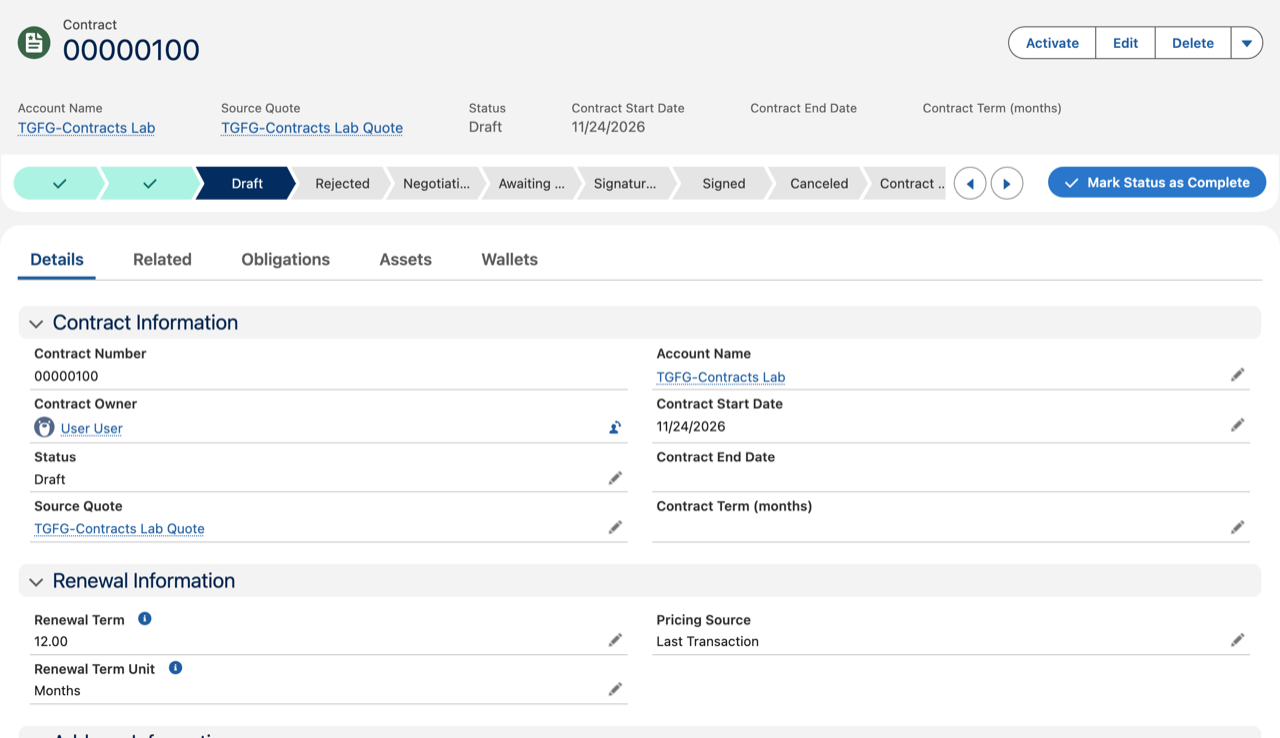 ab
The contract's Details tab: Contract Information, and Renewal Information at 12.00 Months. - Read Contract Information a and Renewal Information b.
 4
The contract's Related tab, with its one contract item price. - Open the Related tab and find Contract Item Prices (1) 4.
 56
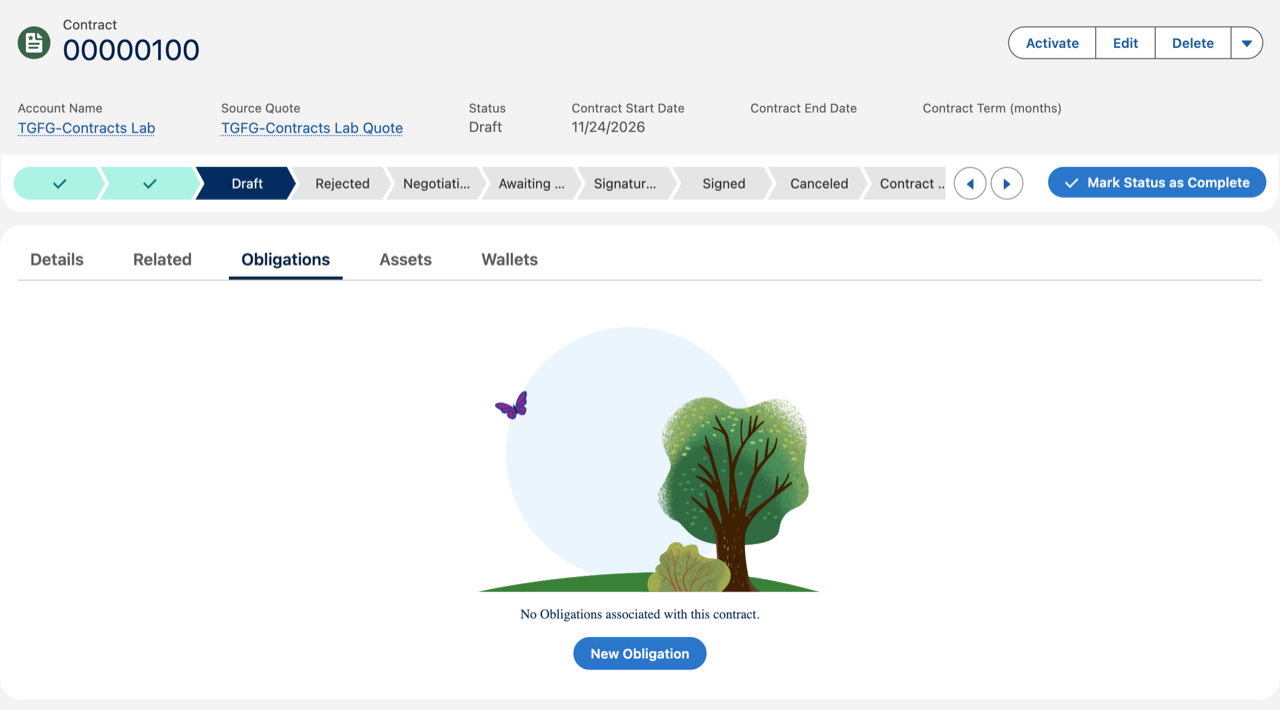
The contract's Obligations tab, empty, under the header's Source Quote link. - Open the Obligations tab 5.
- Go back to TGFG-Contracts Lab Quote: in the contract's header, under Source Quote, click TGFG-Contracts Lab Quote 6.
- Click Show more actions.
You should see: on Details, Account Name TGFG-Contracts Lab, Source Quote TGFG-Contracts Lab Quote, Status Draft, a Contract Start Date and no Contract End Date; under Renewal Information, Renewal Term 12.00, Renewal Term Unit Months and Pricing Source Last Transaction. On Related, Contract Item Prices (1) lists one price, a number starting CIP-, at USD 10,800.00. Obligations says "No Obligations associated with this contract." The quote's menu no longer offers New Contract.
Good to know: the first two steps of the path above the tabs show only ticks. They are In Approval Process and Activated, ticked only because the path follows the order of the Status list. Its later steps, such as Awaiting Signature and Signed, and the Obligations tab are for the contract's signing and obligations, which this lab doesn't use. The price's dates may read from the evening before: they start at midnight UTC, shown in your time zone.
Fix the renewal term
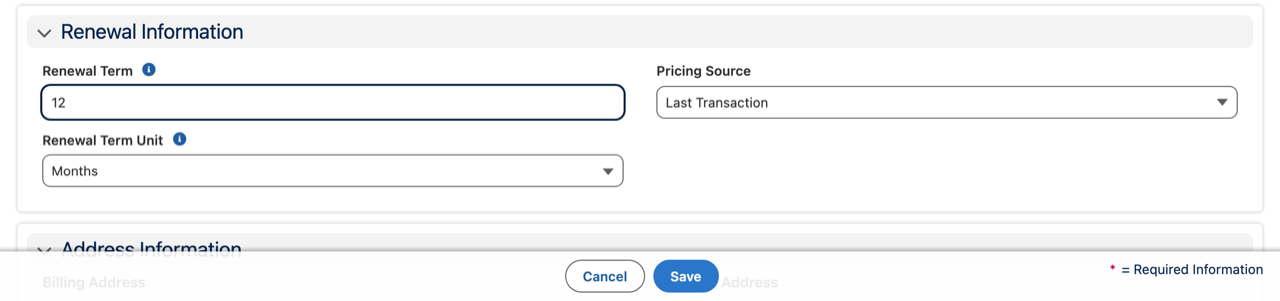
ContractWhat this is. The renewal term is how long a renewal from this contract runs. The launchpad's flow wrote 12 Months. Left that way in your lab org, the renewal in step 16 runs twelve years, at 144,000, so this step sets it to 1, in Years.
- Go back to the contract: in the header of TGFG-Contracts Lab Quote, under Contract, click the contract's number. The contract opens on its Details tab.
 2
Renewal Information on the contract's Details tab, at 12.00 Months. - Under Renewal Information, click the pencil beside Renewal Term 2. The page turns into a form, with Cancel and Save at the bottom.
 345
Renewal Information as the form opens, before you change it. - In Renewal Term 3, replace 12 with
1. - In Renewal Term Unit 4, pick Years.
- Click Save 5 at the bottom of the page.
You should see: Renewal Term 1.00 and Renewal Term Unit Years, and Status still Draft. No message shows for this save.
Good to know: Renewal Term Unit offers Months, Quarterly, Semi-Annual, Weekly and Years. The contract still has no Contract End Date or Contract Term (months), and the rest of the lab works without them. Set to 1 and Years, the renewal in step 16 runs one year, at 12,000.
Activate the contract
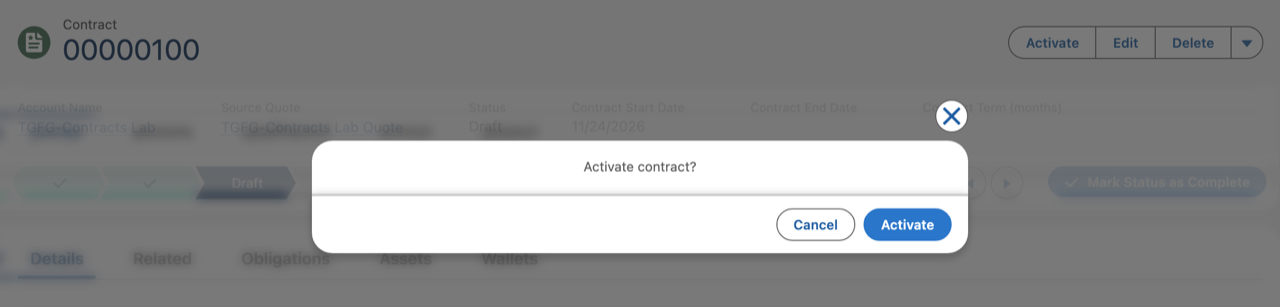
ContractWhat this is. Activating the contract puts its prices to work. Salesforce's pages say to refresh the contract pricing decision table after activating a contract that has contract prices; in your lab org, the launchpad does that for you.
 12
The window that asks to activate the contract, under the header's Activate button. - On the contract's header, click Activate 1.
- In the window Activate contract?, click Activate 2.
- To see the refresh, click the gear at the top right.
- Click Setup. Setup opens in a new browser tab.
 56
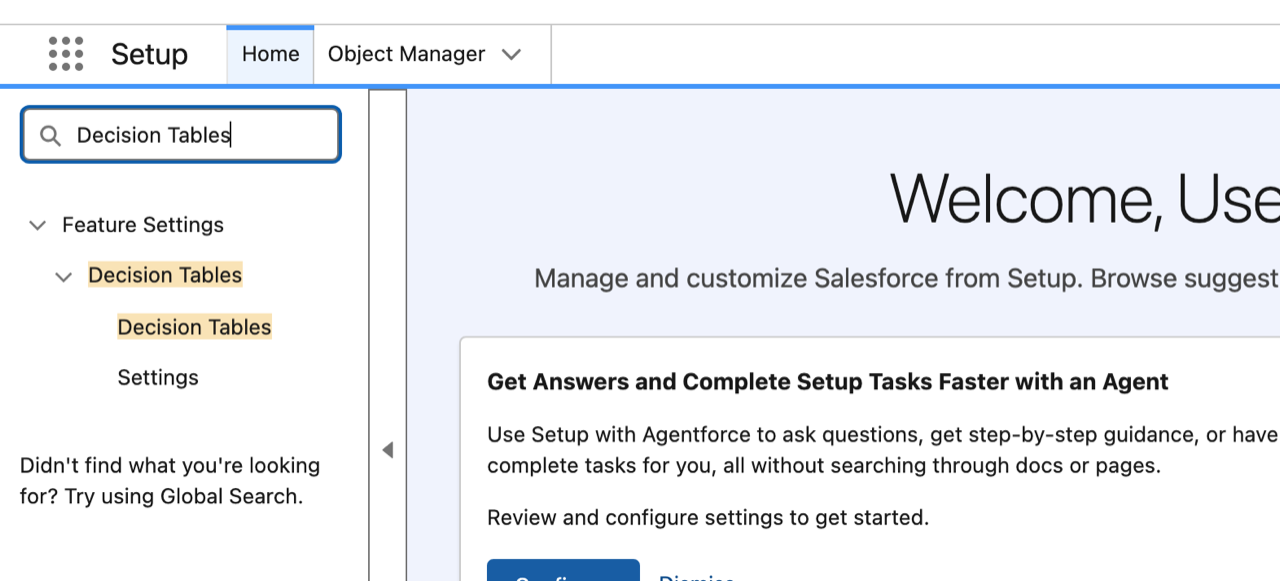
Setup's Quick Find, with the Decision Tables page found under Feature Settings. - In the Quick Find box 5, type
Decision Tables. - Click Decision Tables 6, the page under Feature Settings > Decision Tables.
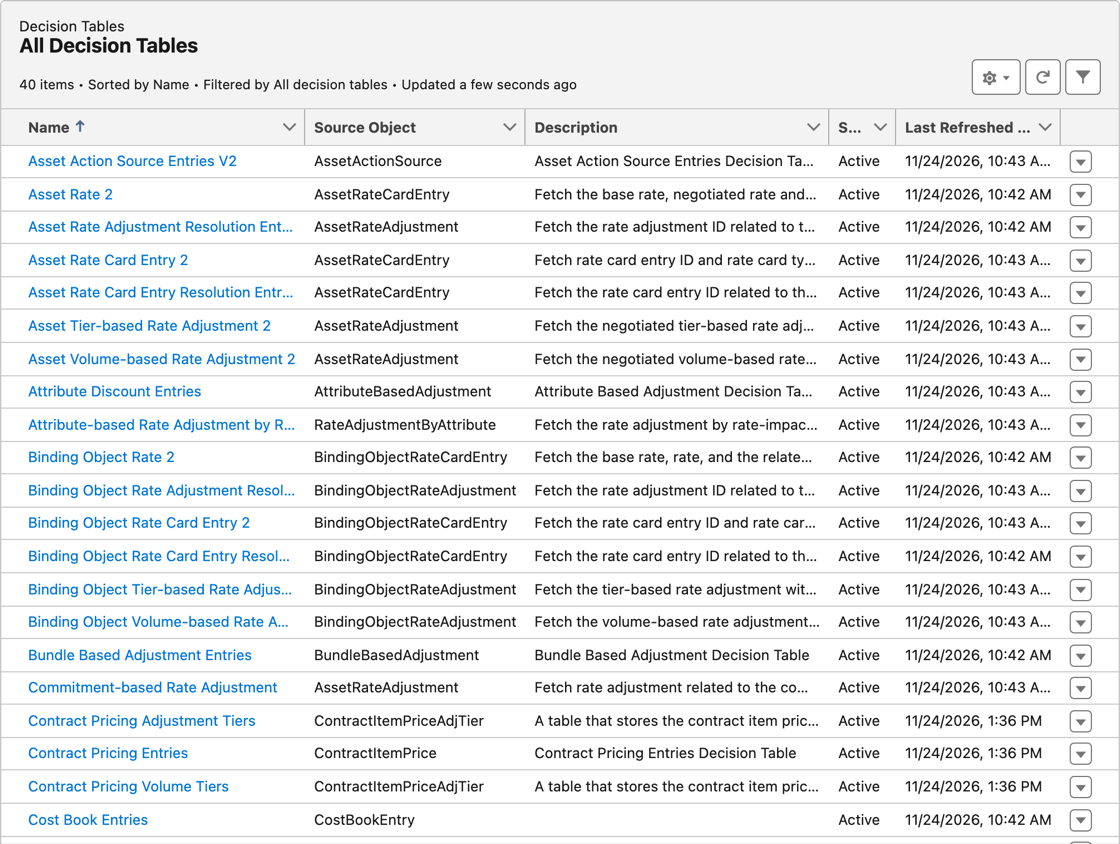
All Decision Tables, with the three contract pricing tables refreshed a moment ago. You should see: a message that the contract "was activated". Status is Activated, straight from Draft, and the header buttons are Edit, Delete and Clone. In the list All Decision Tables, Contract Pricing Adjustment Tiers, Contract Pricing Entries and Contract Pricing Volume Tiers show Active and a Last Refreshed time from a moment ago. The other tables show an earlier time.
This refresh comes with the launchpad
Activation runs a flow called
RLM_Contract_Activation_Refresh_Pricing_Tables. Salesforce's launchpad added it to your lab org; a plain Revenue Cloud org doesn't have it. There, you open Decision Tables in Setup, select Contract Pricing Entries and click Refresh, as Salesforce's page says. Its parts: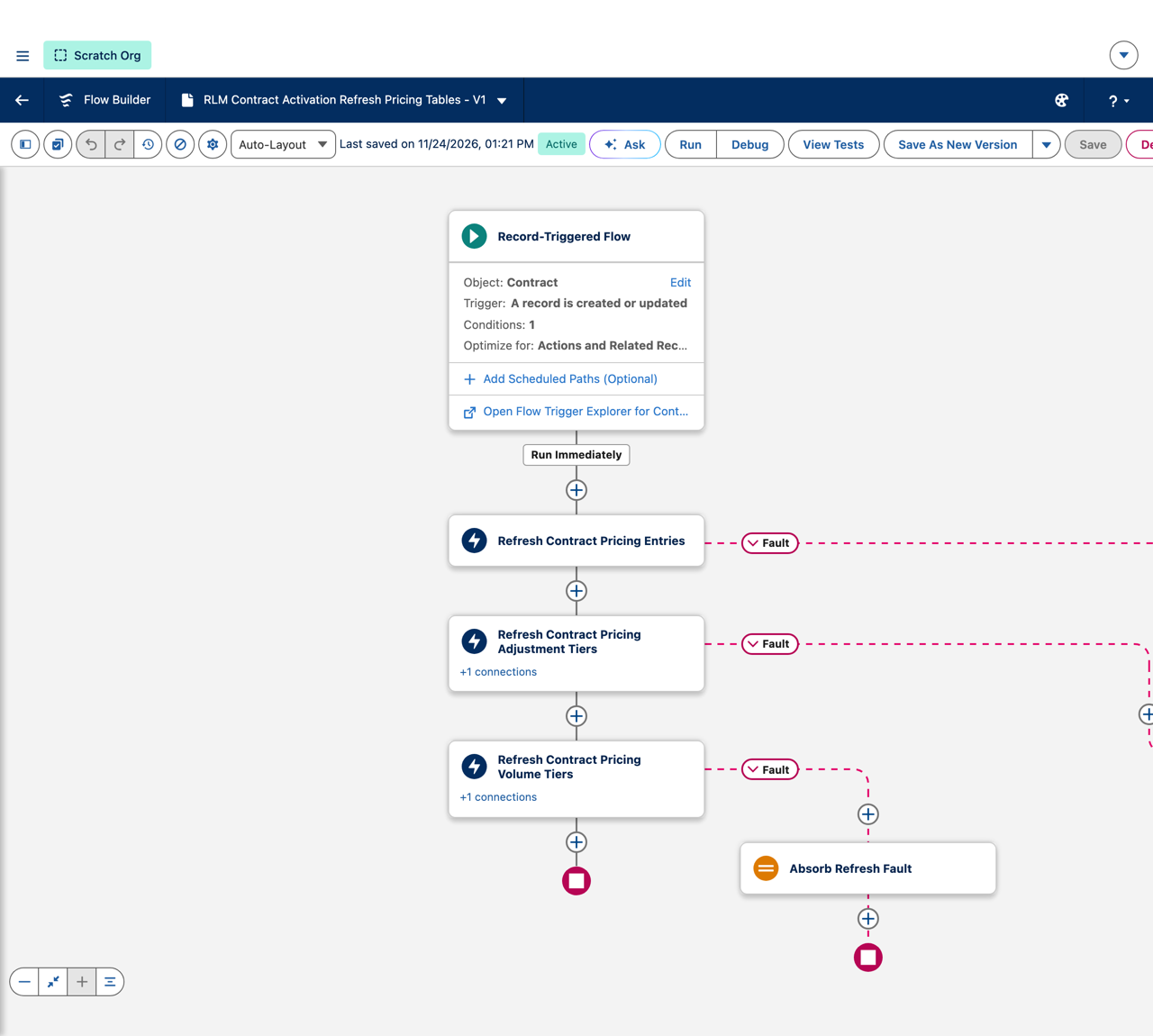
RLM_Contract_Activation_Refresh_Pricing_Tablesopen in Flow Builder.- It starts after a contract is saved with the status Activated.
- Refresh Contract Pricing Entries, Refresh Contract Pricing Adjustment Tiers and Refresh Contract Pricing Volume Tiers each call Salesforce's standard refresh action on one decision table. The refresh finishes within about a minute.
Prove the price
QuoteWhat this is. A quote started from an activated contract is priced with that contract's prices. You start one and compare two products that have the same list price.
 3
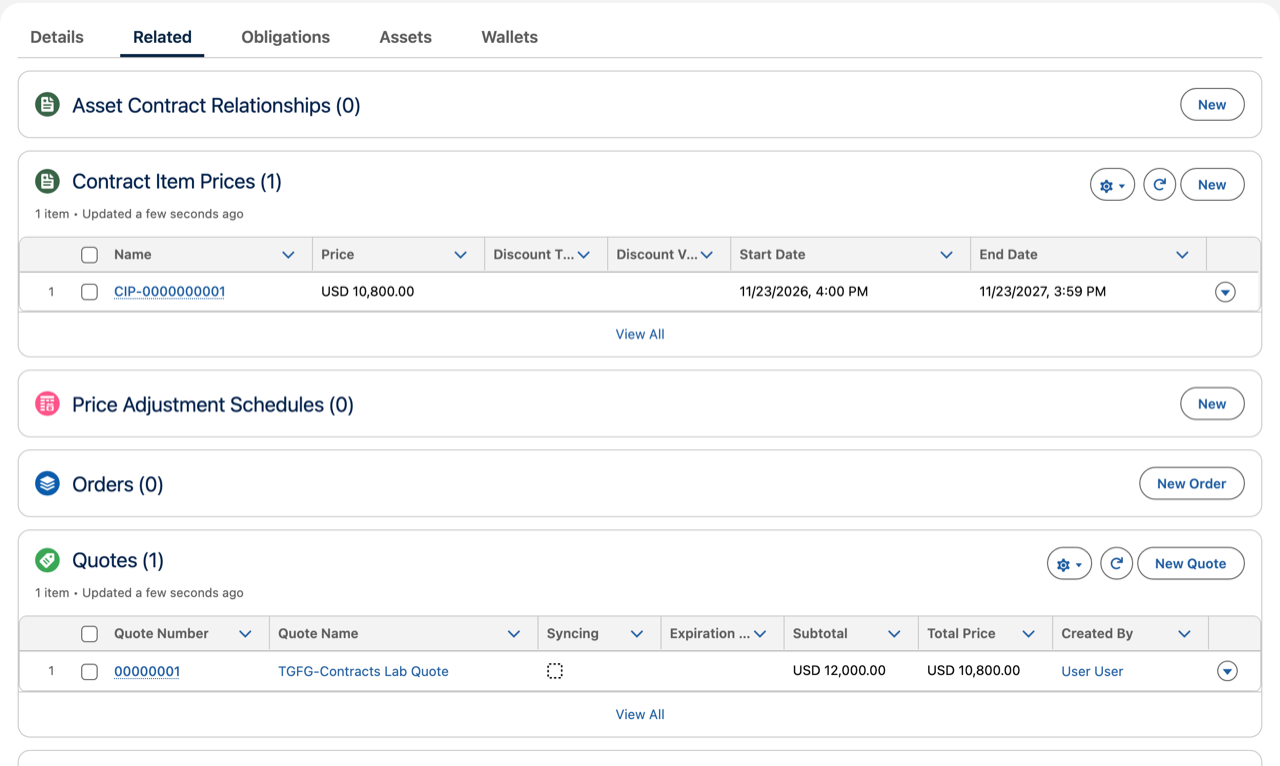
The contract's Related tab, with New Quote on the Quotes list. - Go back to the browser tab with your contract: Setup opened in a tab of its own.
- Open the contract's Related tab.
- Scroll down to Quotes (1), and click New Quote 3. In the window New Quote, Contract is already filled in.
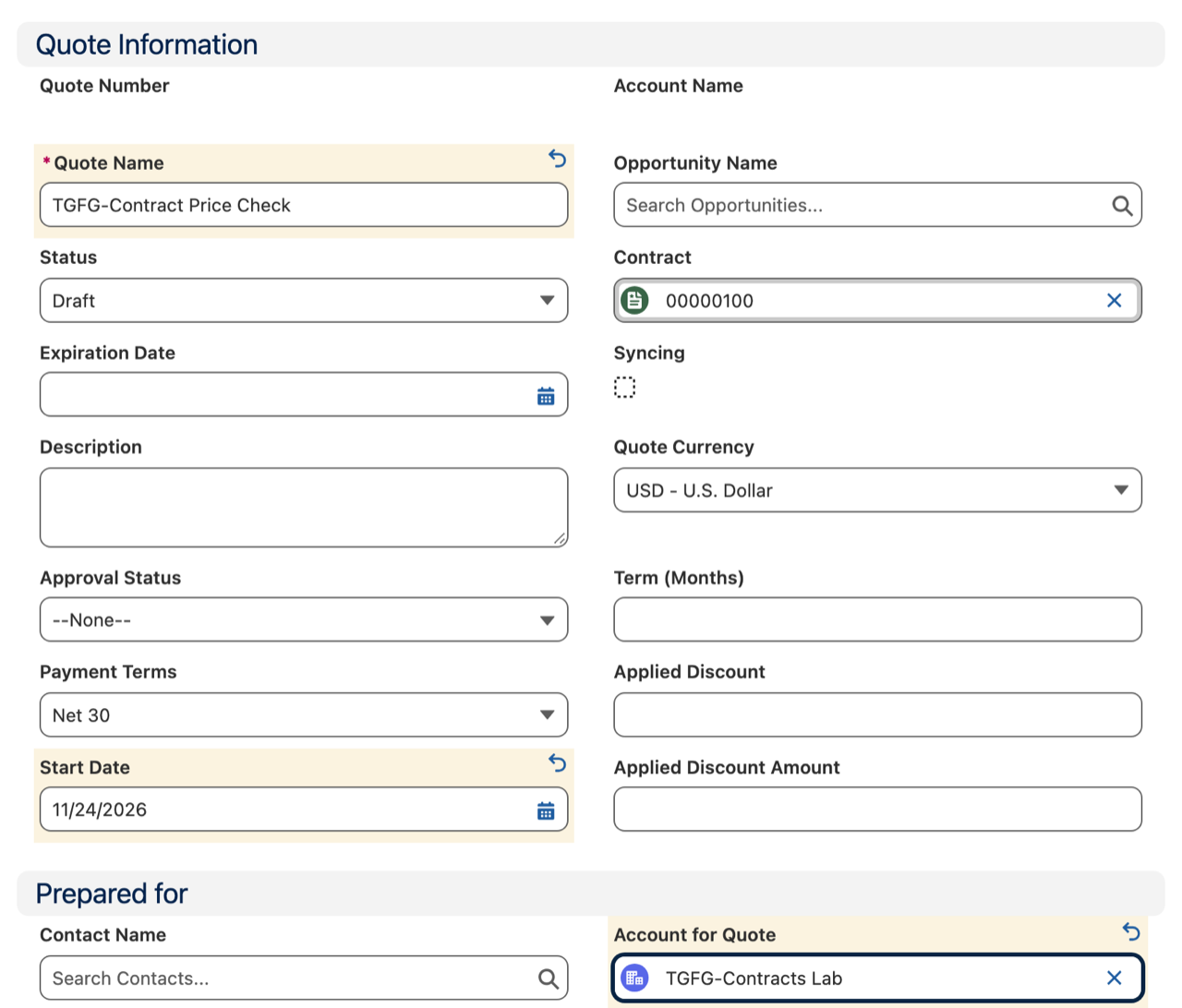 457
The New Quote window with the name, start date and account filled in. - In Quote Name 4, type
TGFG-Contract Price Check. - Click into Start Date 5.
- In the calendar that opens, click Today.
- Under Prepared for, in Account for Quote 7, search for and pick TGFG-Contracts Lab.
- Click Save at the bottom of the window. You stay on the contract, and the list shows Quotes (2).
- Open TGFG-Contract Price Check from that list.
- Click Browse Catalogs.
- In Choose Price Book, keep Standard Price Book and click Save. The catalog QuantumBit Software opens.
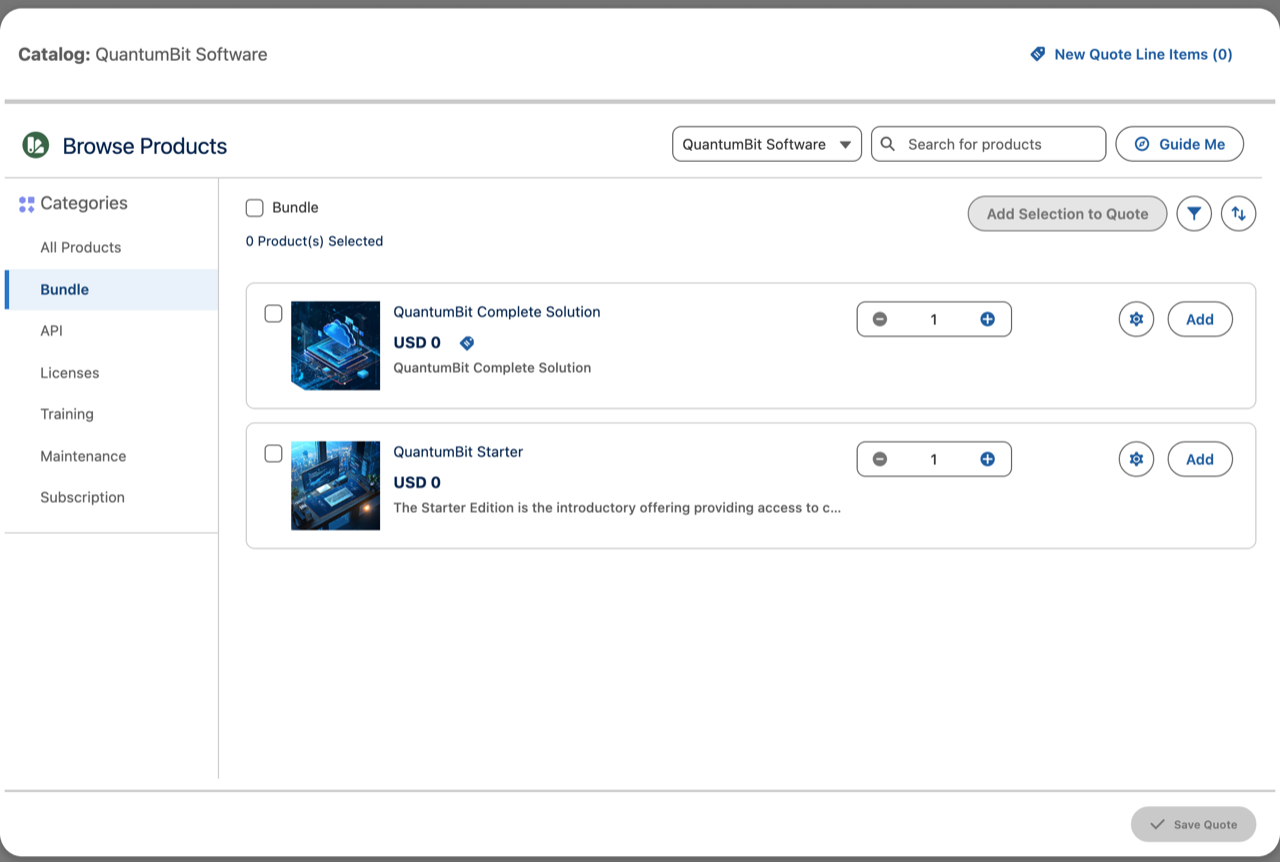 121314
The catalog's Bundle category, with Add on QuantumBit Complete Solution. - Under Categories, click Bundle 12.
- On QuantumBit Complete Solution, click Add 13.
- Click Save Quote 14. The catalog closes and the quote shows its lines.
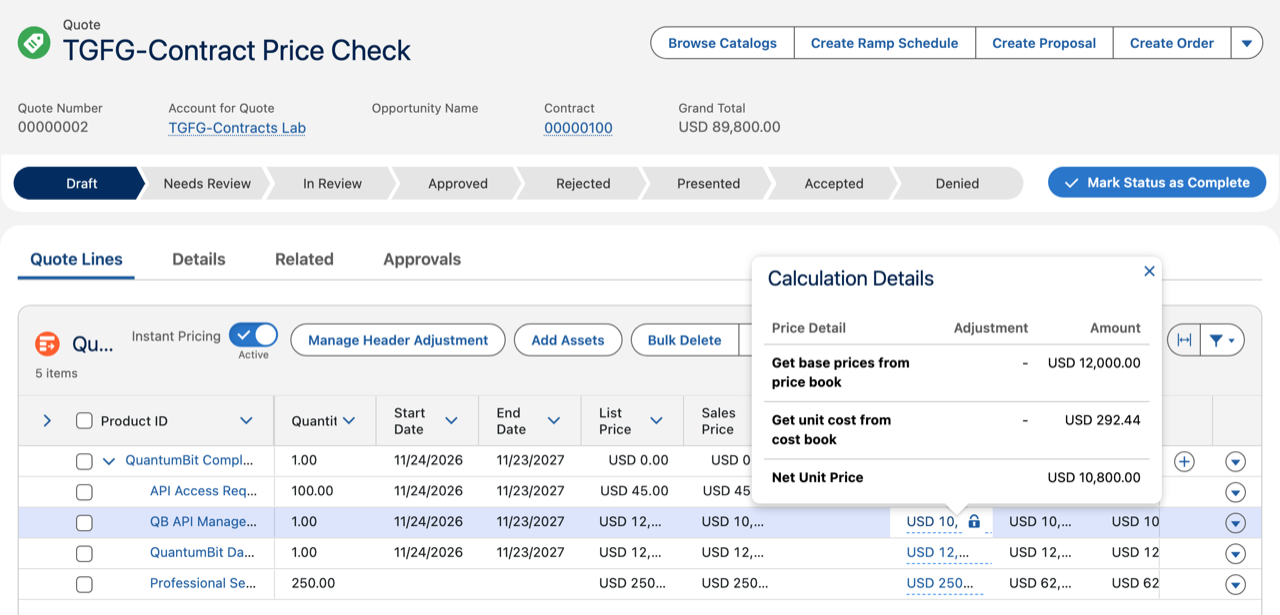 15
Calculation Details for the QB API Management Solution line. - On the QB API Management Solution line, click the dotted value under Net Unit Price 15.
You should see: five lines on TGFG-Contract Price Check. QB API Management Solution has List Price USD 12,000.00 and Sales Price and Net Unit Price USD 10,800.00. QuantumBit Database, with the same List Price, USD 12,000.00, stays at USD 12,000.00. Grand Total is USD 89,800.00, and the header's Contract field shows the contract's number. Calculation Details shows Get base prices from price book, USD 12,000.00, and Net Unit Price, USD 10,800.00.
Good to know: nothing on screen says the 10,800 came from the contract. Adjustment Type is empty and the Quote Summary says Discount 0%, and Calculation Details names no contract. The proof is the comparison: two products at the same list price, and only the one with a contract price is lower. QB API Management Solution is in no catalog category, so Browse Catalogs and Add Product don't find it on its own; it comes in with the QuantumBit Complete Solution bundle. Save Quote stays grey until you add something. The grid cuts money values short, such as USD 10,...; Calculation Details, and Quote Line Items on the quote's Related tab, show them in full.
Order under the contract
 Order
What this is. Create Order turns the quote into an order. Because the quote has a contract, the draft order carries it, and in your lab org, activating the order makes the customer's asset, tied to the contract.
- Open TGFG-Contracts Lab Quote, the quote you contracted. It is still Draft.
- Click Create Order.
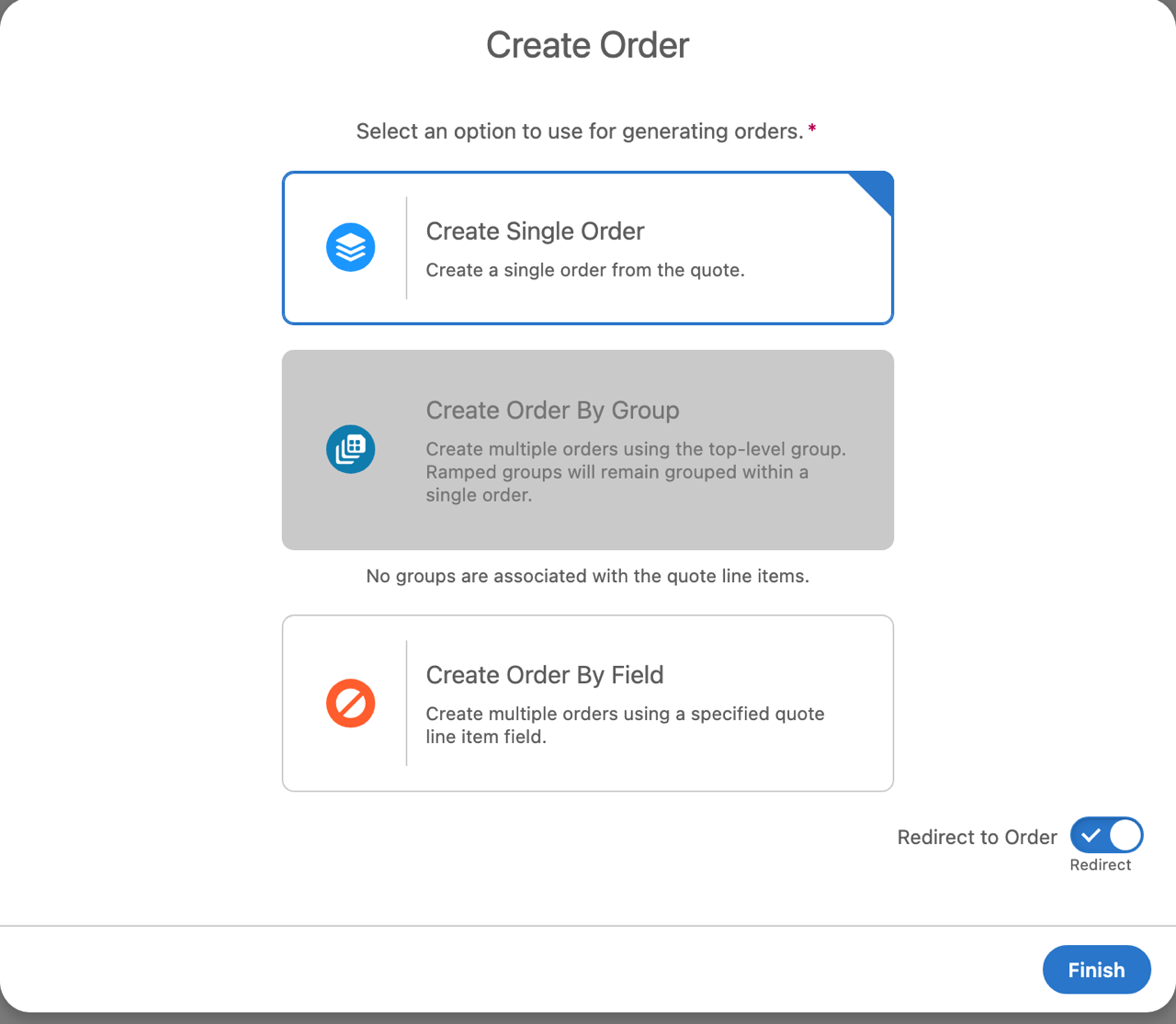 3ab
The Create Order window with Create Single Order picked. - In the window Create Order, pick Create Single Order 3.
- Leave Redirect to Order a on and click Finish b. The order opens after a few seconds, on its Lines tab.
 5
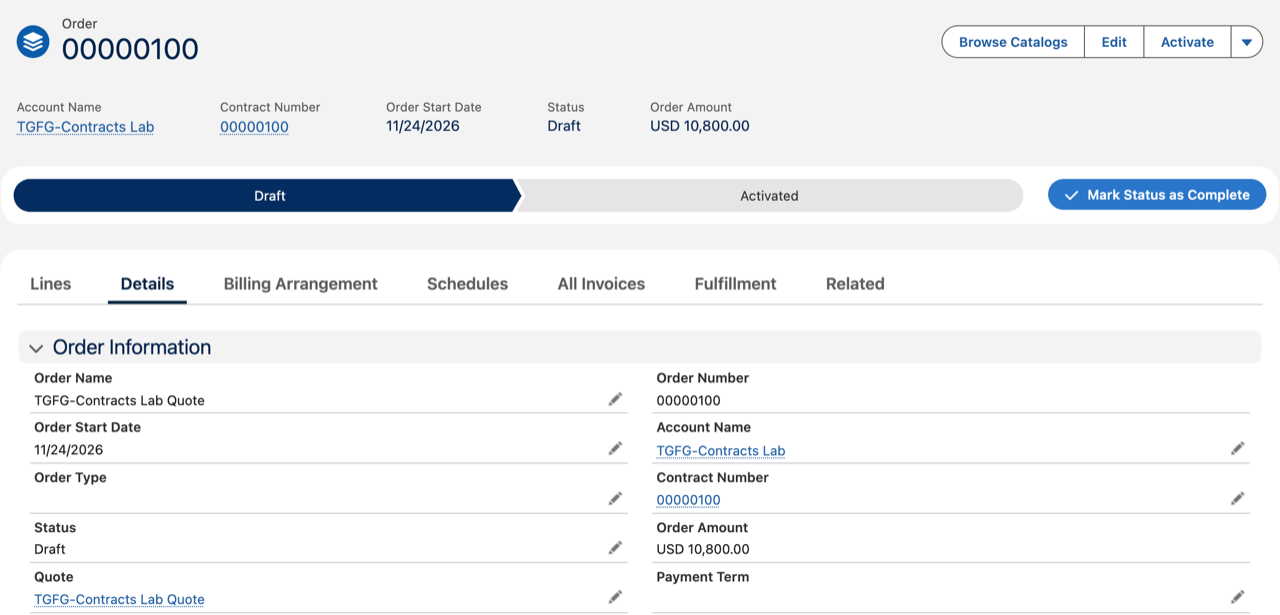
The draft order's Details tab, with Order Name and Contract Number. - Open the order's Details tab 5 and read Order Name and Contract Number.
 6
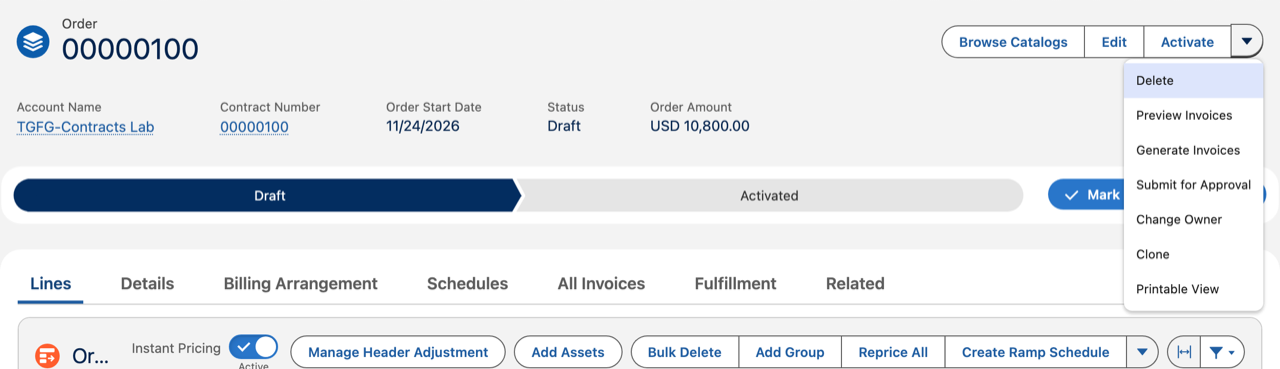
The draft order's Show more actions menu, with no New Contract. - Click Show more actions 6 and read the menu.
 78
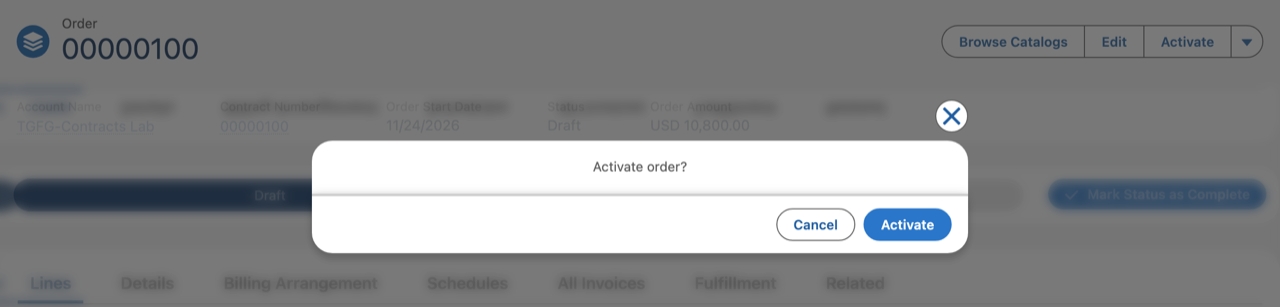
The window that asks to activate the order, under the header's Activate button. - Click Activate 7 in the order's header.
- In the window Activate order?, click Activate 8.
You should see: before you activate, the order's header shows Account Name TGFG-Contracts Lab, Contract Number (your contract's number), Status Draft and Order Amount USD 10,800.00, and on Details its Order Name is TGFG-Contracts Lab Quote. Its menu has no New Contract. After you activate, Status is Activated, the Activate button becomes Deactivate, and Contract Number stays.
Good to know: this order shows no New Contract because it already has a contract: the order's own New Contract shows only on an order that has none, and a contract made that way keeps no prices. In a new org the order and the contract may get the same number; the number under Contract Number is the contract's.
This button comes with the launchpad
Create Order runs a flow called
RLM_CreateOrdersFromQuote, named in Setup > Revenue Settings > Set Up Flow for Creating Orders from Quotes. Salesforce's launchpad added it to your lab org; a plain Revenue Cloud org doesn't have it. Its parts:- Quote Ready For Ordering checks the quote before the window opens.
- S01_CreateOrdersScreen is the Create Order window.
- The flow then calls Salesforce's standard createOrdersFromQuote action, which makes the order.
This activation step comes with the launchpad
Activating the order runs a flow called
RLM_Submit_Order_on_Activation. Salesforce's launchpad added it to your lab org; a plain Revenue Cloud org doesn't have it. Its parts: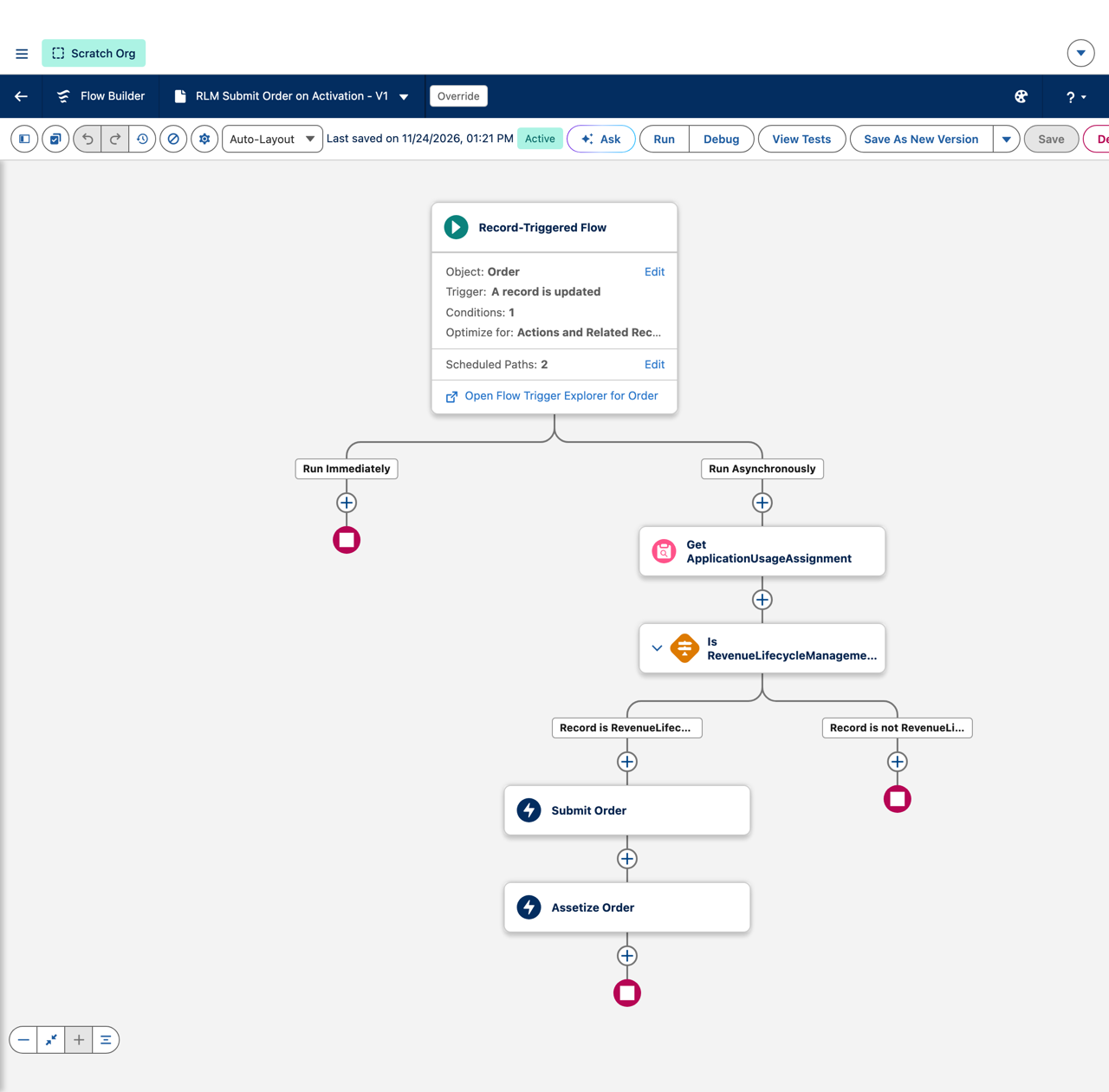
RLM_Submit_Order_on_Activationopen in Flow Builder.- It starts after an order is saved with the status Activated, on its Run Asynchronously path, and goes on only for an order with Revenue Cloud's usage tag, which this one has.
- Submit Order, then Assetize Order, are Salesforce's standard Submit Order and Create or Update Asset from Order actions. Within seconds the asset exists, tied to the contract.
See the asset on the contract
 Asset
What this is. An asset is what the customer owns after the order. The contract's Assets tab lists the assets tied to it, and amendments, renewals and cancellations can start there, as they can from the account's Assets tab.
 23
The Contracts list TGFG lab records, with your contract's row. - In the Revenue Cloud app, click the Contracts tab.
- Switch the list to TGFG lab records 2.
- Open your contract: on the row with Account Name TGFG-Contracts Lab and Status Activated, click the number under Contract Number 3.
 4
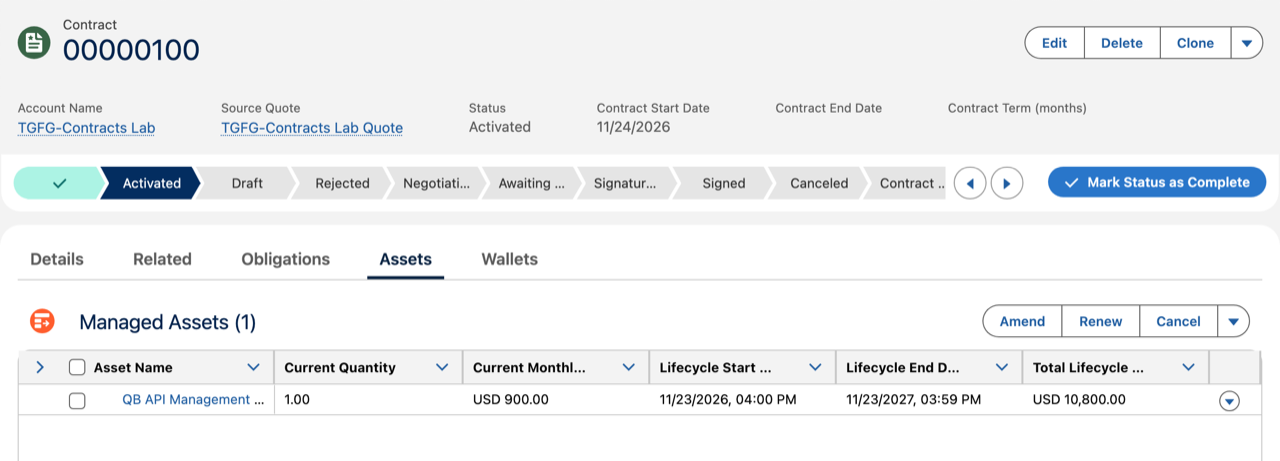
The contract's Assets tab, with Managed Assets (1). - Click the Assets tab 4.
 5
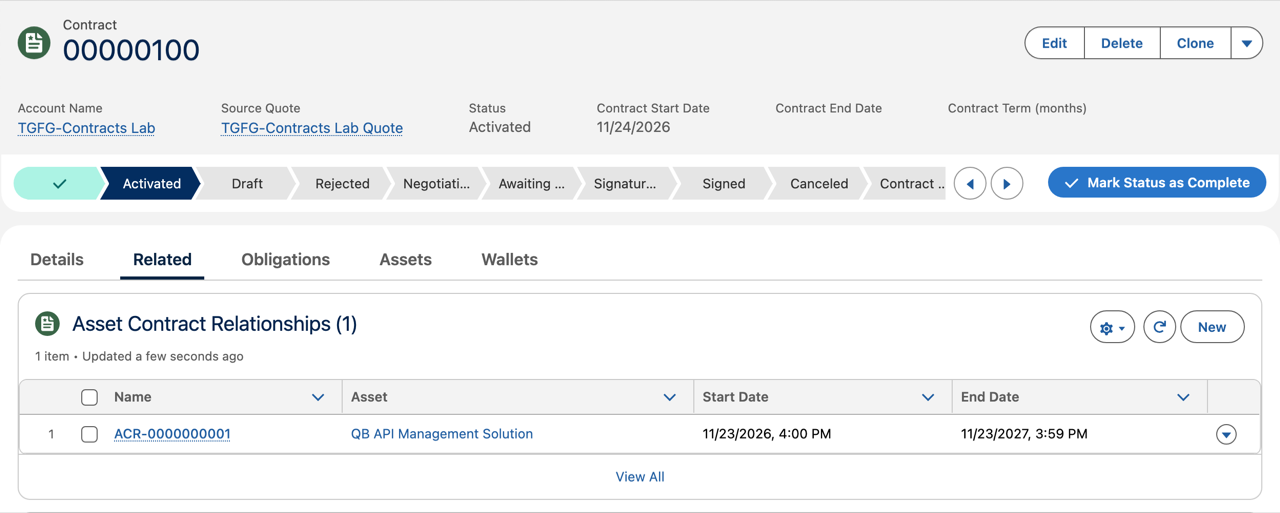
The contract's Related tab, with Asset Contract Relationships (1). - Open the Related tab and find Asset Contract Relationships (1) 5.
You should see: Managed Assets (1), with the buttons Amend, Renew and Cancel and a menu holding Transfer, Rollback and Swap. Its one row is QB API Management Solution, quantity 1.00, Current Monthly Recurring Revenue USD 900.00 and Total Lifecycle Amount USD 10,800.00. On Related, Asset Contract Relationships (1) lists a record starting ACR- for QB API Management Solution.
Good to know: the Assets tab lists only this contract's assets, not every asset on the account.
Start a renewal
AssetWhat this is. Renew makes a quote for the asset's next term, tied to the contract. The renewal is priced from the asset: Salesforce's page says a renewal's lines use the contract's prices "unless the asset-level pricing source specifies otherwise", and this asset's Pricing Source is Last Transaction.
 23
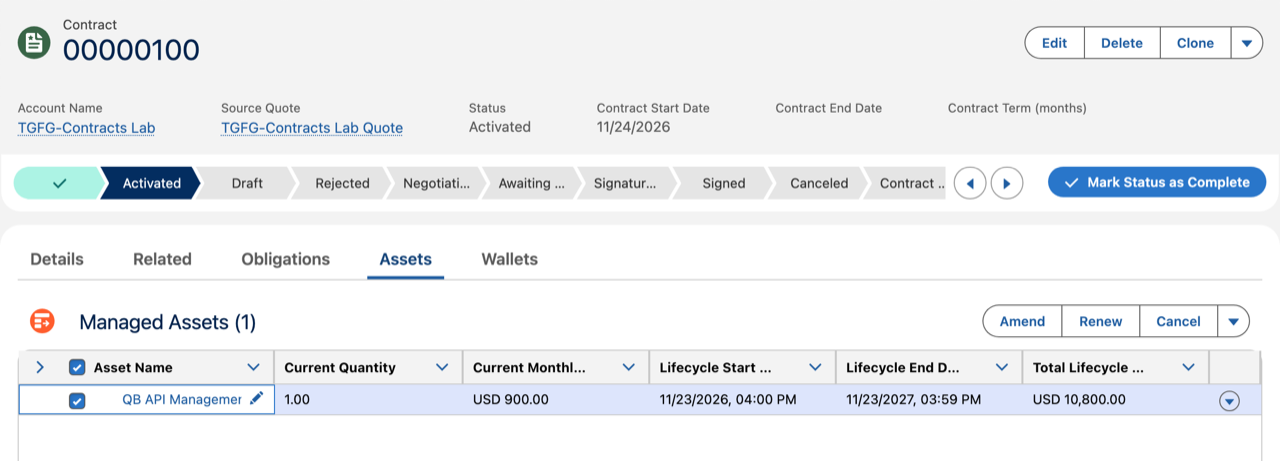
The contract's Assets tab with the QB API Management Solution row ticked. - Open the contract's Assets tab again.
- Tick the box at the start of the QB API Management Solution row 2.
- Click Renew 3.
 ab
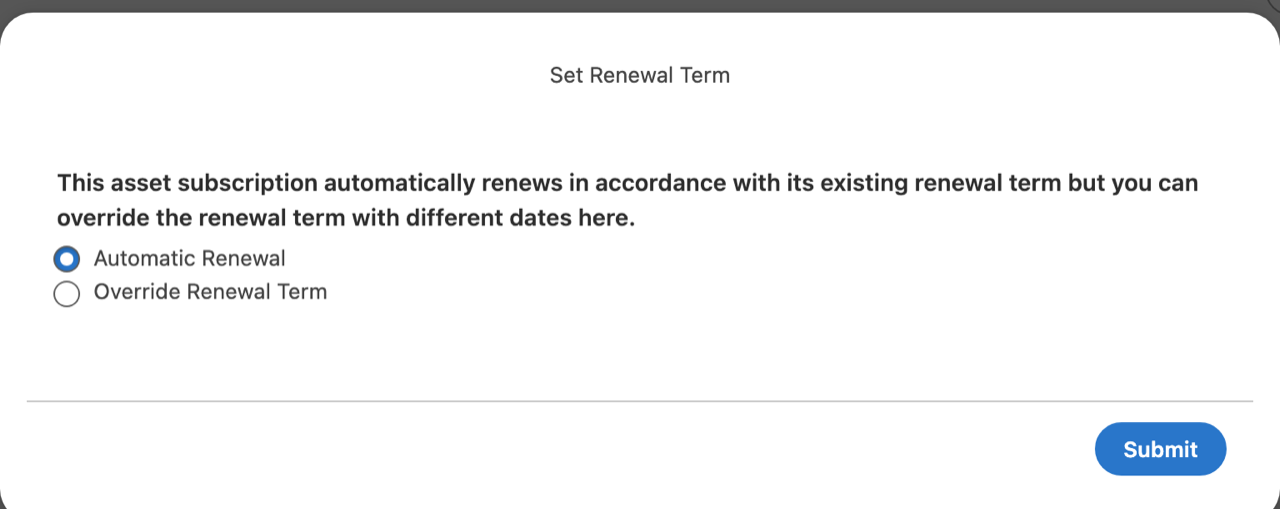
The Set Renewal Term window, with Automatic Renewal picked. - In the window Set Renewal Term, leave Automatic Renewal a picked and click Submit b. After about half a minute the renewal quote opens by itself. Wait for it, and don't click Submit or Renew again.
You should see: a quote named Renewal Quote, Draft, with Account for Quote TGFG-Contracts Lab, your contract's number under Contract, no opportunity, and Grand Total USD 12,000.00. Its one line, QB API Management Solution, runs one year, starting the day after the first year ends. Its List Price, Net Total Price and Total Price are USD 12,000.00, and its Sales Price and Net Unit Price are empty.
Good to know: the renewal comes out at list, 12,000, not at the contract's 10,800. The contract price covers the first year only, with the dates of the quote line it came from, and the renewal is priced from the asset, not the contract. The empty Sales Price and Net Unit Price don't mean pricing failed: the price sits one level down, on the line's quote line detail, a record starting QLB-. Salesforce's page has you click View on the line, then View All under Related, to see it. Override Renewal Term, the other choice in Set Renewal Term, asks for your own start and end dates. With no row ticked, Renew opens nothing.
This button comes with the launchpad
Renew runs a flow called
RLM_ARC_Assets, named in Setup > Revenue Settings > Set Up Flow for Managing Assets. Salesforce's launchpad added it to your lab org; a plain Revenue Cloud org doesn't have it. From a contract, its parts are:RLM_ARC_AssetValidatoris an Apex action that checks the assets you ticked.Renewal_Term_Selector_Screenis the Set Renewal Term window.- Renew Assets is Salesforce's standard renewal action, given the asset, the contract, Quote as what to make, and your dates only when you override the term.
You finished the Contracts lab
Here is what you made in your lab org.
- A clause category, TGFG-Terms
- A clause set, TGFG-Payment Terms, with the main clause TGFG-Net 30 and an alternate, TGFG-Net 60
- A document template, TGFG_Terms_Letter, from a Word file you download
- Two proposals on the quote TGFG-Contracts Lab Quote, TGFG_Terms_Letter_1 and TGFG_Terms_Letter_2, one before and one after a new clause version
- A contract made from that quote, with the quote's price kept as a contract price
- A quote priced from the contract, TGFG-Contract Price Check
- An order and an asset under the contract, and a renewal quote, Renewal Quote
What to take away
- Write terms once, in the clause library. A template that uses the clause's latest-version token gets its latest active version when a document is made, so changing the wording doesn't mean changing the template.
- A clause token is exact. One character off and the clause prints as a blank line.
- A generated document is a copy. The first proposal kept 30 days after the clause said 45.
- From a quote, contract prices are a choice made at New Contract: the quote's net unit prices, its discounts, or neither. They can also be added by hand on the contract.
- A contract's prices reach quotes started from it once it is activated and its pricing decision table refreshed. Nothing on the quote names the contract as the source.
- The asset's pricing source can decide how a renewal is priced. Here its Pricing Source was Last Transaction, the contract price covered the first year only, and the renewal came out at list.
- The buttons that move the deal along are the launchpad's flows here. New Contract, Create Order and Renew run the flows named in Revenue Settings, where an admin can name others. Create Proposal, the contract's price refresh and the order's activation step are flows the launchpad added.