
Drafted, not yet confirmed · your lab org
You'll quote the bundle you built in the Catalog lab and read each part of the quote screen: the page, the grid, a line's side panel and the price waterfall. Then you'll discount your plan, watch the discount set an approval level, and follow it into an approval: the preview, the workflow behind it, the submission and who has to act.
The lab has four parts. Steps 1 and 2 start the quote and read its page. Steps 3 to 7 add your bundle and read its lines. Steps 8 and 9 discount your plan. Steps 10 to 14 follow the discount into an approval.
Do the Catalog lab first: this lab quotes TGFG-Support Bundle, which you build there, and its setup stops if your org doesn't have it.
What you'll make
- A quote, TGFG-Quote Lab Quote, on the opportunity TGFG-Quote Lab Opportunity
- Its three lines, from your bundle: TGFG-Support Bundle, with TGFG-Onboarding Session and TGFG-Priority Support Plan under it
- On the line of TGFG-Priority Support Plan, TGFG-Support Tier set to Premium and a discount of 20 percent
- An approval submission and its approval work item. They have numbers, starting AS- and AWI-, not names: the page of each is titled with the quote's name, TGFG-Quote Lab Quote
What a quote is in Revenue Cloud
- A quote is the offer before an order. It proposes products, services and their prices to the customer; the order that follows is the formal agreement.
- The line editor is where a quote's lines are added, configured and priced. On the quote it shows as Quote Line Items. Pointing at a line's Net Unit Price shows its price waterfall, and pointing at a bundle's Total Price shows the bundle's total.
- A bundle is configured in the Product Configurator, opened from Configure on the bundle's line. With Instant Pricing off, Update Prices brings the configurator's prices up to date.
- A manual discount is the rep's own. It is entered on the line, it isn't tied to a decision table, and the price waterfall shows it.
- Advanced Approvals runs approval workflows on Flow Orchestration. A workflow is built of stages, decisions and steps: a decision sends it down a path, and an approval step assigns the request to an approver. A chain name lets steps run one after another or side by side.
- A submission is the approval request, and a work item is one step of it, assigned to a user, a group or a queue. Preview simulates the steps a record would start, without making any approval records.
Each line rests on Salesforce's help, in these articles: Quotes and Orders in the Agentforce Revenue Management, Create a Quote, View and Edit Quotes in Agentforce Revenue Management, Add and Customize the Transaction Line Editor or Sales Transaction Line Editor, Reprice All for Quotes and Orders, Configure Bundled Products, Get the Latest Pricing, Manually Discount Product Prices, Salesforce Pricing Essentials, Advanced Approvals, Example: Configure an Approval Workflow, Advanced Approval Objects, Preview Approvals, Configure Lightning Components for Approvals, Smart Approvals in Approval Flows, Use Advanced Approvals in a Quote and Advanced Approvals Personas and Permissions. The Quote guide page covers pricing and approvals in more depth.
Your lab org comes with a sample company, QuantumBit. Its products, price books and billing setup are there because the labs use them, so leave them as they are. Everything a lab names starts with TGFG-, so you can always tell your work from QuantumBit's.
Open your lab org
From Org Launcher
Click your lab org's name.
No Org Launcher yet? Track your orgs
From the command line
Put your lab's name where it is marked.
sf org open -o rlm-base__your lab name
If you kept the name the lab org page suggests, that is my-lab:
sf org open -o rlm-base__my-lab
Before you start
Set it up once before you start, with Claude: paste the prompt below into Claude Code.
This lab comes after the Catalog lab: it quotes TGFG-Support Bundle, which you build there, so do that lab first.
You need a Revenue Cloud org built from Salesforce's launchpad, Revenue Cloud Foundations, with its QuantumBit sample catalog and its approvals step. Every step of this lab works as the admin user of an org built for these labs. Salesforce's pages ask for Run Flows to preview and submit an approval, and, to use the line editor, for the permission Manage Agentforce Revenue Management with the Create Orders from Quotes and Price and Tax Calculation for Quoting permission sets. Step 12 opens Setup and Flow Builder.
The setup makes or finds these for you, owned by your user:
| It makes | Called | What it's for |
|---|---|---|
| An account in USD, with the billing and shipping address 4300 Main Street, Philadelphia | TGFG-Quote Lab | The customer you quote. A flow copies its address onto your quote in step 1 |
| A contact on the account | TGFG Quote Lab Contact | The quote's Bill To Contact |
| A default billing profile | TGFG-Quote Lab Billing | The account's billing details |
| An open opportunity, on the Standard Price Book, in USD | TGFG-Quote Lab Opportunity | Where you start the quote |
| A list view on Accounts, Opportunities and Quotes | TGFG lab records | The lab's records in one list on each tab |
It also checks two things, and changes nothing: that TGFG-Support Bundle is in TGFG-Catalog Lab Catalog, with TGFG-Priority Support Plan at USD 6,000 and its pricing data synced; and that the launchpad's approval pieces are there: the approval workflow, five approval fields and the public groups Manager, Director and VP. If the Catalog lab's records are missing, it stops and tells you. The quote, its lines, the discount and the approval are yours to make.
Set up the Quote lab from the Taggalong field guide in my Revenue Cloud practice org (the scratch org I built with Salesforce's launchpad; its sf CLI alias is the one I tell you, or ask me). This lab comes after the Catalog lab and quotes the bundle I built there.

Rules:
- Only create records whose names start with TGFG-, plus the contact, billing profile and opportunity that belong to them and the list views in step 7. Never change the QuantumBit sample records.
- Don't change anything pricing or approvals run on: no product, price book, price book entry, catalog, category, pricing procedure, decision table, price adjustment schedule, flow, field, public group, group member, setting or page layout. Don't run Sync Pricing Data and don't refresh any decision table.
- Don't create or change any of the Catalog lab's records: its catalog, category, products, bundle components and prices. Step 1 only reads them.
- Don't create a quote, quote line, discount or approval submission, and don't submit or recall anything. Building those is mine to do in the lab.
- Everything you create is owned by the user the sf CLI is logged in to the org as (the username sf org list shows for my alias). Don't change any record's owner.
- Never print or show me an access token, and don't show the full output of sf org display.
- Use USD everywhere: the account and the opportunity are created with CurrencyIsoCode USD. The org has other currencies too, and the lab ignores them.
- Tell me in one line what you're doing at each step, and show me any error before you try to fix it.

How to run things:
- Queries: sf api request rest "/services/data/v68.0/query?q=<the SOQL, URL-encoded>" -o <alias>. The rows come back in records. The SOQL must be URL-encoded, spaces, quotes, commas and all. One plain way: python3 -c 'import sys, urllib.parse; print(urllib.parse.quote(sys.argv[1]))' "<the SOQL>", and put what it prints after q=.
- Creates: sf data create record -s <Object> -v "<Field=value Field=value ...>" -o <alias> --json. Put single quotes around a value that has spaces. The new record's Id is result.id in the answer. Where a step gives only the -s <Object> -v "..." part, it stands for this whole command, with -o <alias> --json at the end.

Steps:
1. Check that the Catalog lab is done. Read only: run these queries and compare what comes back.
    a. The catalog: SELECT Id, Name, Code, CatalogType FROM ProductCatalog WHERE Code = 'TGFG-CAT-LAB'. Expect one row, Name TGFG-Catalog Lab Catalog.
    b. The products: SELECT Id, Name, StockKeepingUnit, Type, IsActive FROM Product2 WHERE StockKeepingUnit IN ('TGFG-SB','TGFG-PSP','TGFG-ONB'). Expect three rows, all IsActive true: TGFG-Support Bundle (TGFG-SB, Type Bundle), TGFG-Priority Support Plan (TGFG-PSP) and TGFG-Onboarding Session (TGFG-ONB).
    c. The bundle in the catalog: SELECT Id, Product.Name, ProductCategory.Name FROM ProductCategoryProduct WHERE ProductCategory.Catalog.Code = 'TGFG-CAT-LAB'. Expect a row whose Product.Name is TGFG-Support Bundle.
    d. The prices: SELECT Id, Product2.Name, ProductSellingModel.Name, UnitPrice, IsActive FROM PricebookEntry WHERE Product2.StockKeepingUnit IN ('TGFG-SB','TGFG-PSP','TGFG-ONB') AND Pricebook2.IsStandard = true AND CurrencyIsoCode = 'USD'. Expect active rows for the plan, Term Annual, UnitPrice 6000; the bundle, Term Annual, 0; and the onboarding, One-Time, 1500.
    e. The bundle's components: SELECT Id, ChildProduct.Name, ProductComponentGroup.Name, IsComponentRequired, DoesBundlePriceIncludeChild FROM ProductRelatedComponent WHERE ParentProduct.StockKeepingUnit = 'TGFG-SB'. Expect two rows, TGFG-Priority Support Plan and TGFG-Onboarding Session, in the group TGFG-Support Options: the plan with IsComponentRequired true and DoesBundlePriceIncludeChild false, the onboarding with DoesBundlePriceIncludeChild true. If a flag differs, tell me which one, and go on.
    f. Synced: SELECT DeveloperName, LastSyncDate, RefreshStatus FROM DecisionTable WHERE SourceObject = 'PricebookEntry', and SELECT MAX(LastModifiedDate) m FROM PricebookEntry WHERE Product2.StockKeepingUnit IN ('TGFG-SB','TGFG-PSP','TGFG-ONB'). The second answer has one row in records, with the latest change as m. Both are UTC date-times, such as 2026-11-25T03:23:32.000+0000: compare them as times. The pricing data is synced when a row of the first answer has RefreshStatus Completed and a LastSyncDate later than m.
    If a, b, c or d finds something missing, or e finds fewer than two components, stop and tell me, in plain words: "The Quote lab quotes what the Catalog lab builds, and your org doesn't have all of it yet: <what's missing>. Do the Catalog lab first, then run this setup again." If the plan's price book entry has a UnitPrice other than 6000, stop and tell me: "Your plan's price book entry reads <its UnitPrice>, not 6000. The Catalog lab's step 18 puts it back to 6000 and syncs: finish that step, wait a few minutes, then run this setup again." If only f fails, stop and tell me: "Your Catalog lab records are there, but their pricing data hasn't been synced since they last changed. If you synced in the last few minutes, the sync may not have finished: wait three minutes and run this setup again. Otherwise sync it as the Catalog lab's step 13 does (Setup, Salesforce Pricing Setup, Sync, Confirm), wait three minutes, then run this setup again." Don't make or fix anything in step 1.
2. Look up these Ids by query. If either is missing, stop and tell me.
    - The standard price book: SELECT Id FROM Pricebook2 WHERE IsStandard = true
    - My user: run sf org list --json and read only the username of the org whose alias is mine; print nothing else from it. Then query SELECT Id FROM User WHERE Username = '<that username>'
3. The account. Find it by its name: SELECT Id, Name, CurrencyIsoCode, BillingStreet, ShippingStreet, OwnerId FROM Account WHERE Name = 'TGFG-Quote Lab'. If there is none, create it:
    sf data create record -s Account -v "Name='TGFG-Quote Lab' CurrencyIsoCode=USD BillingStreet='4300 Main Street' BillingCity=Philadelphia BillingState=PA BillingPostalCode=19127 BillingCountry=US ShippingStreet='4300 Main Street' ShippingCity=Philadelphia ShippingState=PA ShippingPostalCode=19127 ShippingCountry=US" -o <alias> --json
    If you find it with no BillingStreet or ShippingStreet, tell me, and don't change it.
4. The contact. Look for one on the account: SELECT Id, FirstName, LastName, Email FROM Contact WHERE AccountId = '<account>'. If it has one, use the first row. If it has none, create one: -s Contact -v "AccountId=<account> FirstName=TGFG LastName='Quote Lab Contact' [email protected]".
5. The billing profile. It is a BillingAccount record; there is no BillingProfile object. Look for the account's default one: SELECT Id, Name, BillToContactId FROM BillingAccount WHERE AccountId = '<account>' AND IsDefaultBillingProfile = true. If there is none, create it: -s BillingAccount -v "Name='TGFG-Quote Lab Billing' AccountId=<account> BillToContactId=<contact> IsDefaultBillingProfile=true PrimaryBillAddrStreet='4300 Main Street' PrimaryBillAddrCity=Philadelphia PrimaryBillAddrState=PA PrimaryBillAddrPostalCode=19127 PrimaryBillAddrCountry=US"
6. The opportunity. Find it by name and account: SELECT Id, Name, StageName, IsClosed, Pricebook2Id, CurrencyIsoCode, OwnerId FROM Opportunity WHERE Name = 'TGFG-Quote Lab Opportunity' AND AccountId = '<account>'. If there is none, create it:
    sf data create record -s Opportunity -v "Name='TGFG-Quote Lab Opportunity' AccountId=<account> StageName='Proposal/Quote' CloseDate=<a year after today's date on my machine, as YYYY-MM-DD> Pricebook2Id=<standard price book> CurrencyIsoCode=USD" -o <alias> --json
    If you find it closed (IsClosed true), on another price book or in another currency, tell me, and don't change it.
7. Make the list view "TGFG lab records" on Account, Opportunity and Quote, so each tab can list the lab's records.
    - First find the views that already exist, all at once: SELECT SobjectType FROM ListView WHERE DeveloperName = 'TGFG_lab_records'. Skip every object in the answer. Other labs make the same view on other objects; leave those alone.
    - For each other object, write its body to lv_<Object>.json (in the folder you run the command from, or anywhere and give its full path after the @) and post it: sf api request rest --method POST --body @lv_<Object>.json "/services/data/v68.0/ui-api/list-info/<Object>" -o <alias>
    - Every body has "listViewApiName":"TGFG_lab_records", "label":"TGFG lab records", "visibility":"Private" and "scope":{"apiName":"everything"}. The filters go in "filteredByInfo", a list, each filter being {"fieldApiName":"<field>","operandLabels":[<values>],"operator":"StartsWith"}. The columns go in "displayColumns", a list of field API names. "filterLogicString" is null. Leave out orderedByInfo: the API refuses it. The whole body for Opportunity, which the other two follow:
     {"listViewApiName":"TGFG_lab_records","label":"TGFG lab records","visibility":"Private","filteredByInfo":[{"fieldApiName":"Name","operandLabels":["TGFG"],"operator":"StartsWith"}],"filterLogicString":null,"displayColumns":["Name","Account.Name","StageName","CloseDate"],"scope":{"apiName":"everything"}}
    - Opportunity: filter Name, values "TGFG". Columns ["Name","Account.Name","StageName","CloseDate"].
    - Quote: one filter on Name with both values in it, "operandLabels":["TGFG","Renewal Quote"], so a quote whose name starts with either one matches. Columns ["QuoteNumber","Name","QuoteAccount.Name","Status","Contract.ContractNumber","GrandTotal"]. (A Quote list view filtered on Account for Quote saves, but Lightning won't show it, so this one filters on the quote's name. "Renewal Quote" is there for the Contracts lab, whose setup makes this same view.)
    - Account: filter Name, values "TGFG". Columns ["Name","CreatedDate"].
    - A private view is seen by the user who made it, which is my user. The view's Id comes back in listReference.id. A POST can make the view and still answer with an error, so after any error run the ListView query again and tell me what it shows. Don't delete anything without asking me.
8. Check the launchpad's approval pieces. Read only.
    - The flows: SELECT ApiName, Label, IsActive, ProcessType FROM FlowDefinitionView WHERE ApiName IN ('RLM_Quote_Smart_Approval','RLM_Quote_Approval_Comments','RLM_Update_Quote_Billing_Info_From_Opportunity_Account','RLM_Quote_Approval_Data','RLM_AA_Set_Quote_Status','RLM_AA_Evaluate_Approval_Request'). Expect all six, each IsActive true; RLM_Quote_Smart_Approval has ProcessType ApprovalWorkflow.
    - The fields: SELECT QualifiedApiName, EntityDefinition.QualifiedApiName, DataType FROM FieldDefinition WHERE EntityDefinition.QualifiedApiName IN ('Quote','QuoteLineItem') AND QualifiedApiName LIKE 'RLM_%'. Match each field on its QualifiedApiName together with EntityDefinition.QualifiedApiName. Expect these five among the rows: Quote RLM_Approval_Level__c, Quote RLM_Approval_Status__c, Quote RLM_Payment_Terms__c, QuoteLineItem RLM_Approval_Level_Calc__c and QuoteLineItem RLM_Approval__c.
    - The groups: SELECT Id, Name, DeveloperName, Type, (SELECT Id FROM GroupMembers) FROM Group WHERE DeveloperName IN ('Manager','Director','VP'). Expect three rows. A GroupMembers subquery with no rows comes back as null, which means the group has no members: that is expected, and it is why the lab's approval waits. Don't add anyone to a group.
    If a flow or a field is missing, or a flow isn't active, stop and tell me: the org was built without the launchpad's approvals step, and the approval half of the lab won't work. If a group is missing, tell me which one, and go on: step 14 of the lab opens the group Manager.
9. The quotes already there. Read only, and leave every one as it is: never edit, recall or delete one. SELECT Id, Name, QuoteNumber, Status, RLM_Approval_Status__c, GrandTotal FROM Quote WHERE Opportunity.Account.Name = 'TGFG-Quote Lab' ORDER BY QuoteNumber. The quote I make in the lab is named TGFG-Quote Lab Quote. Match on Name, exactly: if no row has that Name, that is the name to use; if one does, the name is TGFG-Quote Lab Quote 2, or, if that is taken too, TGFG-Quote Lab Quote 3 and so on, the first that no row has.
10. Check that the OwnerId of the account and of the opportunity is my user's Id. If one isn't, tell me, and don't change it.
11. Report, in one short list: the Ids of the account, the contact, the billing profile and the opportunity, and for each whether you found it or made it; which list views you made and which you found; the results of step 1, one line for each check; the results of step 8; the quotes step 9 found, with their numbers and Approval Status; and the name to give the quote. If step 9 found a quote named TGFG-Quote Lab Quote, tell me I've done this lab before, that the note "Done this lab before?" on the lab page says what changes, and that the quote's name this time is the one from step 9, such as TGFG-Quote Lab Quote 2.
Done this lab before? Keep what you made the first time and run the setup again. It finds its records, makes nothing, and says you've done this lab before. In step 1, name the new quote TGFG-Quote Lab Quote 2, or the next free number the setup gives you, such as 3, and use that name wherever a step names TGFG-Quote Lab Quote. If you submitted your first quote, it stays as it is, with Approval Status Pending and its work item Assigned: leave it alone, and don't recall its submission. No step of this lab deletes a quote or an approval submission. The messages and window titles carry the new name, such as the configurator's link Return to TGFG-Quote Lab Quote 2. What else you may meet, step by step:
- Step 1: the Opportunities tab may open straight on the list Recently Viewed, as you left it. Skip click 5.
- Step 1: after Save, the Quotes card on TGFG-Quote Lab Opportunity reads Quotes (2), with your first quote above the new one. Pick the one with the 2.
- Step 14: the Quotes list TGFG lab records lists both quotes, the new one last, with the same Status and Grand Total. Pick the one with the 2.
Every step of this lab has been clicked through on screen in a fresh lab org.
Steps
Start the quote
 Quote
What this is. A quote is the offer you make to the customer before an order. You start it from TGFG-Quote Lab Opportunity, which ties it to the deal: Salesforce's page has you start a quote from an opportunity's Quotes or from the Quotes tab.
- Open the App Launcher, the nine dots left of the app's name.
- Type
Revenue Cloud. - Click Revenue Cloud. The list also offers Revenue Cloud Operations Console. The app opens on its Home tab.
- Click the Opportunities tab. It opens on My Pipeline, a Pipeline Inspection page, not on a list.
- Click List View, at the top right. It opens on the list Recently Viewed.
 67
The Opportunities list TGFG lab records, with TGFG-Quote Lab Opportunity in it. - Switch the list to TGFG lab records 6. It lists the opportunities whose names start with TGFG, by Opportunity Name, with Account Name, Stage and Close Date.
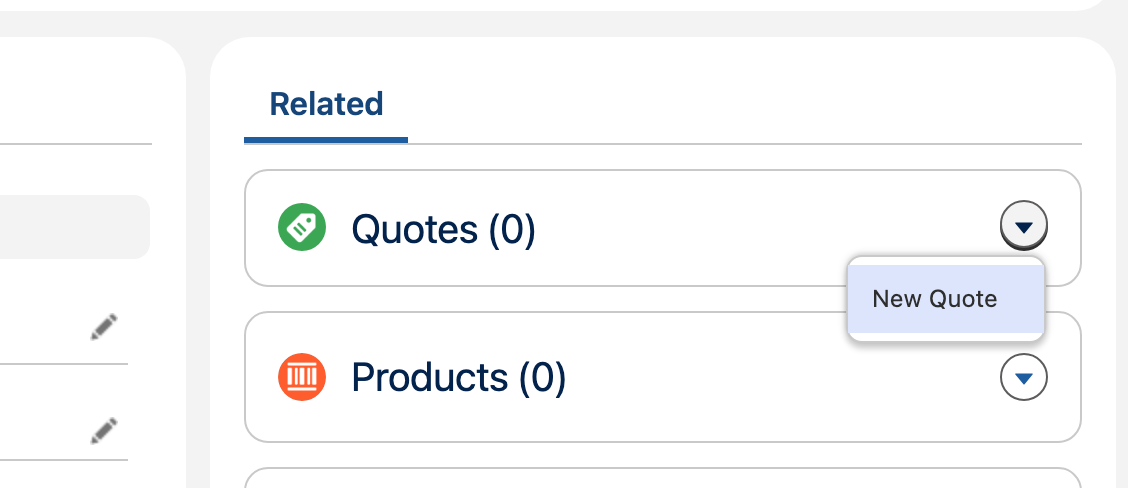
- Click TGFG-Quote Lab Opportunity 7. Its Related column has a Quotes card.
 89
The Quotes card on the opportunity, with its menu open on New Quote. - Click the arrow on the Quotes card 8. Its one item is New Quote.
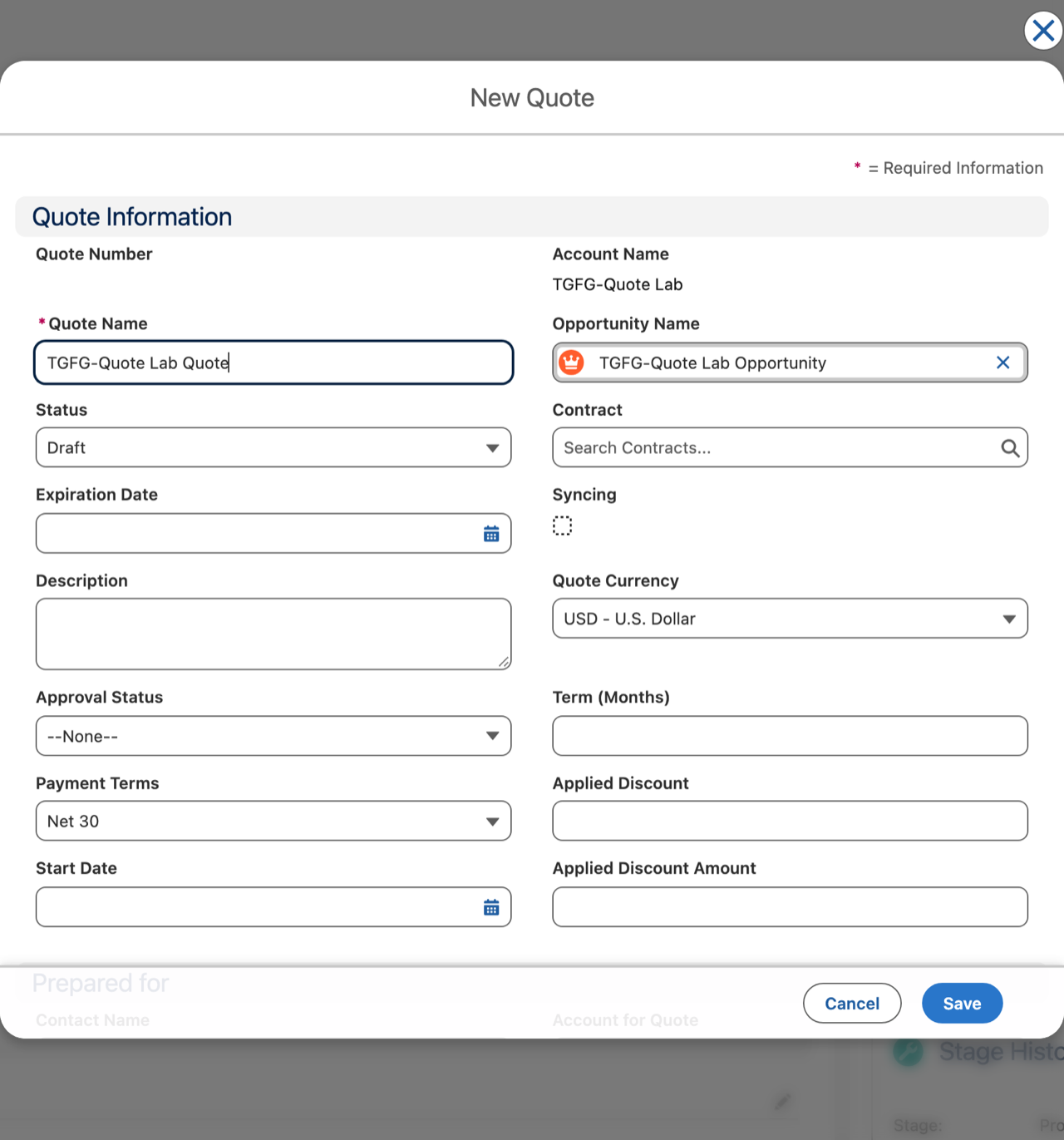
- Click New Quote 9. The window New Quote opens, with Status Draft, Payment Terms Net 30, Account Name TGFG-Quote Lab, Opportunity Name TGFG-Quote Lab Opportunity and Quote Currency USD - U.S. Dollar filled in.
 1011
The New Quote window, with the quote's name typed. - In Quote Name 10, type
TGFG-Quote Lab Quote. - Click Save 11. You stay on TGFG-Quote Lab Opportunity.
 12
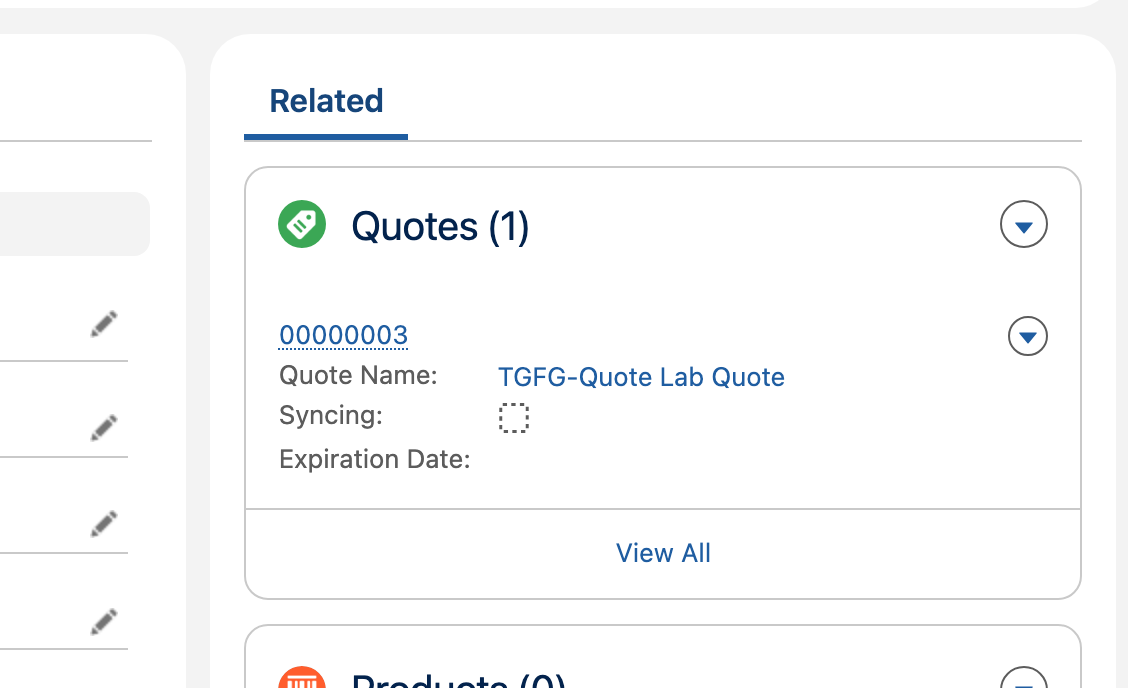
The Quotes card, now Quotes (1), with the new quote's number and name. - On the Quotes card, now Quotes (1), click TGFG-Quote Lab Quote 12, beside Quote Name. The quote opens on its Quote Lines tab.
You should see: after Save, "Quote "TGFG-Quote Lab Quote" was created.", with the quote's name as a link, and TGFG-Quote Lab Quote on the opportunity's Quotes card.
Good to know: the form also has Approval Status, at --None--, and Payment Terms, at Net 30: leave both. Step 11 changes Payment Terms on the quote itself. Under Prepared for, Account for Quote stays empty, so the quote's header shows Account for Quote empty too. The opportunity's header also has a New Quote button; this lab uses the one on the Quotes card.
This flow comes with the launchpad
When you save a new quote, a flow called
RLM_Update_Quote_Billing_Info_From_Opportunity_Accountcopies the account's billing and shipping address onto it; step 2 shows them on the Details tab, with Bill To Contact TGFG Quote Lab Contact. Salesforce's launchpad added it to your lab org; a plain Revenue Cloud org doesn't have it, and a project's own may differ. Its parts, as Flow Builder names them: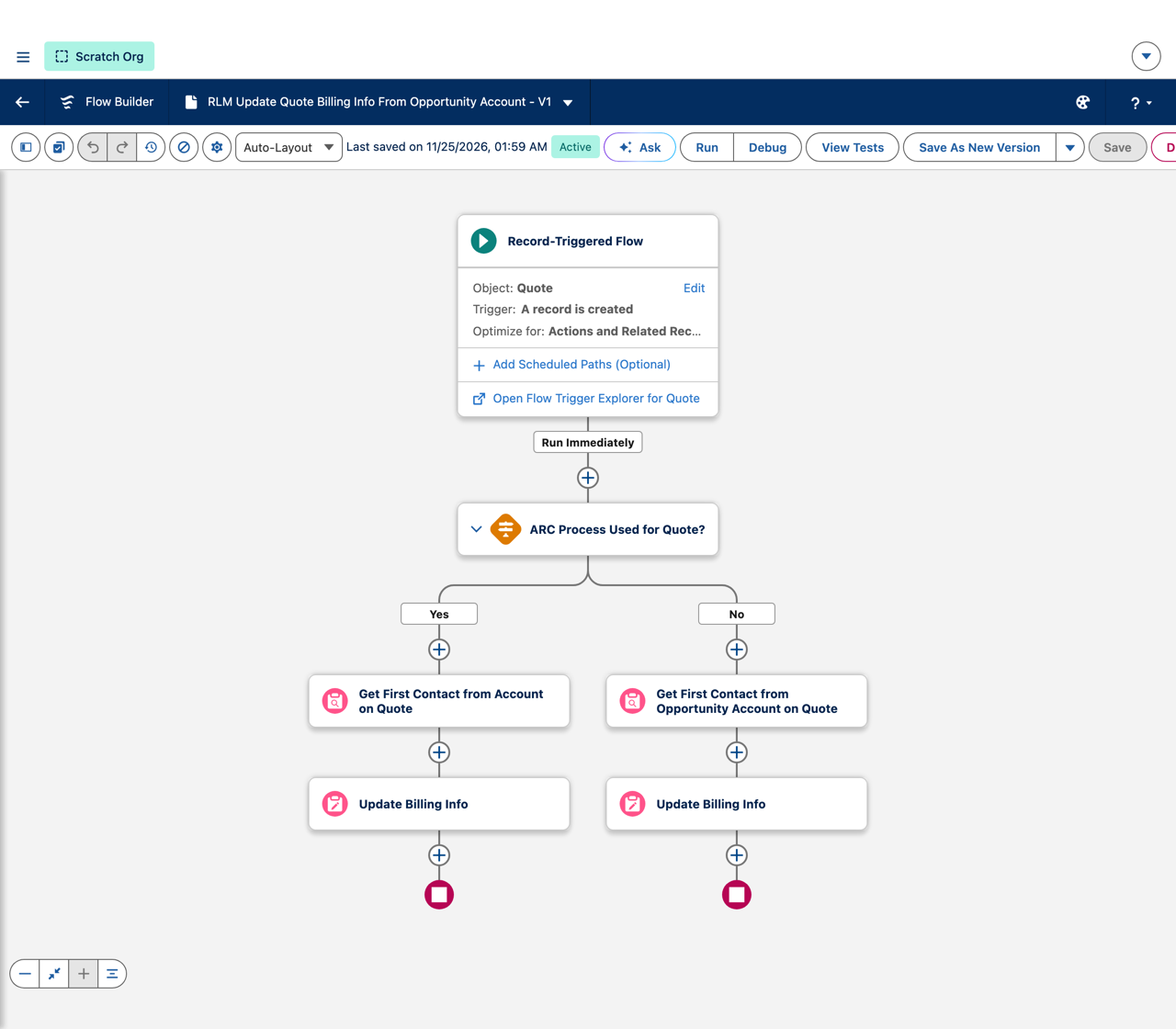
RLM_Update_Quote_Billing_Info_From_Opportunity_Accountopen in Flow Builder.- It starts when a quote record is created: Flow Builder's start reads Record-Triggered Flow, Object Quote, Trigger A record is created.
- ARC Process Used for Quote? is a decision. Yes runs Get First Contact from Account on Quote; No runs Get First Contact from Opportunity Account on Quote.
- Each path then has its own Update Billing Info, which updates the quote, and ends there.
Read the quote page
QuoteWhat this is. On the quote's page, the header holds the actions, the path shows the quote's Status, and four tabs hold the lines, the fields, the related records and the approvals. This step reads each part and changes nothing.
Part What it is The header The quote's name and its buttons Browse Catalogs, Create Ramp Schedule, Create Proposal and Create Order, then Show more actions, the arrow whose menu holds Submit for Approval, which step 13 uses The highlights Quote Number, Account for Quote (empty, as step 1 says), Opportunity Name, Contract and Grand Total The path The quote's Status, from Draft through Needs Review, In Review, Approved, Rejected, Presented and Accepted to Denied, with the button Mark Status as Complete. It starts on Draft Quote Lines The line editor, Quote Line Items, with its buttons, and the Quote Summary under it. Steps 3 to 9 work here Details The quote's fields, from Quote Information down to System Information Related The records tied to the quote, such as Quote Line Items, Orders, Quote Line Groups, Quote PDFs and Notes & Attachments Approvals The approval preview and the quote's approval work items. Steps 10, 11 and 14 use it 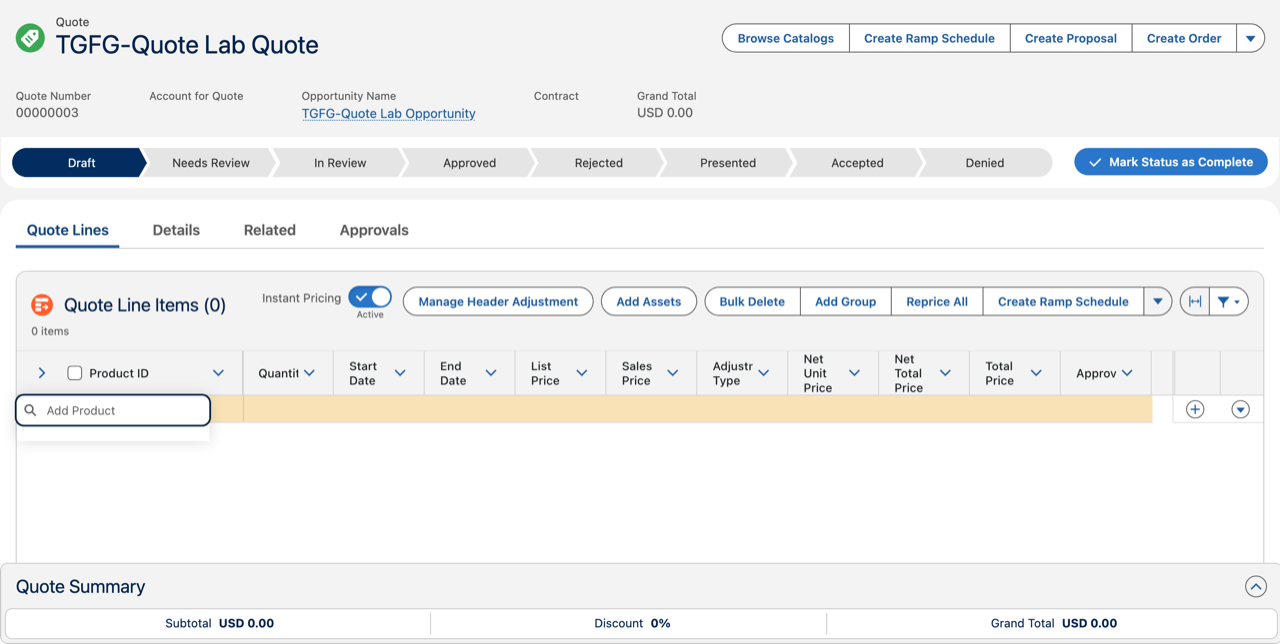 123
The top of TGFG-Quote Lab Quote on its Quote Lines tab, with Quote Line Items (0) and the Quote Summary. - Read the header, the highlights and the path at the top of TGFG-Quote Lab Quote 1.
- Read the Quote Lines tab: Quote Line Items (0) 2 and the Quote Summary under it.
- Click the Details tab 3.
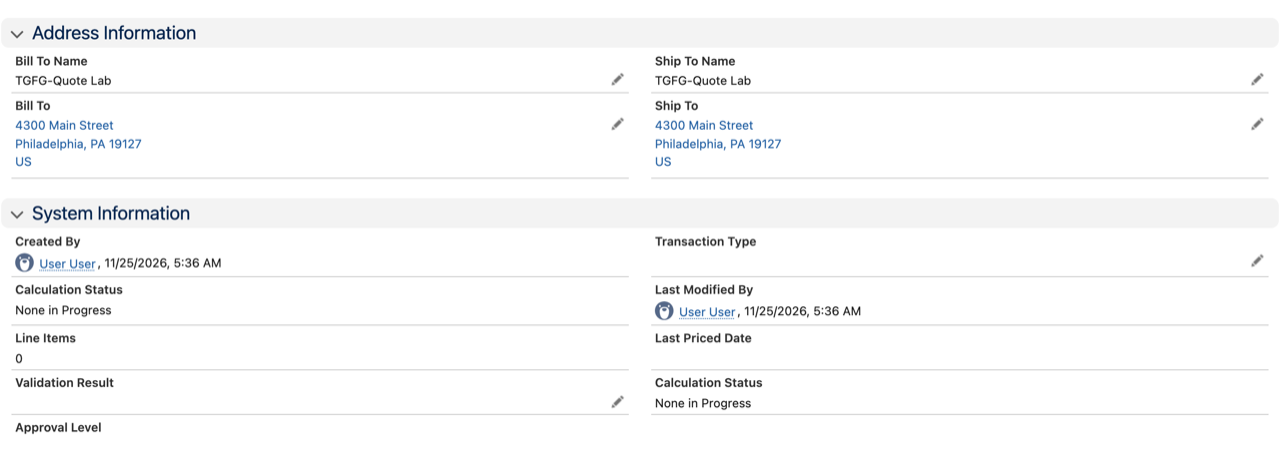 4
The Details tab scrolled down to Address Information and System Information. - Scroll down to Address Information and System Information 4.
- Scroll up to the tabs.
 67
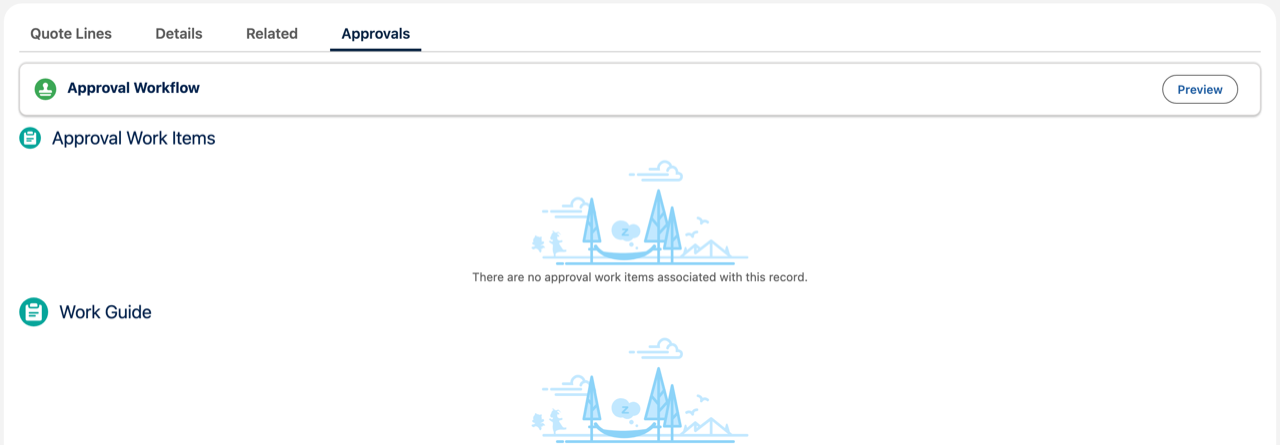
The Approvals tab, with Approval Workflow, Approval Work Items and Work Guide. - Click the Related tab 6.
- Click the Approvals tab 7.
You should see: on Quote Lines, Quote Line Items (0), a switch Instant Pricing reading Active, an Add Product search box, and the Quote Summary at Subtotal USD 0.00, Discount 0% and Grand Total USD 0.00. On Details, Status Draft, Approval Status empty, Payment Terms Net 30, Quote Currency USD - U.S. Dollar and Bill To Contact TGFG Quote Lab Contact; under Address Information, Bill To Name and Ship To Name TGFG-Quote Lab and the address 4300 Main Street, Philadelphia, PA 19127, US; under System Information, Line Items 0 and Approval Level empty. On Approvals, Approval Workflow with a Preview button; Approval Work Items, "There are no approval work items associated with this record."; and Work Guide, "You have no assigned work items for this record."
Good to know: the approval in this lab sets Approval Status, not the path: after step 13 the path is still on Draft. If the Approvals tab shows nothing, reload the browser page.
This page comes with the launchpad
The quote's page is the launchpad's own, RLM Quote Record Page. Salesforce's launchpad added it to your lab org; a plain Revenue Cloud org doesn't have it, and a project's own page may differ. Its parts, as this lab meets them:
- Quote Lines holds Salesforce's line editor with the launchpad's choice of columns, which step 4 reads, among them its own Approval column.
- Approvals holds Salesforce's Approval Workflow component, which previews the workflow named in its settings, here the launchpad's own (step 12), with the quote's approval work items and a Work Guide.
- Details shows the launchpad's fields Approval Status, Payment Terms and Approval Level, which steps 9 and 11 explain.
Add your bundle
Quote Line ItemWhat this is. Browse Catalogs is where a rep finds products in a catalog and adds them to a quote. You add TGFG-Support Bundle from TGFG-Catalog Lab Catalog, and it brings its components with it.
- Click the Quote Lines tab.
- Click Browse Catalogs, in the header. Browse Products opens on Catalog: QuantumBit Software.
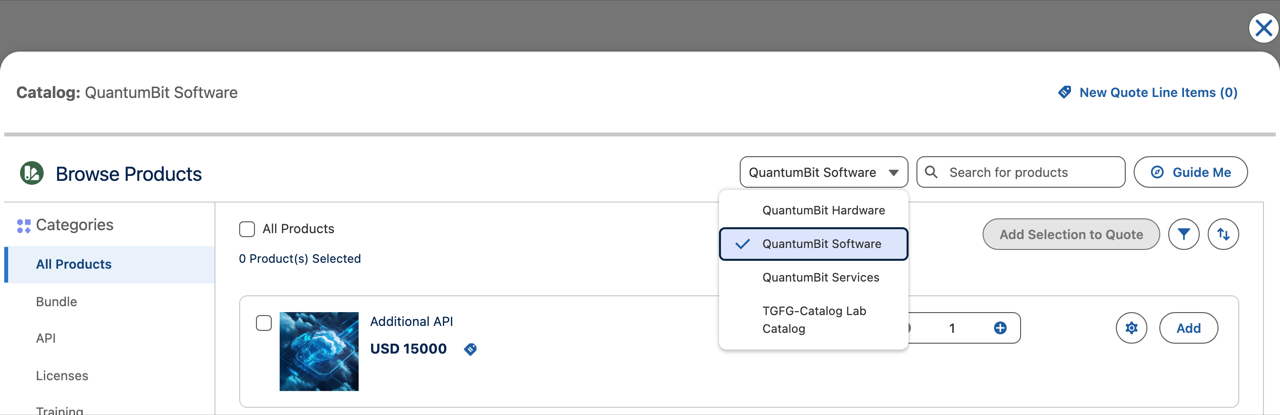 34
Browse Products with its catalog list open. - Open the catalog list beside Search for products 3. It offers QuantumBit Hardware, QuantumBit Software, QuantumBit Services and TGFG-Catalog Lab Catalog.
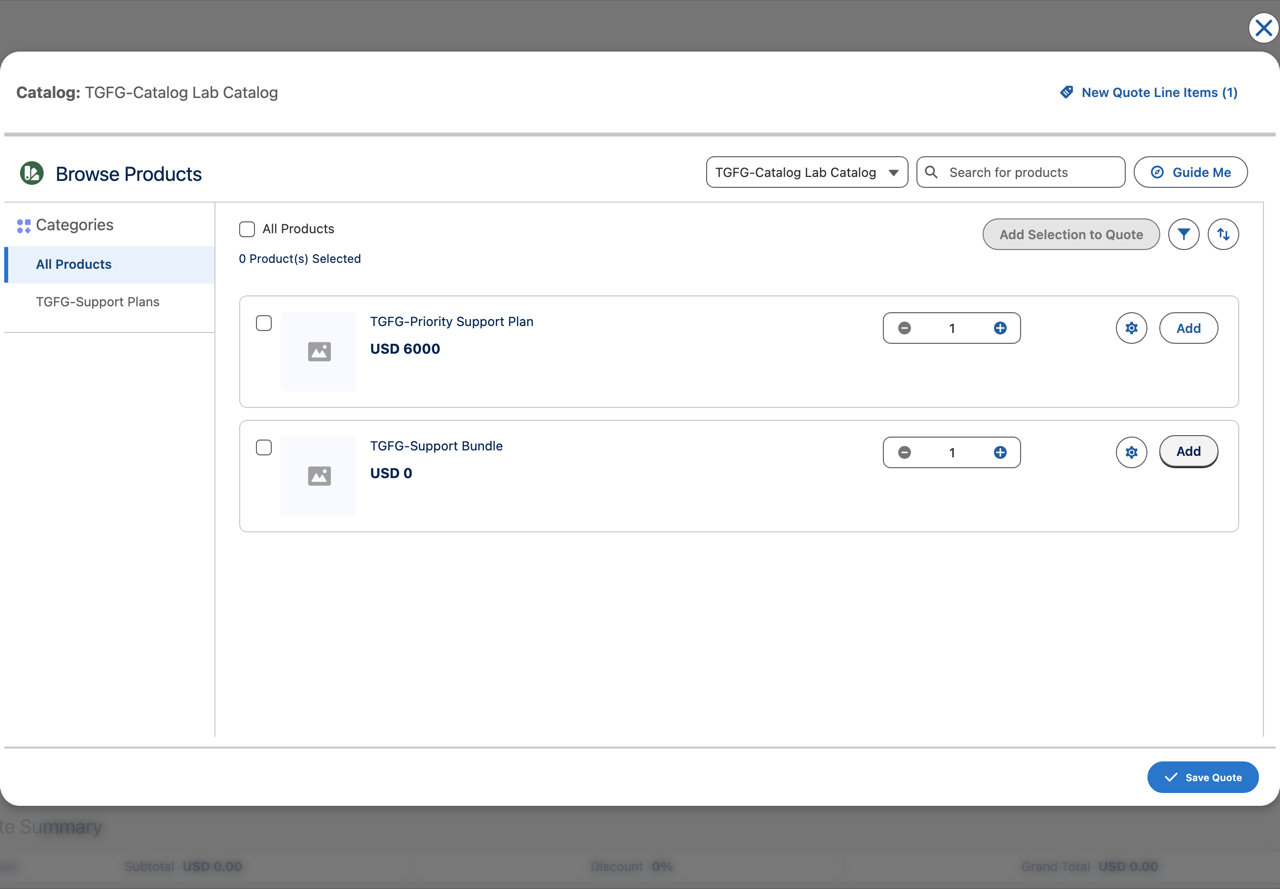
- Pick TGFG-Catalog Lab Catalog 4. All Products lists TGFG-Priority Support Plan at USD 6000 and TGFG-Support Bundle at USD 0, each with a quantity, a gear and Add.
 56
Browse Products on TGFG-Catalog Lab Catalog after Add on the bundle, with New Quote Line Items (1). - Click Add on TGFG-Support Bundle 5. The window shows New Quote Line Items (1), and Save Quote turns blue.
- Click Save Quote 6.
You should see: Browse Products closes, then "Quote "TGFG-Quote Lab Quote" was updated." and "Taxes were updated." Quote Line Items (3): TGFG-Support Bundle, and indented under it TGFG-Priority Support Plan and TGFG-Onboarding Session. Grand Total USD 6,000.00, in the header and in the Quote Summary.
Good to know: click Add on TGFG-Support Bundle, not on TGFG-Priority Support Plan: the plan comes in inside the bundle. All Products shows both products, so you don't need to pick a category. If you did the Catalog lab more than once, the catalog also lists the products whose names end in a number: add TGFG-Support Bundle, the one without one. Browse Catalogs opens on QuantumBit Software every time; it runs the launchpad's flow RLM Discover Products, which the Catalog lab's step 12 explains. If TGFG-Priority Support Plan shows USD 7200 here, the Catalog lab's last sync hasn't reached Browse Catalogs yet: close Browse Products, wait a few minutes and look again. In a lab org, eight minutes after the last sync, the plan showed USD 6000 again.
Read the grid, column by column
Quote Line ItemWhat this is. Quote Line Items is the line editor: one row a line, with its product, its term and its prices, in the columns the launchpad picked. A bundle's line has its components indented under it.
Column What it shows Product ID The line's product, by its name Quantity How many of the product: 1.00 on the bundle's line Start Date, End Date The line's term: from today to a day short of a year later on TGFG-Support Bundle and TGFG-Priority Support Plan. TGFG-Onboarding Session, sold One-Time, has none List Price The price book's price: USD 6,000.00 for the plan, 1,500.00 for the onboarding Sales Price The same as List Price on every line here, before any discount Adjustment Type Discount (Percentage) and Discount (Amount) in one column: Salesforce's page says the column merges the adjustment fields. Step 8 uses it Net Unit Price The price a unit comes to after pricing. Pointing at it opens the price waterfall (step 7). Salesforce's page says not to edit it while Salesforce Pricing is active Net Total Price The line's net total; here, at quantity 1, it reads the same as Net Unit Price Total Price On the bundle's line, pointing at it opens the bundle's total Approval The launchpad's column: a flag and the approver the line's discount needs (step 9)  1
The grid's three lines, taken in a wider window. The table above names each heading. 
The grid's headings, left half: Product ID to Sales Price. 
The grid's headings, right half: Adjustment Type to Approval. - Read the column headings, left to right 1.
 2345
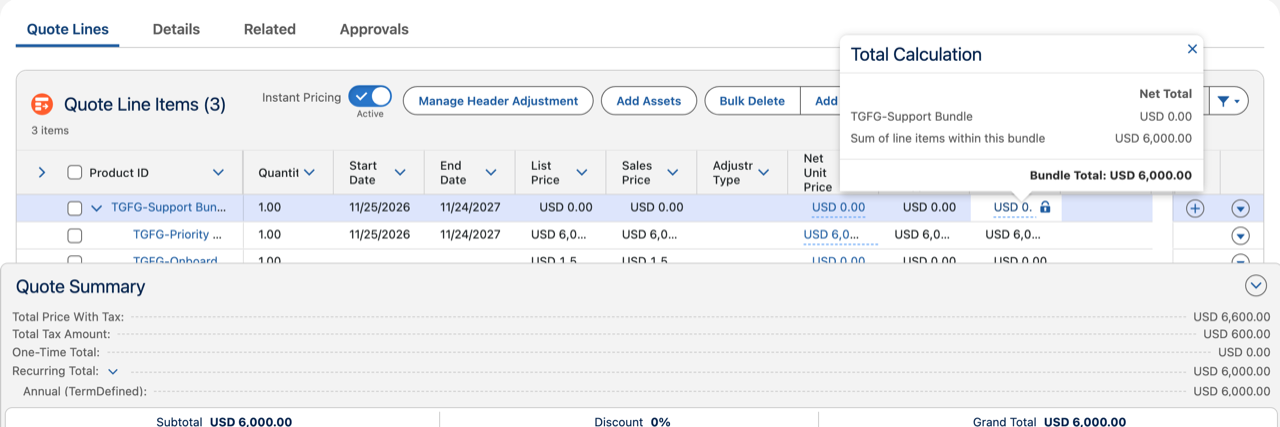
The open Quote Summary with Recurring Total open, and Total Calculation on the bundle's line. - Click the arrow at the right of Quote Summary 2. The summary opens.
- Click the arrow beside Recurring Total 3.
- On the TGFG-Support Bundle line, point at the value under Total Price 4. Total Calculation opens.
- Close Total Calculation with its X 5.
- Click the arrow at the right of Quote Summary again. The summary closes.
You should see: TGFG-Support Bundle at USD 0.00 throughout, with a collapse arrow; TGFG-Onboarding Session at List Price and Sales Price USD 1,500.00 and at Net Unit Price, Net Total Price and Total Price USD 0.00; TGFG-Priority Support Plan at USD 6,000.00 throughout. The open summary: Total Price With Tax USD 6,600.00, Total Tax Amount USD 600.00, One-Time Total USD 0.00 and Recurring Total USD 6,000.00, with Annual (
TermDefined) USD 6,000.00 under it. Total Calculation, in the column Net Total: TGFG-Support Bundle USD 0.00, Sum of line items within this bundle USD 6,000.00, and Bundle Total USD 6,000.00.Good to know: One-Time Total is 0.00 though TGFG-Onboarding Session is sold One-Time: the bundle's price includes it, so its line nets 0, as you left it in the Catalog lab's step 10. In your lab org the summary showed tax of USD 600.00; Grand Total leaves it out, and this lab doesn't use tax. Net Unit Price is blue with a dotted underline on every line, and Total Price on the bundle's line only. At 1440 by 900 the grid cuts headings and money values short, such as Adjustn Type and USD 6,00...; in a wider window they read whole.
Open a line's side panel
Quote Line ItemWhat this is. Clicking a product's name on a line opens a side panel with the line's details and its attributes. Salesforce's page says the panel shows up to 200 attributes a line, and leaves out attributes marked hidden.
Part What it is Details The line's own fields: its quantity, how it is billed and sold, its dates, prices and discounts [ ProductSellingModel] Product Selling Model NameThe selling model the line is sold on, Term Annual, as you set it in the Catalog lab's step 6. The label reads with its brackets Attributes The line's attribute values, by attribute category. TGFG-Support Tier has no category, so it sits under Uncategorized Attributes The pencil and the wrench Edit, on Details, and Configure, on Attributes 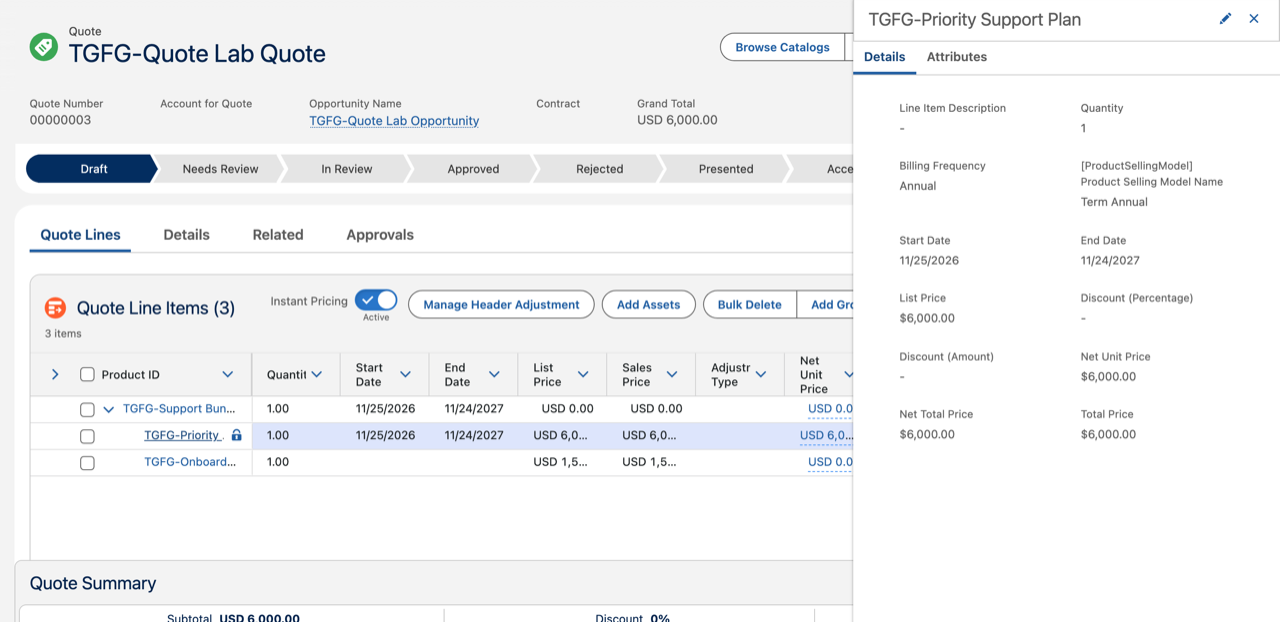 12
The side panel of TGFG-Priority Support Plan, open on its Details tab beside the grid. - On the TGFG-Priority Support Plan line, click TGFG-Priority Support Plan 1, the name under Product ID. A panel opens on the right, on its Details tab.
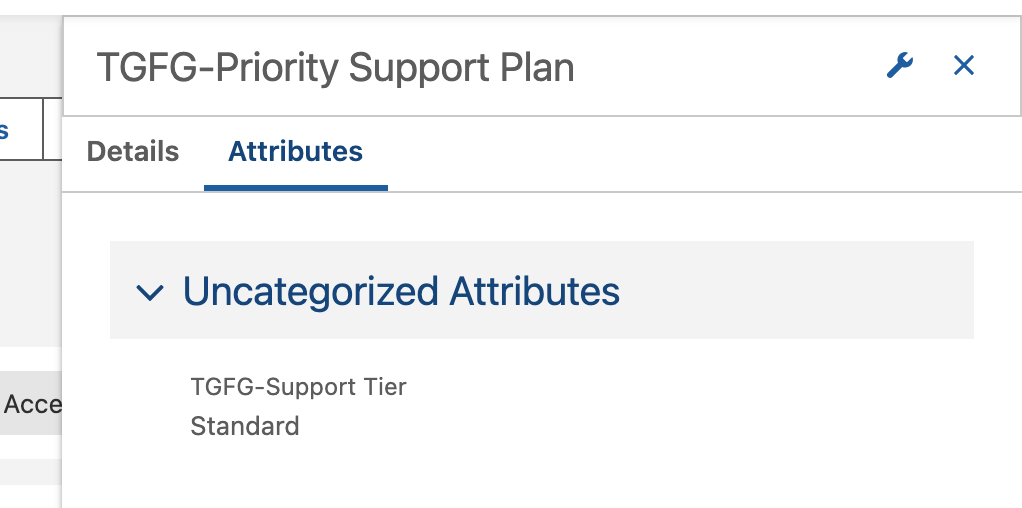
- Click the Attributes tab 2. It holds one closed section, Uncategorized Attributes.
 34
The panel's Attributes tab, with Uncategorized Attributes open on TGFG-Support Tier Standard. - Click Uncategorized Attributes 3.
- Close the panel with its X 4.
You should see: on Details, Quantity 1, Billing Frequency Annual, [
ProductSellingModel] Product Selling Model Name Term Annual, a Start Date and End Date, List Price $6,000.00, Discount (Percentage) and Discount (Amount) empty, and Net Unit Price, Net Total Price and Total Price $6,000.00. On Attributes, TGFG-Support Tier Standard.Good to know: the attribute shows by its name, TGFG-Support Tier, not its label, Support Tier: in the Catalog lab's step 3 you left Attribute Name Override holding the name. A lock shows beside the product's name while you point at it.
Configure the bundle
Quote Line ItemWhat this is. The Product Configurator is where a rep picks a bundle's components and sets its products' attributes; you met it in the Catalog lab's step 14. Here you open it from the quote's own line and set TGFG-Support Tier to Premium.
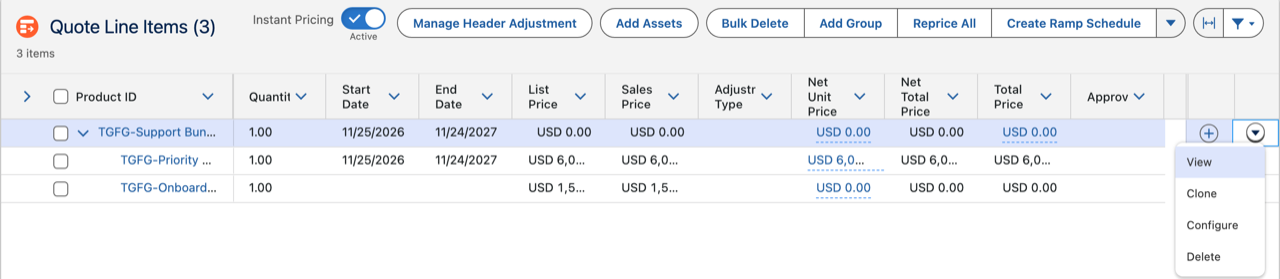 12
The menu of the bundle's line, open on View, Clone, Configure and Delete. - Click the arrow at the far right of the TGFG-Support Bundle line 1. It offers View, Clone, Configure and Delete.
- Click Configure 2. Configure TGFG-Support Bundle opens, with Instant Pricing Disabled, on the tab TGFG-Support Options: TGFG-Onboarding Session ticked, and TGFG-Priority Support Plan with its tick greyed out, because it is required.
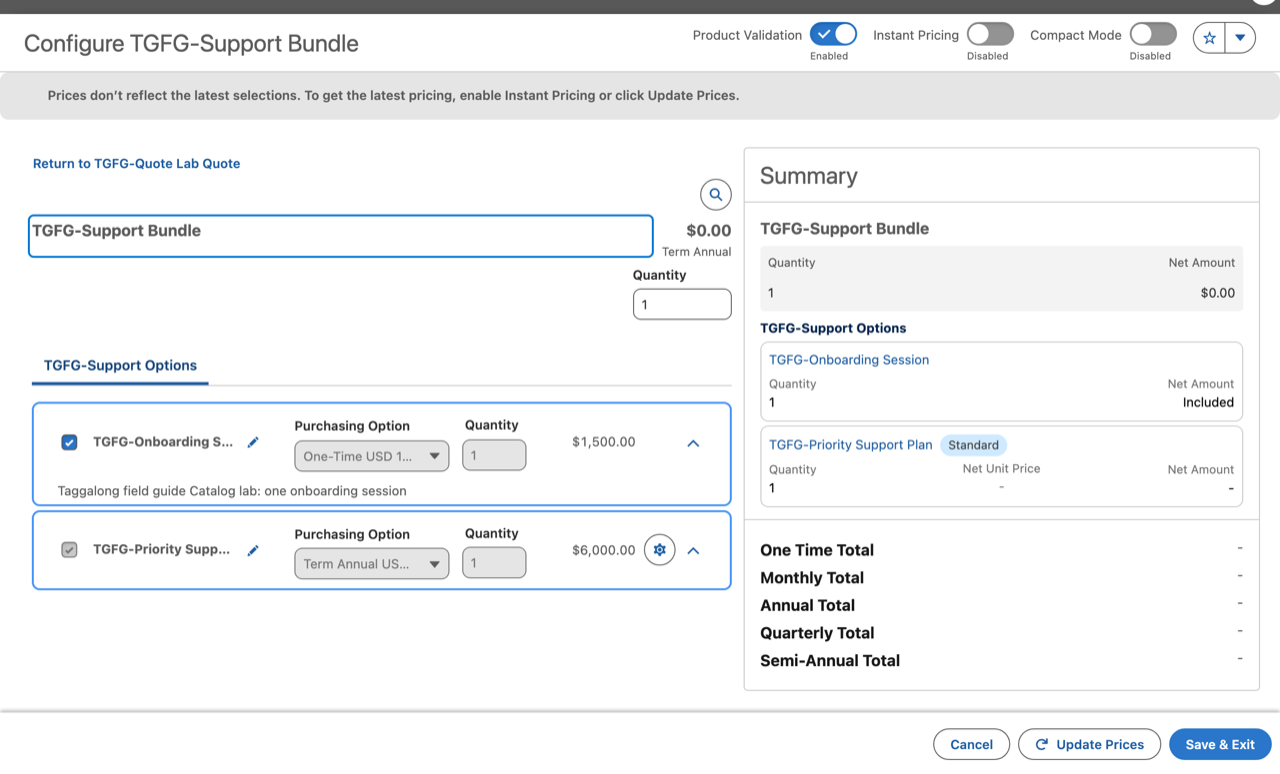 3
Configure TGFG-Support Bundle as it opens, on the tab TGFG-Support Options. - Click the gear on TGFG-Priority Support Plan 3. Its tab Other shows the picklist TGFG-Support Tier, set to Standard, and the buttons at the bottom are Cancel, Update Prices, Save & Exit and Save.
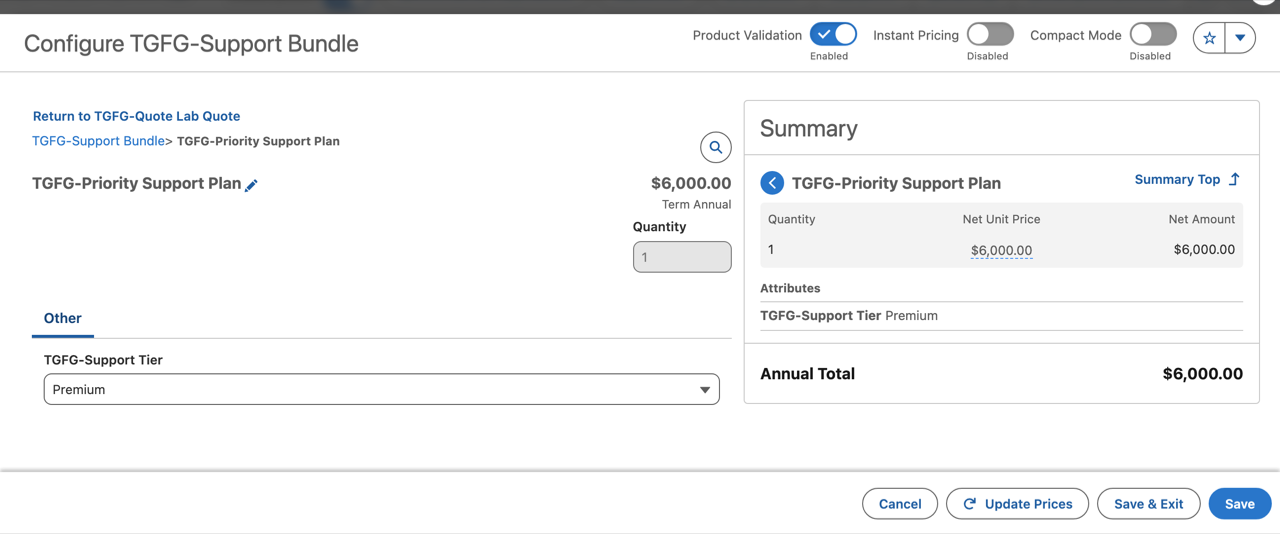 456
The plan's page in the configurator, with Premium picked and priced. - In TGFG-Support Tier 4, pick Premium. The Summary's attribute reads Premium.
- Click Update Prices 5.
- Click Save & Exit 6.
You should see: after Update Prices, the Summary shows Net Unit Price $6,000.00 and Annual Total $6,000.00. After Save & Exit, "Quote "TGFG-Quote Lab Quote" was updated." and then "Taxes were updated." The grid still has its three lines, and Grand Total is still USD 6,000.00.
Good to know: don't press Escape in the configurator: it opens "Leave this page?", and OK there discards your changes. If it opens, click Cancel. Premium leaves the price at 6,000, as it did in the Catalog lab's step 14: no attribute-based adjustment exists for its values. In the Summary, TGFG-Onboarding Session has the Net Amount Included.
Read the waterfall
Quote Line ItemWhat this is. The price waterfall shows, step by step, how pricing reached a line's price, with each adjustment it made. On the quote it opens as Calculation Details when you point at a line's Net Unit Price; you first read it in the Catalog lab's step 15.
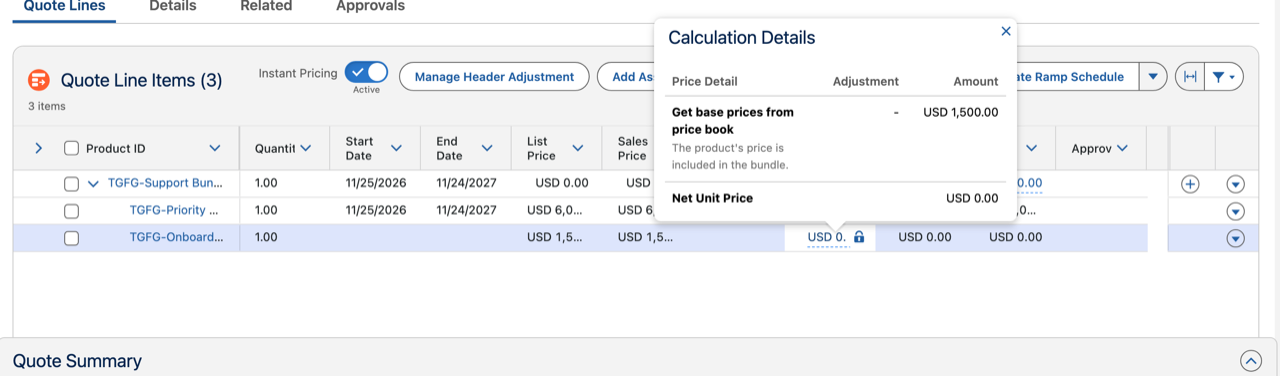
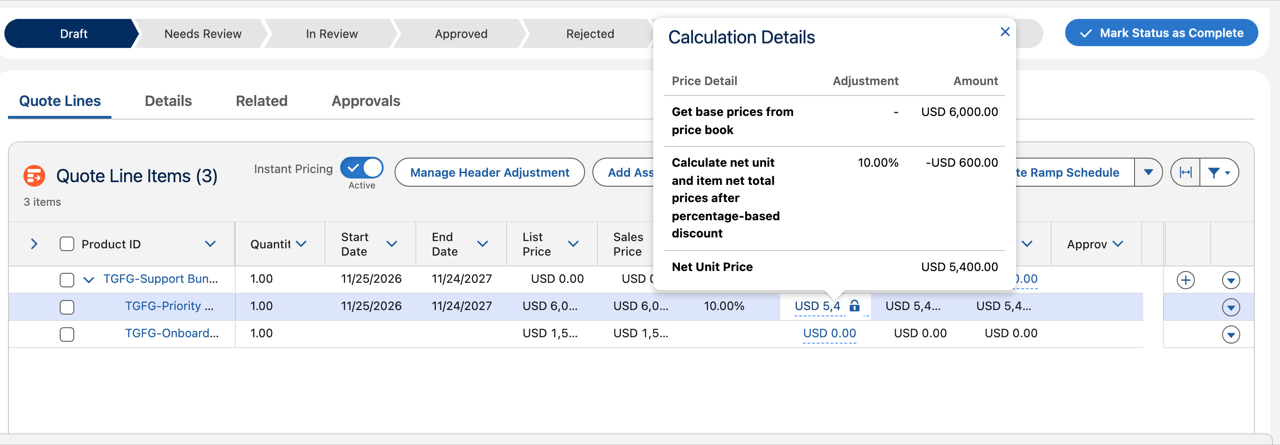
Row What it is Get base prices from price book The line's base price, from the synced pricing data, as the Catalog lab's step 15 explains "The product's price is included in the bundle." The bundle covers this product's price, so its line nets 0 Net Unit Price Where pricing ended, the same value as in the grid Calculate net unit and item net total prices after percentage-based discount The row your discount adds in step 8 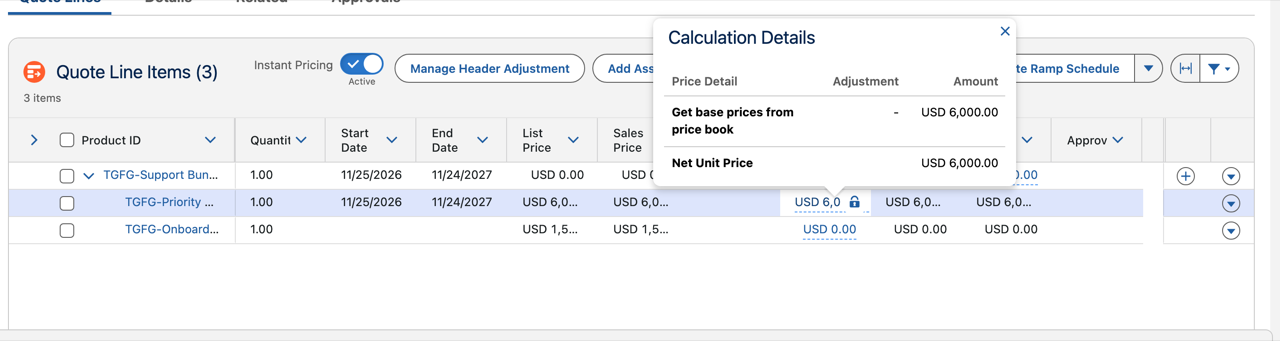 12
Calculation Details for TGFG-Priority Support Plan. - On the TGFG-Priority Support Plan line, point at the value under Net Unit Price 1. Calculation Details opens.
- Close Calculation Details with its X 2.
 34
Calculation Details for TGFG-Onboarding Session, with its note that the bundle includes its price. - On the TGFG-Onboarding Session line, point at the value under Net Unit Price 3. Calculation Details opens.
- Close Calculation Details with its X 4.
You should see: for TGFG-Priority Support Plan, the columns Price Detail, Adjustment and Amount: Get base prices from price book, USD 6,000.00, then Net Unit Price USD 6,000.00. For TGFG-Onboarding Session: Get base prices from price book, with the note "The product's price is included in the bundle.", USD 1,500.00, then Net Unit Price USD 0.00.
Good to know: if Calculation Details says "We couldn't retrieve the calculation details. Recalculate the Quote and try again.", click Reprice All and point again. Salesforce's page says Reprice All reprices every line, even when nothing has changed. As in the Catalog lab's step 15, Calculation Details stays open when the mouse moves on, so close it before you point at the next line.
Discount the plan 10 percent
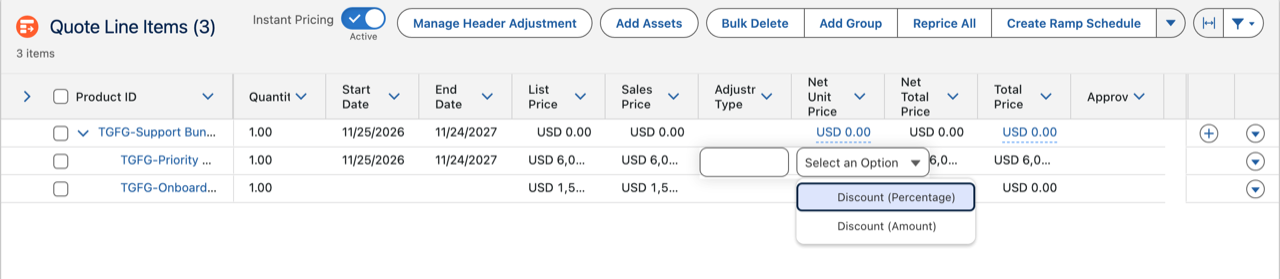
Quote Line ItemWhat this is. A manual discount is the rep's own, entered on the line, and needs no decision table. With Instant Pricing on, the grid reprices the line as soon as you enter the discount; Save writes it to TGFG-Quote Lab Quote.
 123
The plan's Adjustment Type cell open, with the list Select an Option open beside it. - On the TGFG-Priority Support Plan line, double-click the empty cell under Adjustment Type 1. A number box opens, with a list Select an Option beside it.
- Click Select an Option 2. It offers Discount (Percentage) and Discount (Amount).
- Click Discount (Percentage) 3.
- Click the number box.
- Type
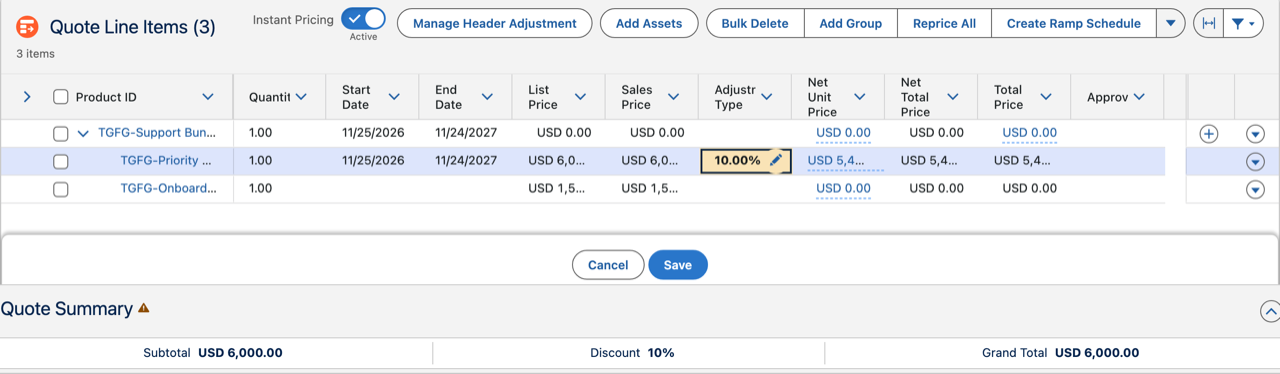
10. - Press Enter. The line reprices, before you save.
 7
The plan's line at 10.00%, repriced but not saved, with Cancel and Save under the grid. - Click Save 7, in the bar under the grid.
 89
Calculation Details for the plan at 10 percent, with the discount's row. - On the TGFG-Priority Support Plan line, point at the value under Net Unit Price 8. Calculation Details opens.
- Close Calculation Details with its X 9.
You should see: before Save, the cell reads 10.00%, shaded, with a pencil, and the line reads USD 5,400.00 under Net Unit Price, Net Total Price and Total Price; the Quote Summary's Discount reads 10% while its Grand Total still reads USD 6,000.00. After Save, "Quote "TGFG-Quote Lab Quote" was updated." and "Taxes were updated.", and the summary reads Subtotal USD 6,000.00, Discount 10% and Grand Total USD 5,400.00. The Approval column stays empty. Calculation Details has a new row before Net Unit Price: Calculate net unit and item net total prices after percentage-based discount, 10.00%, -USD 600.00, then Net Unit Price USD 5,400.00.
Good to know: one click on the cell selects it; a double-click opens it. After Enter, the shading means "This is an edited Adjustment Type.", and the Quote Summary carries a warning mark before you save. If the line doesn't reprice before you save, check the Instant Pricing switch above the grid; Salesforce's page has you click Save to price a discount, and Save prices it either way.
Make it 20 percent
Quote Line ItemWhat this is. In your lab org, a line's discount sets its approval level, and the quote takes the highest level of its lines. At 20 percent the line of TGFG-Priority Support Plan asks for a manager's approval.
 1
The plan's Adjustment Type cell open again, its box holding 10. - Double-click the same Adjustment Type cell 1. The box opens holding 10, with the cursor after it, and the list still on Discount (Percentage).
- Press Backspace twice, until the box is empty. Typed after the 10, your 20 would make 1020: the grid then takes 1,020.00% off, and the line's price goes below zero.
- Type
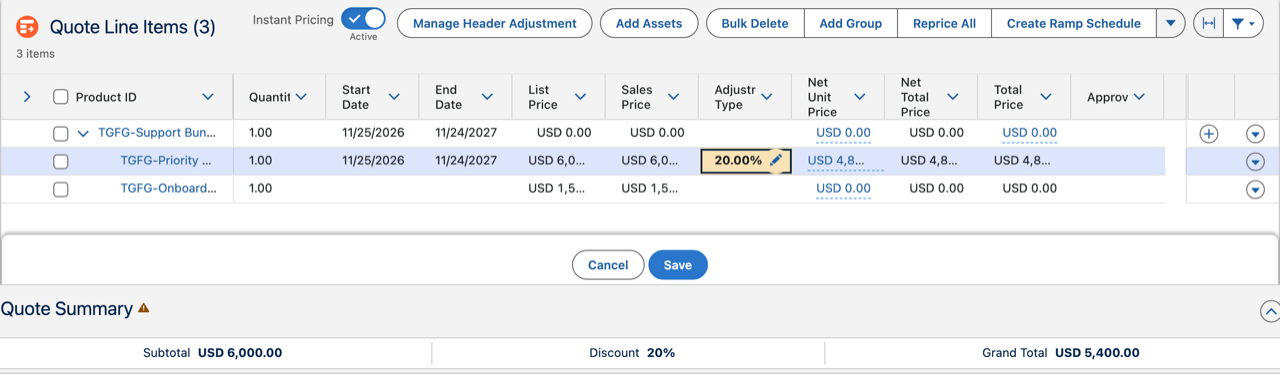
20. - Press Enter.
 5
The plan's line at 20.00%, repriced but not saved. - Click Save 5.
 6
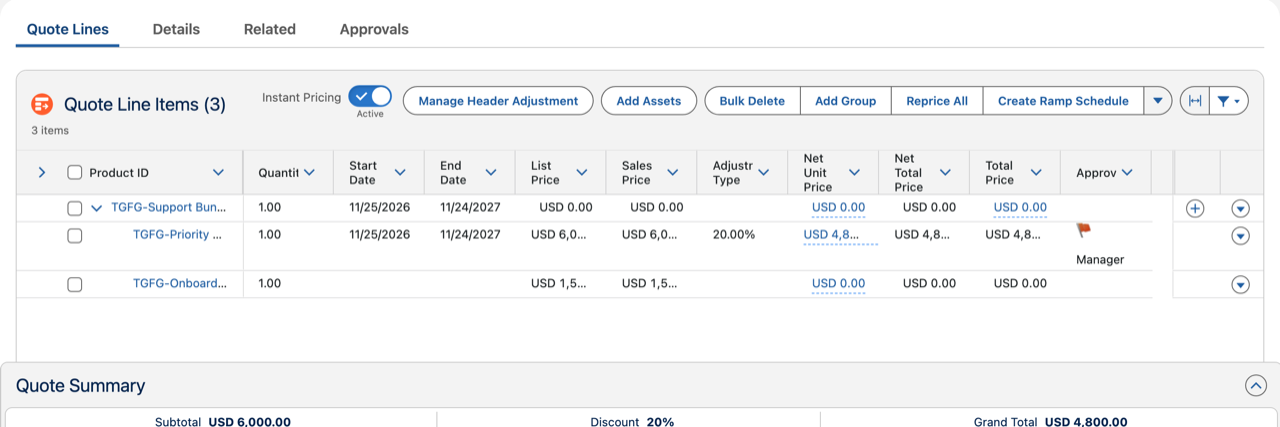
The grid after Save, with a red flag and Manager in the plan's Approval column. - Click the Details tab 6.
 7
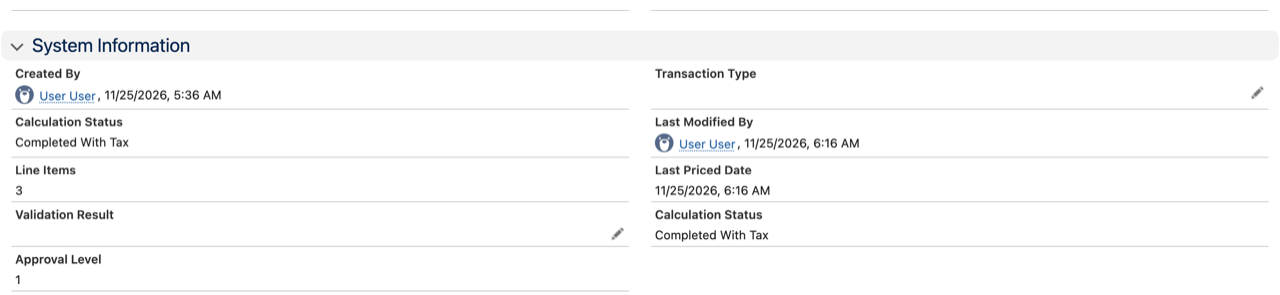
System Information on the Details tab, with Approval Level 1. - Scroll down to System Information 7.
You should see: before Save, 20.00% and USD 4,800.00 on the line, and the summary's Discount 20% with Grand Total still USD 5,400.00. After Save, the same two messages; Net Unit Price USD 4,800.00; in the Approval column of the plan's line, a red flag and Manager; and Discount 20% and Grand Total USD 4,800.00, in the summary and the header. On Details, under System Information, Approval Level 1, Calculation Status Completed With Tax and Line Items 3. Approval Status is still empty. Your discount, before and after:
Before your discount At 10 percent At 20 percent Net Unit Price of TGFG-Priority Support Plan USD 6,000.00 USD 5,400.00 USD 4,800.00 Grand Total USD 6,000.00 USD 5,400.00 USD 4,800.00 Approval, on the plan's line empty empty a red flag and Manager Good to know: the waterfall's percentage row now reads 20.00%, -USD 1,200.00. The bundle's line and the onboarding's keep an empty Approval column: they have no discount.
These fields come with the launchpad
The Approval column and the quote's Approval Level, Approval Status and Payment Terms are fields Salesforce's launchpad added to your lab org. A plain Revenue Cloud org doesn't have them, and a project's own may differ. Their parts:
- Approval Level Calc, on each line (
RLM_Approval_Level_Calc__c), is a formula on the line's Discount (Percentage): from 15 to under 25 percent is level 1, from 25 to under 35 is level 2, from 35 to under 100 is level 3, and anything else is 0. - Approval, the grid's column (
RLM_Approval__c), is a formula that shows a red flag and the approver for the line's level: Manager at level 1, Director at 2 and VP at 3. - Approval Level, on the quote (
RLM_Approval_Level__c), is a roll-up: the highest level on any of its lines. - Approval Status (
RLM_Approval_Status__c) is a picklist the approval workflow's steps set: Pending when it starts, then Approved or Rejected (step 12). - Payment Terms (
RLM_Payment_Terms__c) is a picklist of Net 30, Net 45, Net 60 and Net 90, starting at Net 30. Step 11 changes it.
Preview the approval
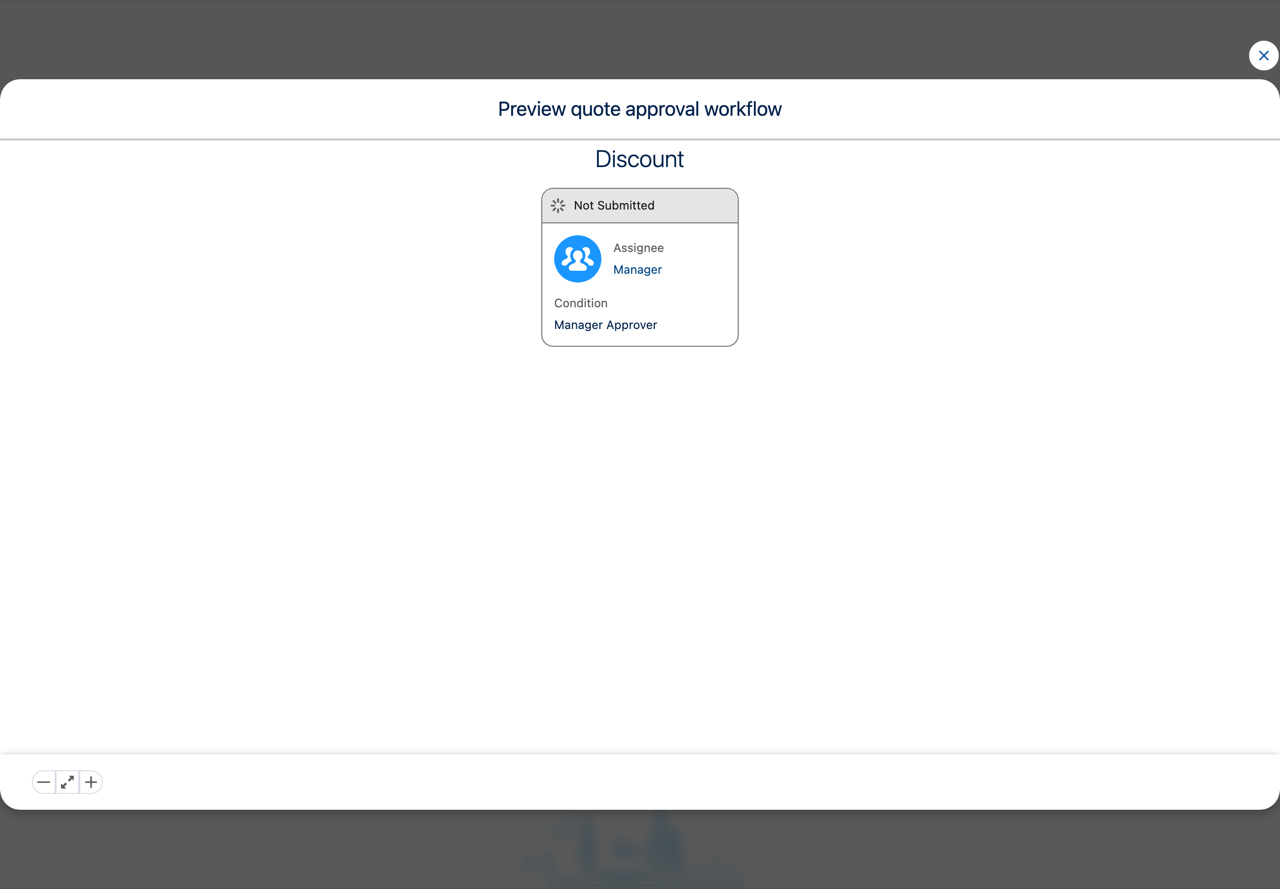
QuoteWhat this is. Preview shows the approval steps TGFG-Quote Lab Quote would start if you submitted it now. Salesforce's page says it evaluates the record's field values and simulates the steps, and makes no approval records.
Part What it is Approval Workflow Salesforce's component that previews the approval process, with its chains, assignees and conditions Approval Work Items The quote's approval work items: none until you submit Work Guide Approval work items waiting for you: none here Discount The approval chain the step belongs to Not Submitted The step's status, Not Submitted to start Assignee Manager Who approves the step: here a group, Manager Condition Manager Approver The name of the condition that started the step: the workflow's step Manager Approver, which step 12 opens - Scroll up to the tabs.
 23
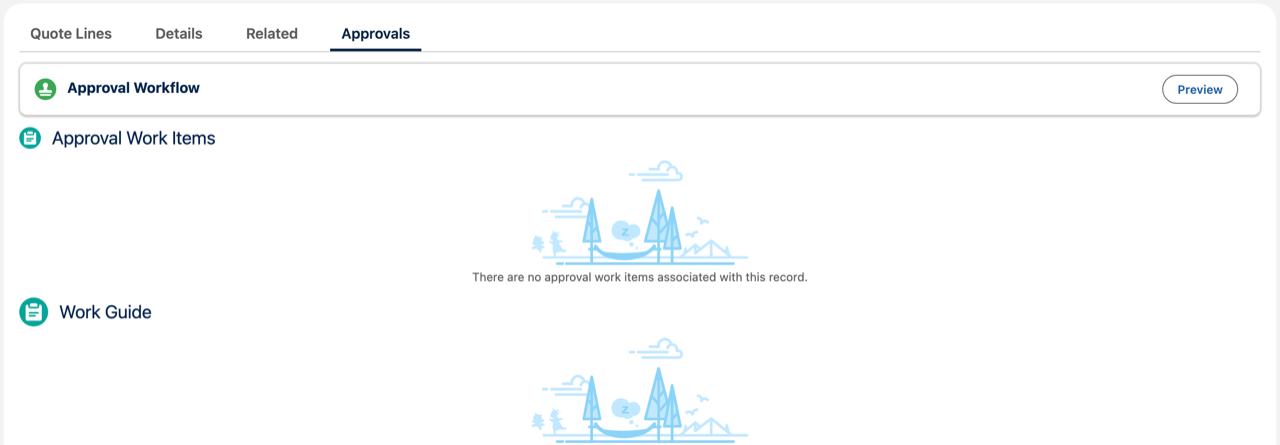
The Approvals tab, with Preview at the right of Approval Workflow. - Click the Approvals tab 2.
- Click Preview 3, at the right of Approval Workflow.
 4
The window Preview quote approval workflow, with one chain, Discount. - Close the window with its X 4.
You should see: the window Preview quote approval workflow, with one chain, Discount, and one card in it: Not Submitted, Assignee Manager, with a group icon, and Condition Manager Approver. Zoom Out, Fit to Screen and Zoom In sit at its bottom left.
Good to know: Salesforce's page says the preview shows each step's chain, assignee, status and condition, and its steps sorted by chain name, in order.
Change the payment terms, preview again
QuoteWhat this is. The workflow also asks for approval when Payment Terms isn't Net 30, on a second chain, Finance. You change the terms on TGFG-Quote Lab Quote, see that chain appear in the preview, and put the terms back.
- Click the Details tab.
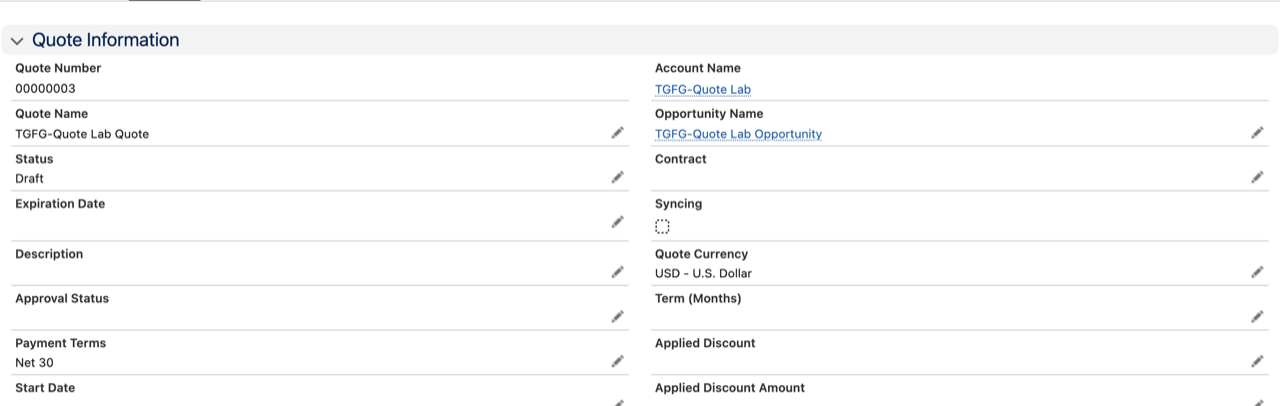 2
The Details tab, with the pencil beside Payment Terms. - Click the pencil beside Payment Terms 2. The whole Details tab turns into a form, with Cancel and Save in a bar at the bottom.
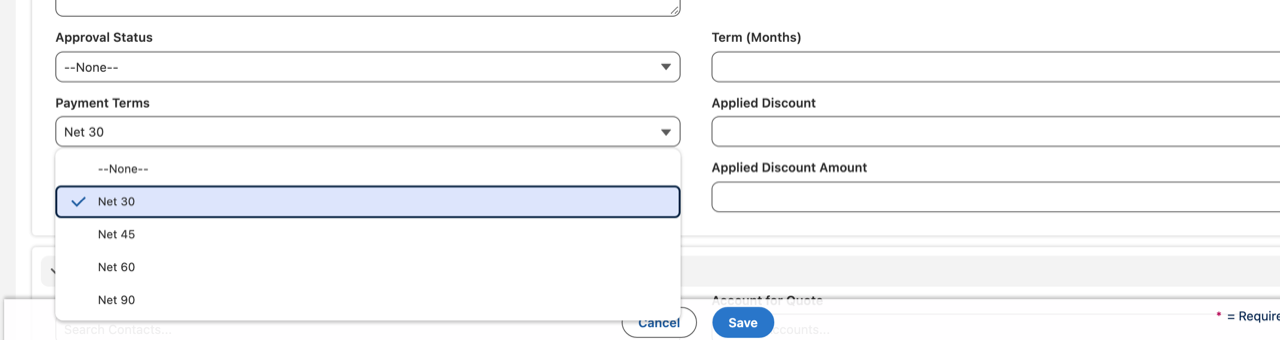 34
The Details tab as a form, with the Payment Terms list open. - Open the Payment Terms list 3. It offers --None--, Net 30, Net 45, Net 60 and Net 90.
- Pick Net 60 4.
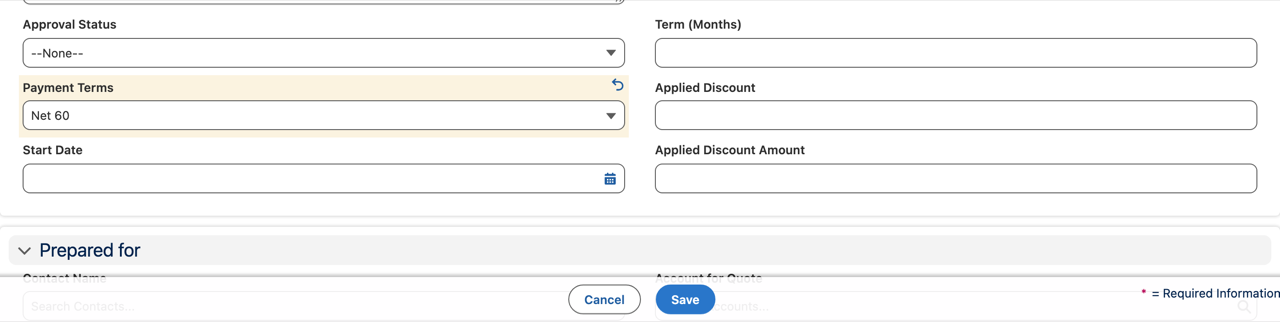 5
Payment Terms at Net 60, with Save in the bar at the bottom. - Click Save 5. The tab reads Payment Terms Net 60.
- Scroll up to the tabs.
- Click the Approvals tab.
- Click Preview.
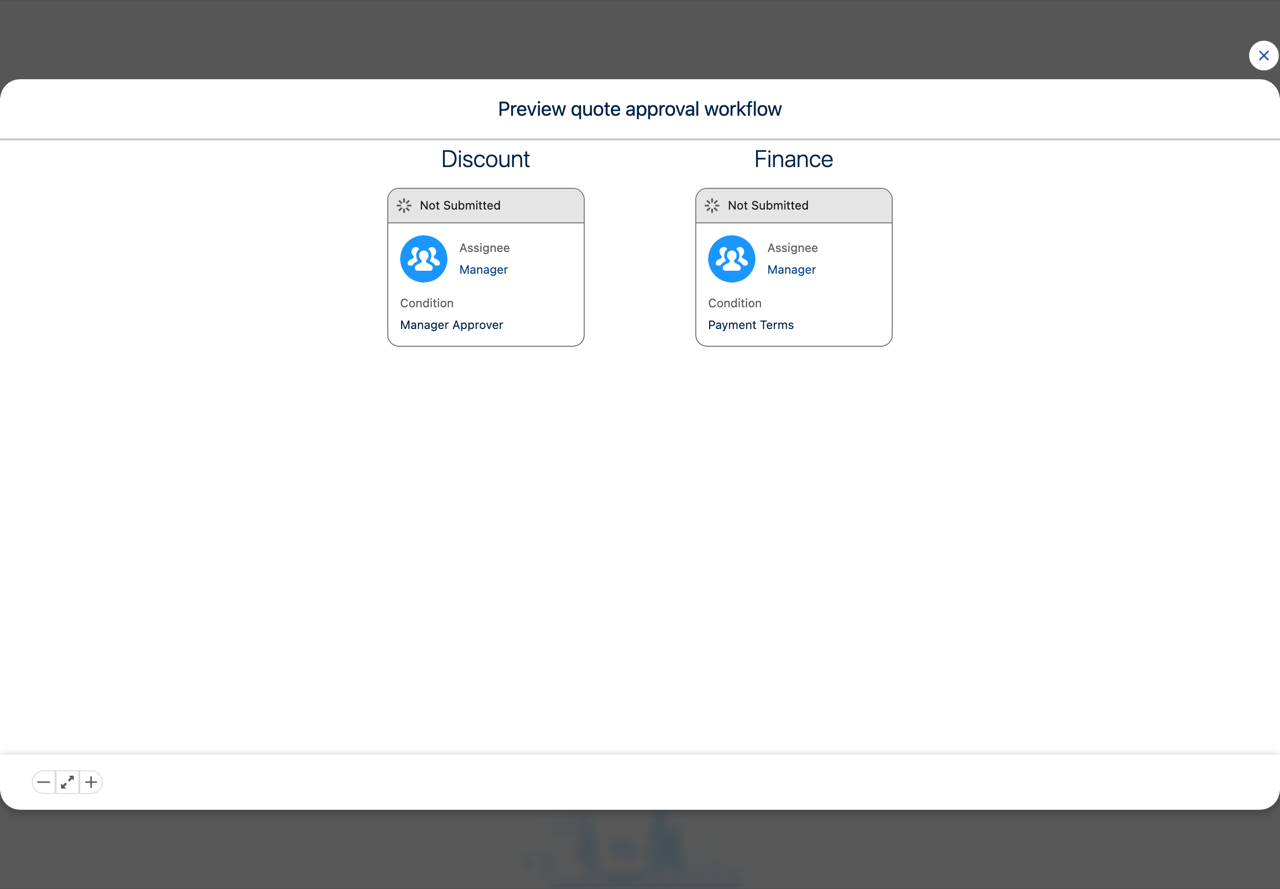 9
The preview at Net 60, with two chains, Discount and Finance. - Close the window with its X 9.
- Click the Details tab.
- Click the pencil beside Payment Terms.
- Open the Payment Terms list.
- Pick Net 30.
- Click Save.
- Scroll up to the tabs.
- Click the Approvals tab.
- Click Preview.
- Close the window with its X.
You should see: before, at Net 30, one chain, Discount. At Net 60, two: Discount, with Not Submitted, Manager and Manager Approver, and beside it Finance: Not Submitted, Assignee Manager, Condition Payment Terms. After, back at Net 30, Discount alone again, and Details reads Payment Terms Net 30.
Good to know: no message shows when you save Payment Terms. Leave it at Net 30 before step 13: steps 13 and 14 are written for the Discount chain alone.
Look at the workflow behind it
 Flow
What this is. An approval workflow is a flow of stages, decisions and steps. You open the one behind the preview and the quote's Submit for Approval in Flow Builder and read it. Look only: save nothing, and click nothing but the elements.
- Click the gear at the top right.
- Click Setup. Setup opens in a new browser tab, and the tab with TGFG-Quote Lab Quote stays open.
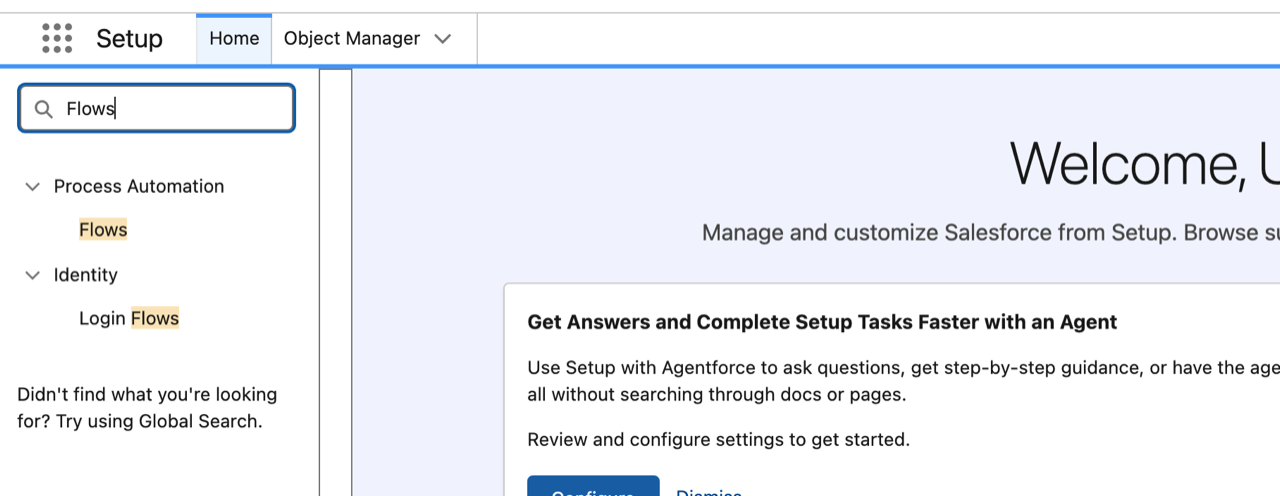 34
Setup's Quick Find holding Flows, with Flows under Process Automation. - In the Quick Find box 3, type
Flows. - Click Flows 4, under Process Automation. The list All Flows opens, sorted by Flow Label.
- Scroll down the list to the flows whose labels start with R. The list has no search box.
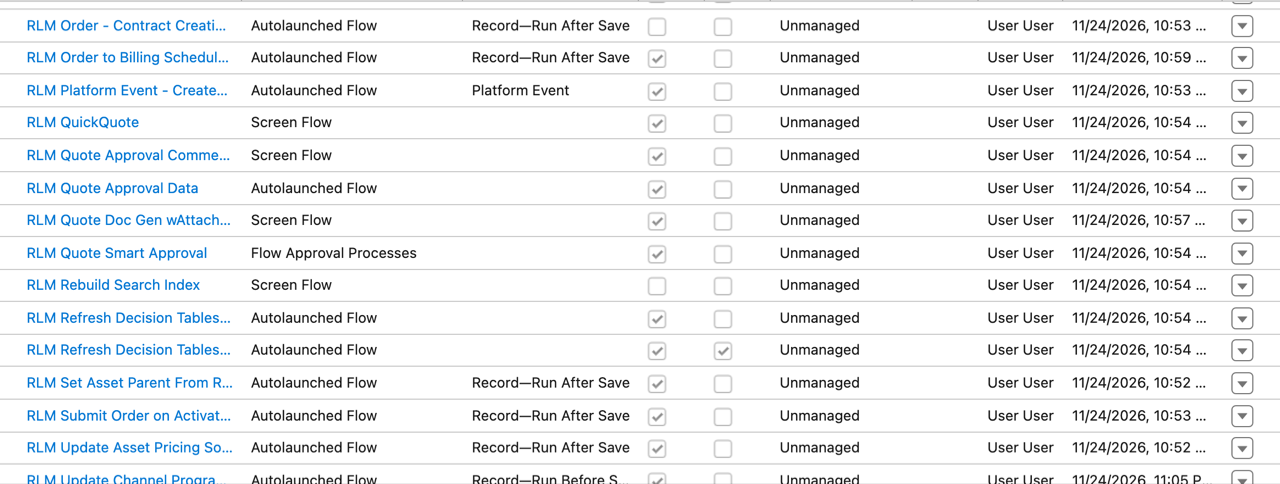 6
The list All Flows at the R's, with RLM Quote Smart Approval. - Click RLM Quote Smart Approval 6, Process Type Flow Approval Processes. Flow Builder opens in a new browser tab.
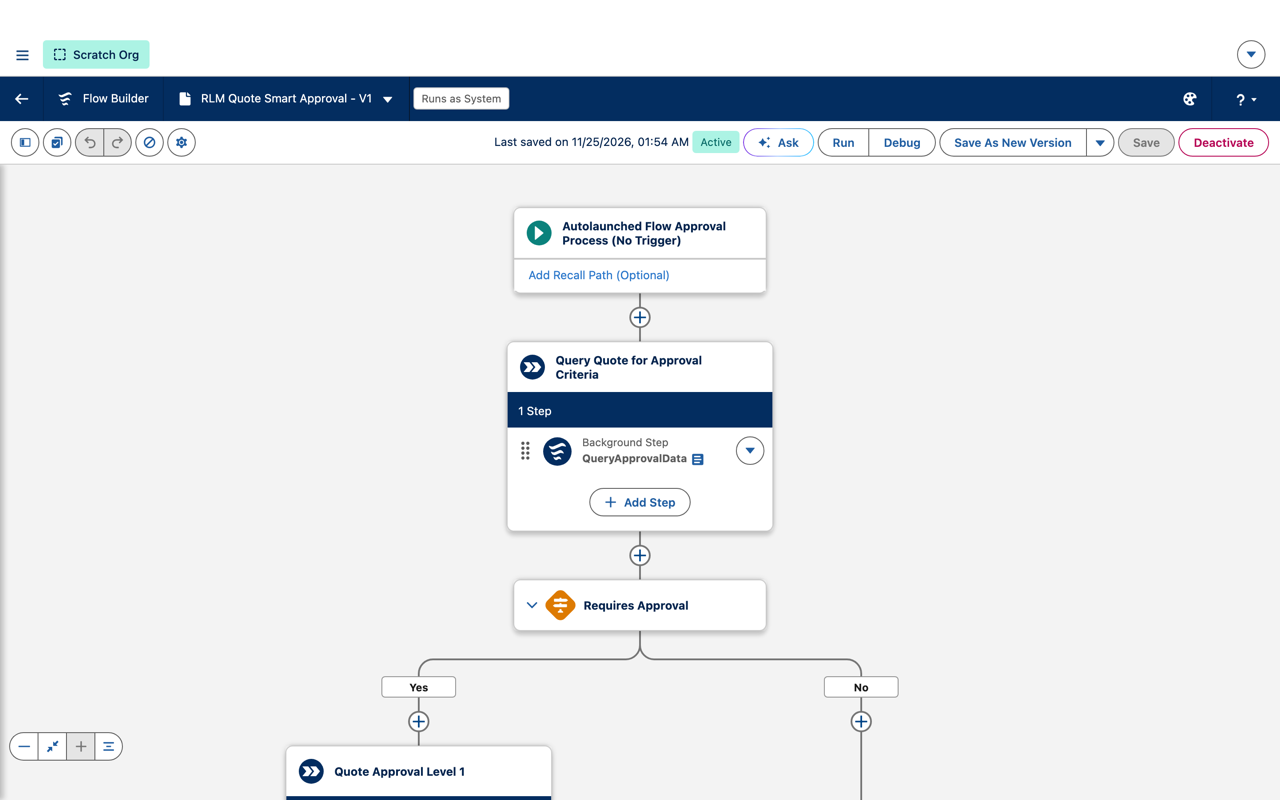 79
The top of RLM Quote Smart Approval in Flow Builder. - Click Query Quote for Approval Criteria 7, the first stage on the canvas. Its panel opens.
- Close the panel with its X.
- Click Requires Approval 9, the decision under it.
- Close the panel with its X.
- Scroll down the canvas to the stage Quote Approval Level 1.
 1213
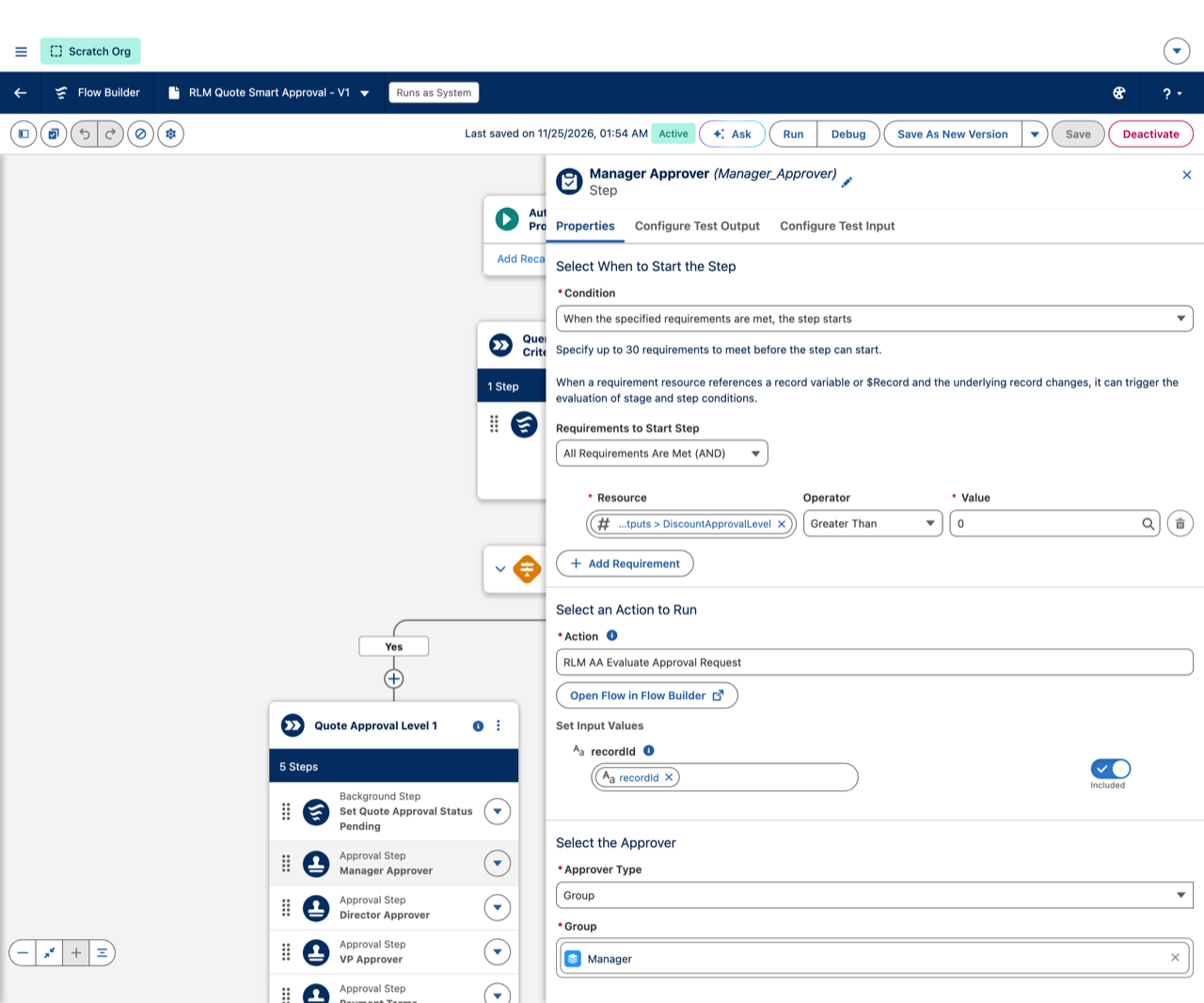
The panel of the step Manager Approver, beside the stage Quote Approval Level 1. - In the stage Quote Approval Level 1, click the step Manager Approver 12.
- Close the panel with its X 13.
- Read the rest of the canvas, down to Update Quote Status to Approved.
You should see: Flow Builder, with RLM Quote Smart Approval - V1, Runs as System and Active at the top, and the buttons Ask, Run, Debug, Save As New Version, Save, greyed out, and Deactivate. The canvas runs from the start, Autolaunched Flow Approval Process (No Trigger), down through the elements the note below lists. The panel of Requires Approval shows its outcomes Yes and No; the panel of Manager Approver shows Approver Type Group and Group Manager, and further down Approval Chain Name Discount.
Good to know: the red Deactivate button is one click away at the top right: don't click it, Save or Save As New Version. If you click the Flow Label heading in the list, the list sorts the other way; click it again. The admin user of a lab org can open Setup and the flow; other users weren't tried.
This approval workflow comes with the launchpad
RLM_Quote_Smart_Approvalis the approval workflow that the quote's Approvals tab previews and its Submit for Approval starts. Salesforce's launchpad added it to your lab org; a plain Revenue Cloud org doesn't have it. There, Salesforce's pages have you build an Autolaunched Flow Approval Process (No Trigger) of your own and enter its API name in the Approval Workflow component. A project's own may differ. Its elements, from the top, as Flow Builder names them:- Autolaunched Flow Approval Process (No Trigger), the start. Its Add Recall Path (Optional) is not set.
- Query Quote for Approval Criteria, a stage with one Background Step,
QueryApprovalData. It runs the action RLM Quote Approval Data on the quote, as the Automated Process User, and its outputsDiscountApprovalLevelandPaymentTermsfeed the decision. - Requires Approval, a decision. Yes when
DiscountApprovalLevelis greater than 0 orPaymentTermsisn't Net 30; No otherwise. - Quote Approval Level 1, a stage on Yes, with five steps in order: the Background Step Set Quote Approval Status Pending, then the Approval Steps Manager Approver, Director Approver, VP Approver and Payment Terms.
- Manager Approver starts when
DiscountApprovalLevelis greater than 0. It runs the action RLM AA Evaluate Approval Request, assigns the group Manager, uses Smart Approval and doesn't lock the record, on the chain Discount. - Director Approver starts when
DiscountApprovalLevelis greater than or equal to 2 and the decision of Manager Approver equals Approve, and assigns the group Director. VP Approver starts whenDiscountApprovalLevelis greater than or equal to 3 and the decision of Director Approver equals Approve, and assigns the group VP. Both run RLM AA Evaluate Approval Request, use Smart Approval and don't lock the record, on the chain Discount. - Payment Terms starts when
PaymentTermsisn't Net 30 and assigns the group Manager on a chain of its own, Finance: the chain step 11's preview showed. - Was Rejected, a decision, with the outcomes Rejected and Default Outcome.
- Update Quote Status to Rejected, a stage on Rejected, with one Background Step, Set to Rejected.
- Update Quote Status to Approved, a stage on Default Outcome and on the No of Requires Approval, with one Background Step, Set to Approved.
The quote's Submit for Approval opens the launchpad's screen flow
RLM_Quote_Approval_Comments: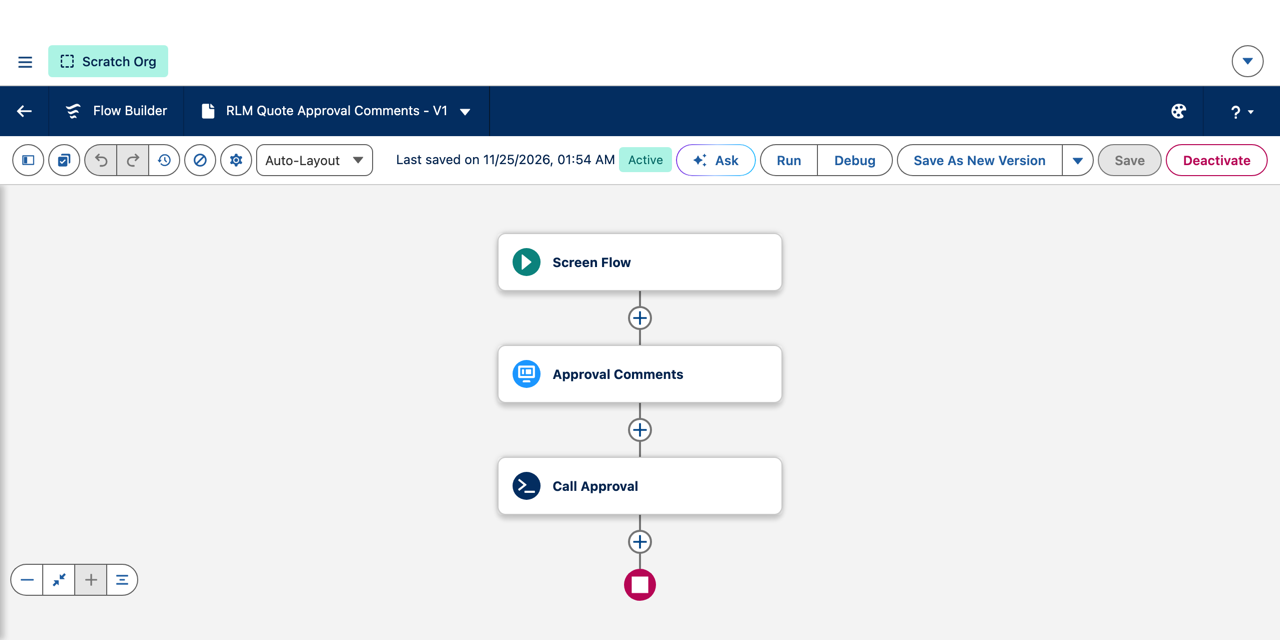
RLM_Quote_Approval_Commentsopen in Flow Builder.- Its screen, Approval Comments, is the window step 13 opens.
- Its action Call Approval then starts this workflow: it passes the name
RLM_Quote_Smart_Approval, the quote, its Approval Level and your comment.
Submit for approval
 Approval Submission
What this is. Submitting starts the approval workflow on TGFG-Quote Lab Quote. Your comment goes with the request, for the approver to read.
- Go back to the browser tab with TGFG-Quote Lab Quote.
 23
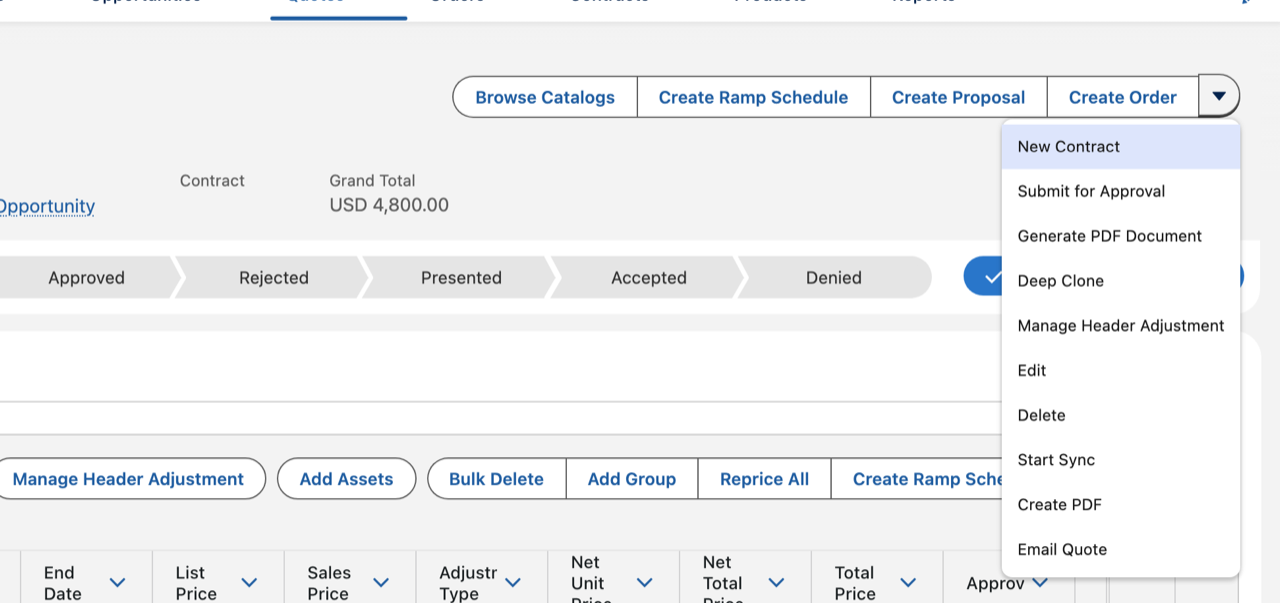
The header's menu open, with Submit for Approval in it. - Click Show more actions 2, the arrow at the end of the header's buttons. Its menu holds New Contract, Submit for Approval, Generate PDF Document, Deep Clone, Manage Header Adjustment, Edit, Delete, Start Sync, Create PDF and Email Quote.
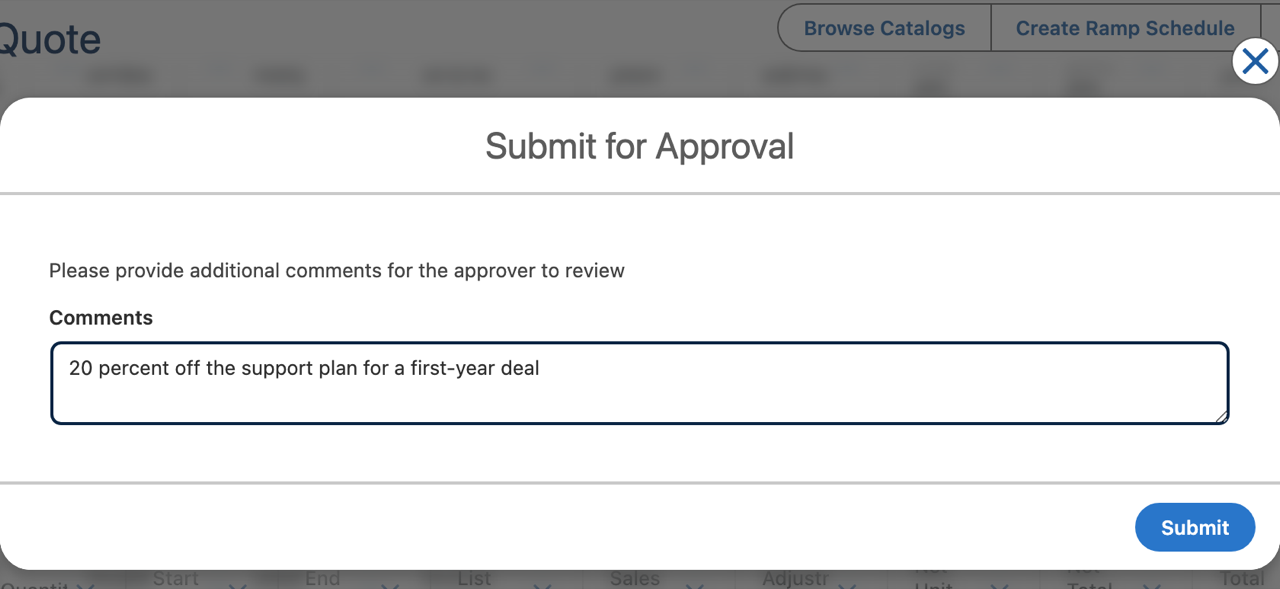
- Click Submit for Approval 3. The window Submit for Approval opens: "Please provide additional comments for the approver to review", with a box Comments and a Submit button.
 45
The window Submit for Approval, with the comment typed. - In Comments 4, type
20 percent off the support plan for a first-year deal. - Click Submit 5.
 6
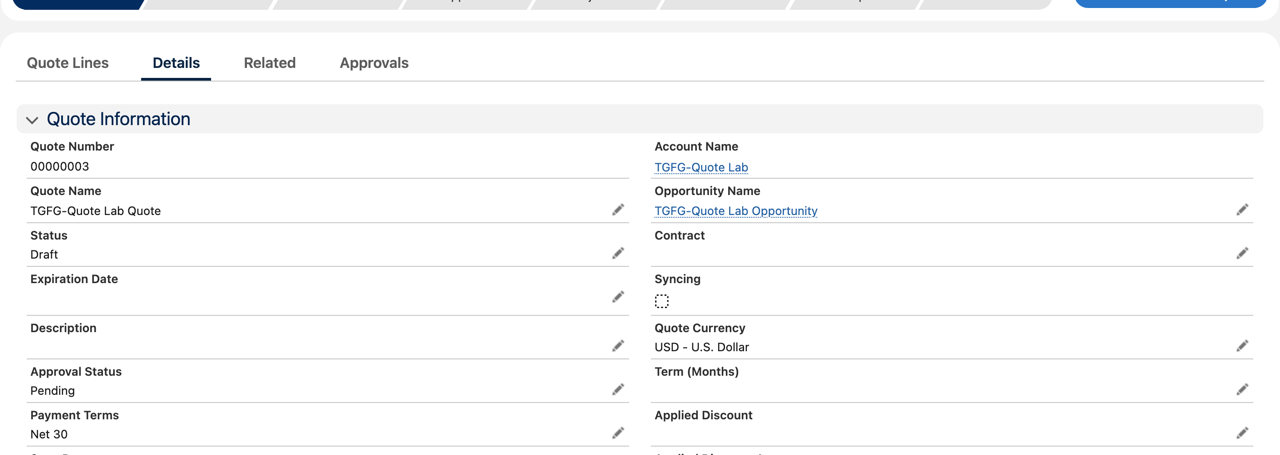
Details after Submit, with Status Draft and Approval Status Pending. - Click the Details tab 6.
You should see: the window reads Your flow finished for a moment and closes; no other message shows. On Details, without a reload, Approval Status Pending and Status still Draft; the path stays on Draft.
Good to know: a status mail may arrive at your user's email address after Submit; nothing needs doing with it.
Read what it made
 Approval Work Item
What this is. Submitting made an approval submission, the request as a whole, and an approval work item, the Manager step of it, assigned to the group Manager. Both have numbers, not names, and the page of each is titled TGFG-Quote Lab Quote. The request waits, because the group Manager has no members.
Part What it is Approval work item, a number starting AWI- One approval step assigned to a user, group or queue. It tracks the step's status and keeps the reviewer's decision Assigned To Manager The group Manager, as the step Manager Approver says Approval Chain Name Discount The chain the step is on Approval Condition Name Manager Approver The step of the workflow that made the work item Eligible For Smart Approval Smart Approval is on for this step: Salesforce's page says a resubmission whose values stay within range skips re-approval Approval submission, a number starting AS- The approval request as a whole: it tracks the request's progress and holds the work items Recall Takes the request back. Salesforce's page lists recalling among what a submitter can do. Don't click it in this lab The group Manager Whoever is in it can act on the work item. It has no members, so no reviewer can - Click the Quotes tab. It opens on the list Recently Viewed.
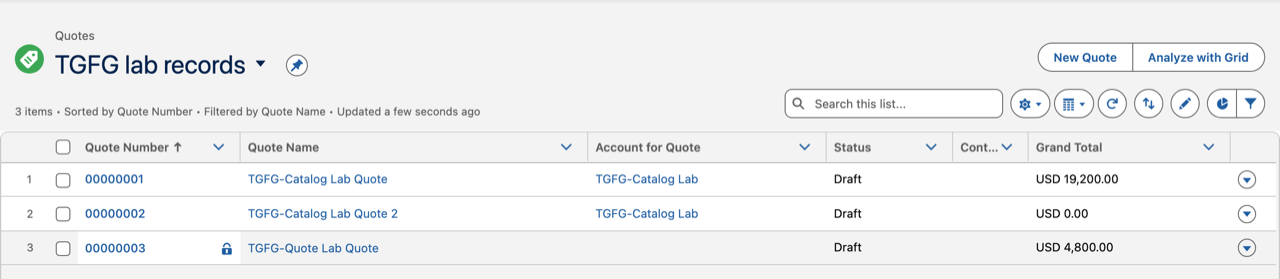 23
The Quotes list TGFG lab records, with TGFG-Quote Lab Quote in it. - Switch the list to TGFG lab records 2. It lists quotes by Quote Number, with Quote Name, Account for Quote, Status, Contract Number and Grand Total.
- Click TGFG-Quote Lab Quote 3. It opens on its Quote Lines tab.
- Reload the browser page. The quote opens again on Quote Lines.
 568
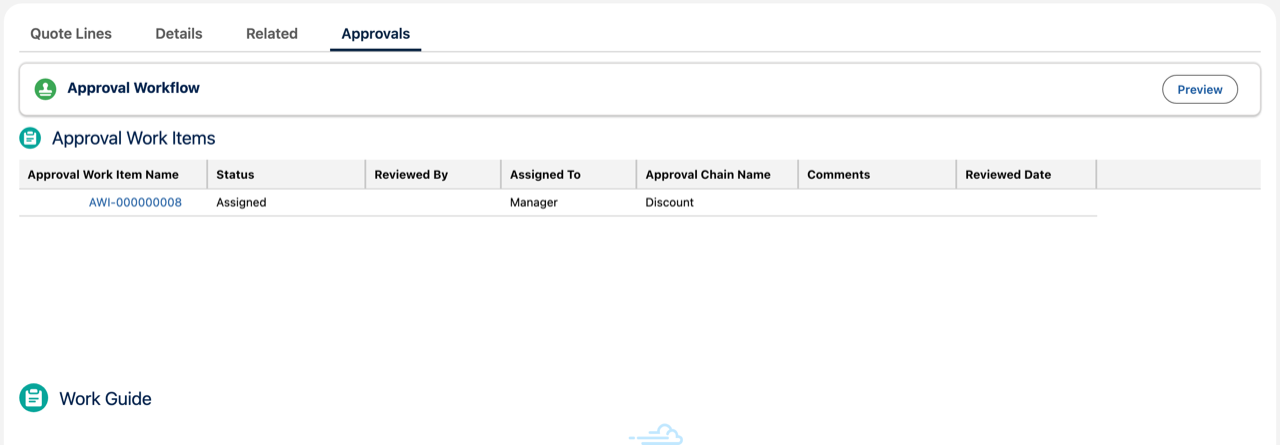
The Approvals tab after Submit, with one approval work item. - Click the Approvals tab 5.
- Click Preview 6.
- Close the window with its X.
- Under Approval Work Items, click the work item's number 8, which starts AWI-. It opens in a tab of its own in the navigation bar, its page titled TGFG-Quote Lab Quote.
 9
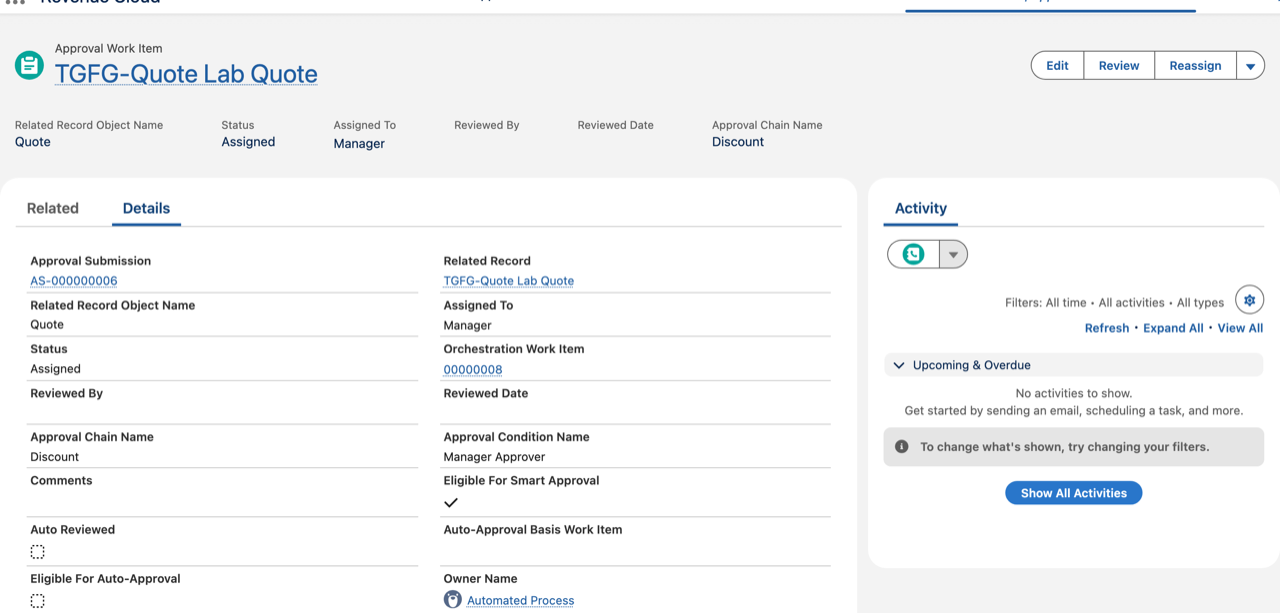
The approval work item, titled TGFG-Quote Lab Quote, on its Details tab. - Under Approval Submission, click the submission's number 9, which starts AS-. It opens in the same tab of the navigation bar, in place of the work item.
- Go to the browser tab with Setup. It is still on Flows.
- Clear the Quick Find box. It still holds Flows from step 12, and anything you type is added to it.
- Type
Public Groups. - Click Public Groups, under Users.
- Click Manager.
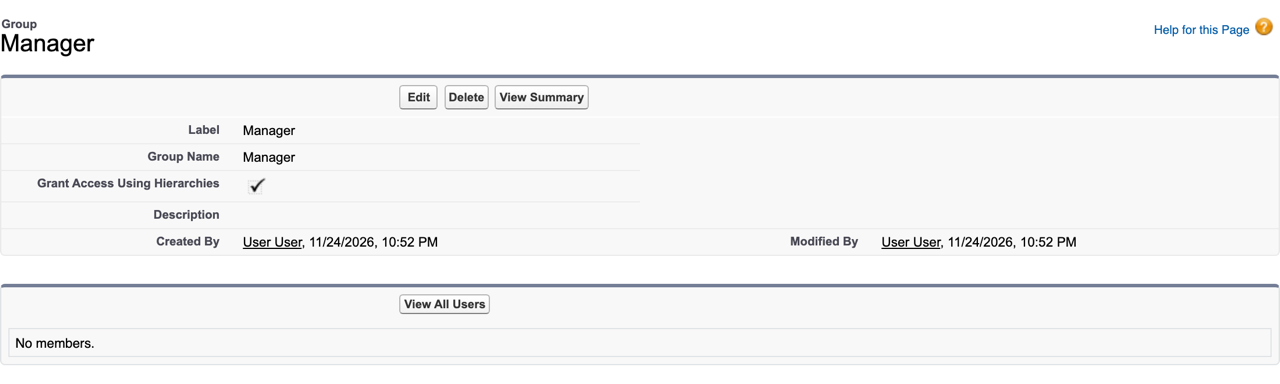
The page of the group Manager, which says No members. You should see: under Approval Work Items, one row: the work item's number, Status Assigned, Assigned To Manager and Approval Chain Name Discount. The preview still shows Discount, Not Submitted, Manager and Manager Approver: it simulates, and doesn't follow the request you sent. The work item has the buttons Edit, Review and Reassign, Status Assigned, Assigned To Manager and Approval Chain Name Discount; on its Details, Approval Submission (its number, starting AS-), Related Record TGFG-Quote Lab Quote, Approval Condition Name Manager Approver, Eligible For Smart Approval ticked and Owner Name Automated Process. The submission has the buttons Edit, Change Owner and Recall, Status In Progress, Submitted By your user, your comment under Comments and Send Approval Email True. Public Groups lists Director, Manager and VP, and the page of Manager says "No members."
Good to know: in a lab org, the quote opened from the list still showed its page from before Submit: without the reload in click 4, Approval Work Items read "There are no approval work items associated with this record." This lab doesn't approve: approving it as its reviewer needs a member in the group Manager, and adding one changes your org's setup, which the labs leave as it is. So TGFG-Quote Lab Quote stays at Approval Status Pending, and that is where this lab ends.
These groups come with the launchpad
The public groups Manager, Director and VP are the approvers the workflow's steps assign (step 12). Salesforce's launchpad added them to your lab org with no members; a plain Revenue Cloud org doesn't have them, and a project's own approvers may differ. Their parts:
- The chain Discount holds the steps Manager Approver, Director Approver and VP Approver, for the groups Manager, Director and VP.
- The chain Finance holds the one step Payment Terms, for the group Manager, when Payment Terms isn't Net 30.
- The page of Manager in Setup says "No members.", and the setup's check finds no members in Director or VP either, so a work item assigned to any of them waits.
You finished the Quote lab
Here is what you made in your lab org.
- A quote, TGFG-Quote Lab Quote, on the opportunity TGFG-Quote Lab Opportunity
- Its three lines, from your bundle: TGFG-Support Bundle, with TGFG-Onboarding Session and TGFG-Priority Support Plan under it
- On the line of TGFG-Priority Support Plan, TGFG-Support Tier set to Premium and a discount of 20 percent
- An approval submission and its approval work item. They have numbers, starting AS- and AWI-, not names: the page of each is titled with the quote's name, TGFG-Quote Lab Quote
What to take away
- In your lab org, a quote is worked on one page: its lines in the line editor, its fields on Details, its approvals on a tab of their own.
- Pointing reads a price. A line's Net Unit Price opens its waterfall, and a bundle's Total Price opens the bundle's total.
- Your bundle came in with its components, and the onboarding, whose price the bundle includes, netted 0 on its line.
- With Instant Pricing on, a manual discount reprices its line at once, and Save writes it to the quote. Before Save the summary's Discount moved while its Grand Total stayed.
- In your lab org, a line's discount sets its approval level, and the quote takes the highest. At 20 percent the plan's line asked for Manager, and the quote's level went to 1.
- Preview shows the chains a submission would start, before you submit: Discount for the discount, and Finance as well when Payment Terms isn't Net 30. It simulates, so after you submit it still says Not Submitted.
- Submitting makes a submission and a work item, and the work item waits for its approver. With nobody in the group Manager, TGFG-Quote Lab Quote stays Pending.